

What you can do without an account
You can browse Pascal freely without signing in:- Explore public projects on the community page.
- Open any shared view link and walk through the scene in 3D.
- Read the changelog and browse public profiles.
- Create, edit, and save your own projects.
- Publish your work and interact with the community — see Sharing your work.
- Use AI features: the assistant and studio renders (both spend credits).
- Upload scans from the Pascal Capture app — see Capture.
Signing in
There are no passwords in Pascal. The sign-in dialog offers two ways in:- Google — click “Continue with Google” and pick your Google account.
- Email — type your address and click “Email me”. Pascal sends you an email containing both a sign-in link and a 6-digit code: click the link, or type the code into the dialog. The link and code expire after 5 minutes, and you can request a new one with “Resend code”.
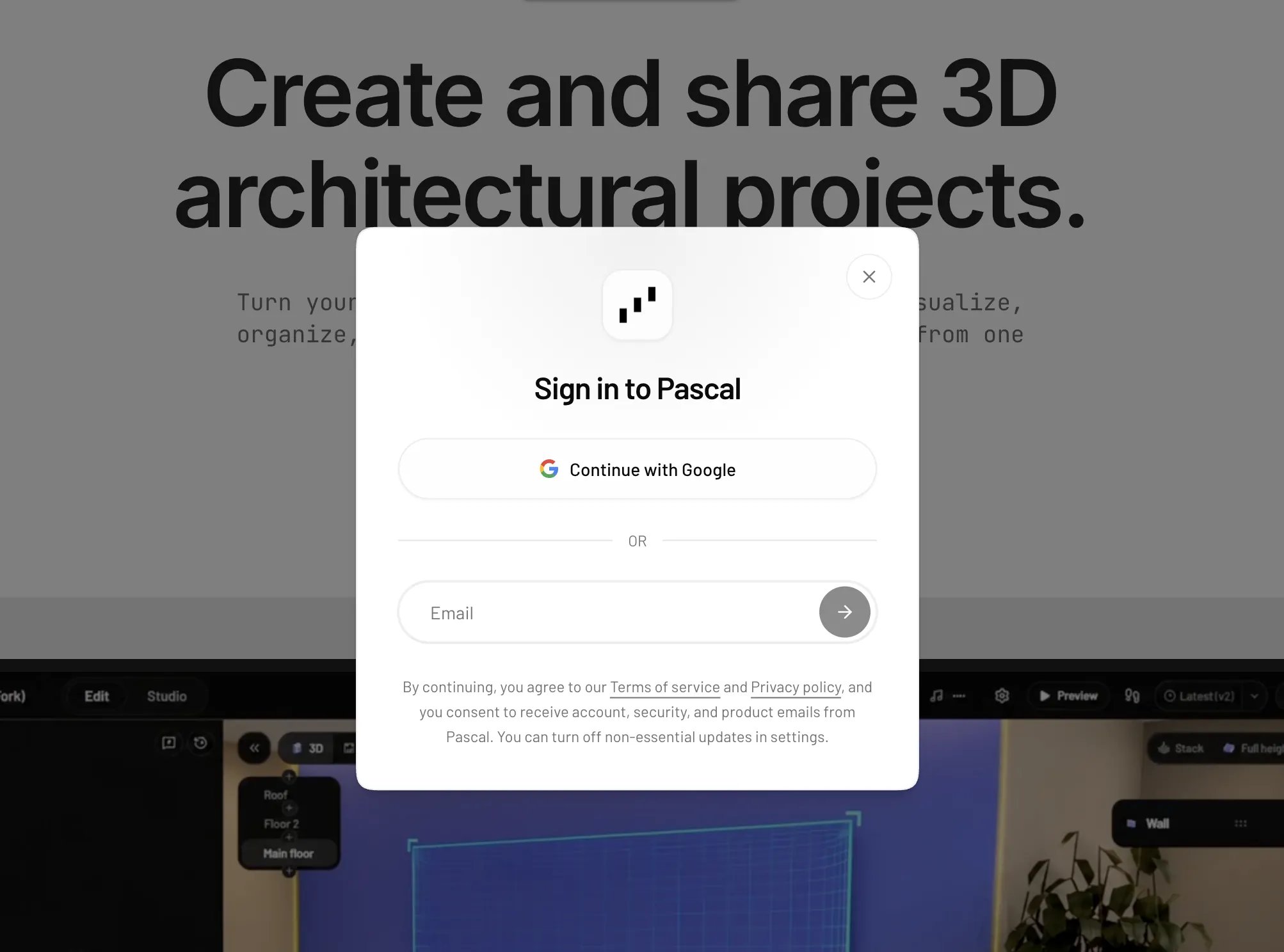
The sign-in dialog
Profile settings
Open Settings from your profile menu. The Profile section covers how you appear to others:- Avatar — click your avatar and choose an image to upload.
- Public Username — your public display name on the community hub, 3–30
characters using letters, numbers, hyphens, and underscores. It also becomes your
public profile URL:
https://editor.pascal.app/u/<username>. - Social Links — add your GitHub, X (Twitter), and YouTube links to show them on your public profile.
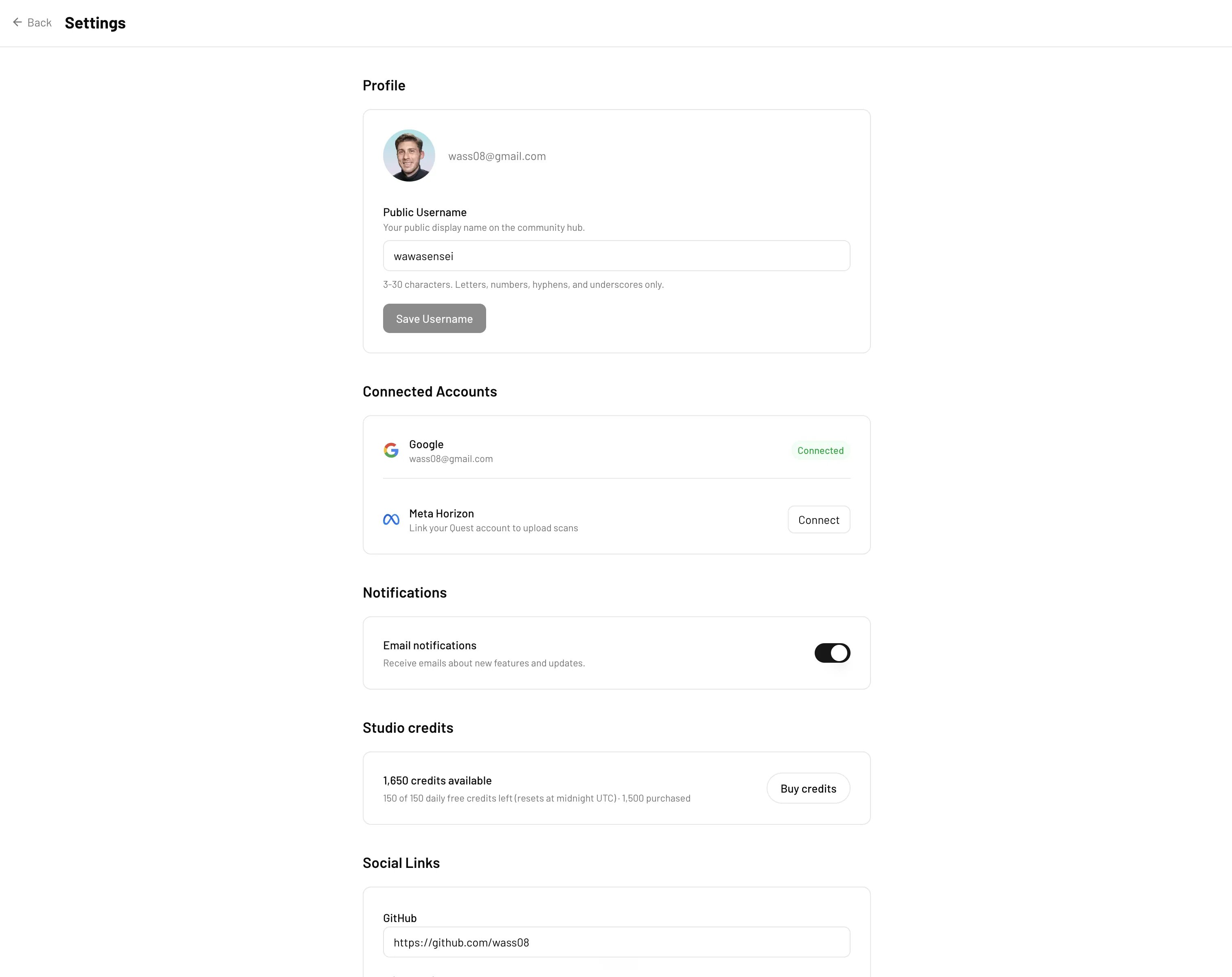
Profile settings
Connected accounts
The Connected Accounts section shows which providers are linked to your account:- Google — connect it for one-click sign-in if you originally signed up by email.
- Meta Horizon — link your Quest account to upload scans from your headset.
Notifications
The Notifications section has a single “Email notifications” toggle that controls emails about new features and updates. Essential account and security emails are always delivered.API keys
The API keys section lets you create keys for connecting AI agents (like Claude Code or Codex) to your Pascal account over MCP. The “Connect an AI agent” panel below it shows ready-to-copy setup commands for each tool. Read Connect an AI agent for the complete hosted MCP setup, credential guidance, first prompt, and troubleshooting steps.Deleting your account
You can delete your account yourself from Settings:- Scroll to the Danger zone section.
- Click “Delete account”.
- Type
DELETEin the confirmation dialog and confirm.