

Export a 3D model
Open Settings at the bottom of the left sidebar and find the Export section. Under 3D model there are three general-purpose formats: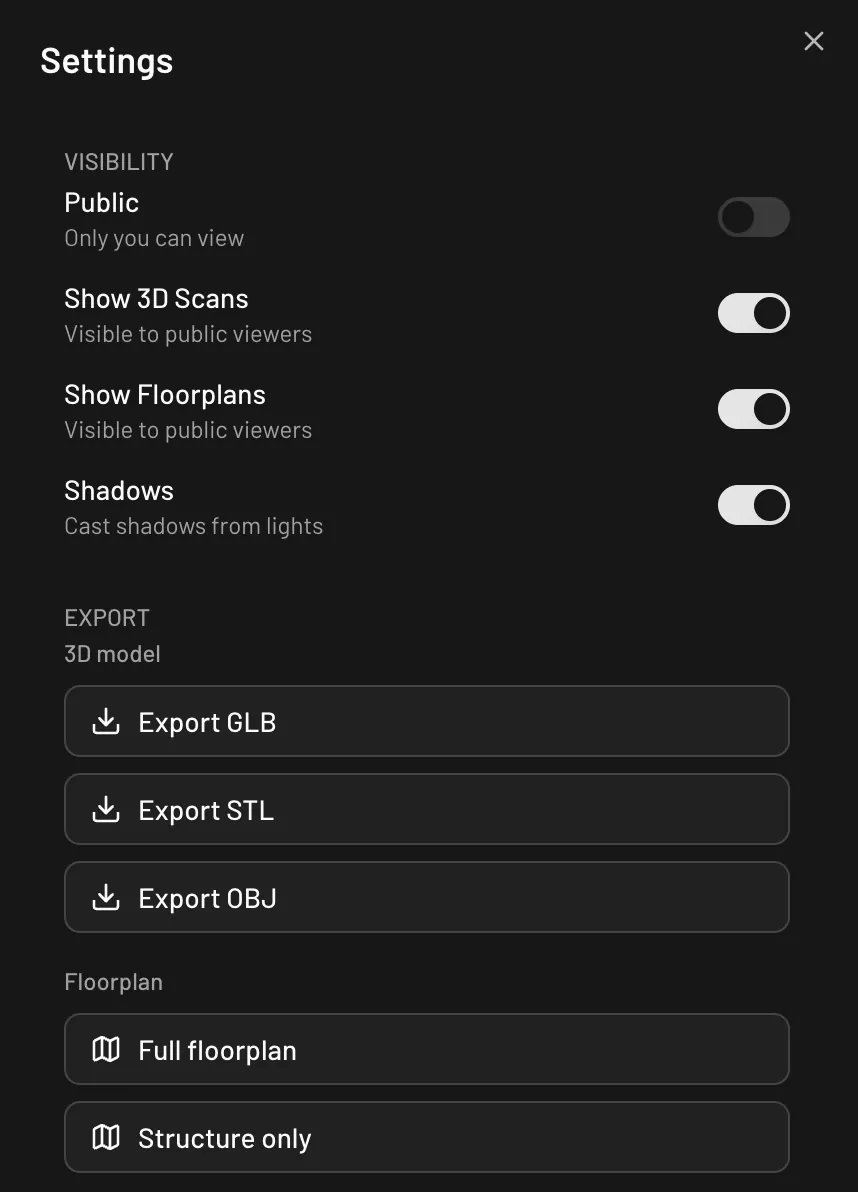
The Export section in the Settings panel
GLB is the most complete format: it carries your materials and textures, glass as real
transmission, and the Pascal structure (levels, rooms, labels) as glTF extras that any
standard viewer ignores and the Blender extension turns into
collections — no Pascal software needed on the other end. STL and OBJ export geometry
only, without materials.
Files download with a dated name, for example
model_2026-07-06.glb.
Visible nodes only sits above the buttons and is on by default. Hide anything you
don’t want in the file — furniture, a level you’re not exporting, a guide image — and it
stays out of GLB, STL, and OBJ alike, along with everything inside it.
For a model you intend to 3D print, use Export 3D print files below rather than
Export STL. The STL button hands the slicer the same surfaces the renderer draws,
which is usually not a closed, printable solid.
Send to Blender
Send to Blender, right under the export buttons, skips the download: with Blender open and the Pascal for Blender extension installed, the live scene lands in Blender as collections per level, named objects, room floors and a ready lighting setup. The first time, Blender asks you to allow the editor’s site with one click in its Pascal tab.Export 3D print files
Export 3D print files produces parts a slicer can open and print, rather than a render-oriented mesh. It’s in the same Export section, under the three model buttons. There’s nothing to configure. Pascal compiles the building’s structure into a closed, watertight solid and gives you:- One part per level, so a multi-storey building prints as a stack you assemble.
- 1:100 scale, with the file declaring real millimetres, so the parts open at the right physical size instead of needing to be scaled by hand.
- A 3MF package, which carries the part layout with it.
Export a floorplan PDF
The same Export section has a Floorplan group with two buttons:- Full floorplan — the complete plan, including furniture and items.
- Structure only — just the building: walls, slabs, doors, windows, stairs, columns, and roofs.
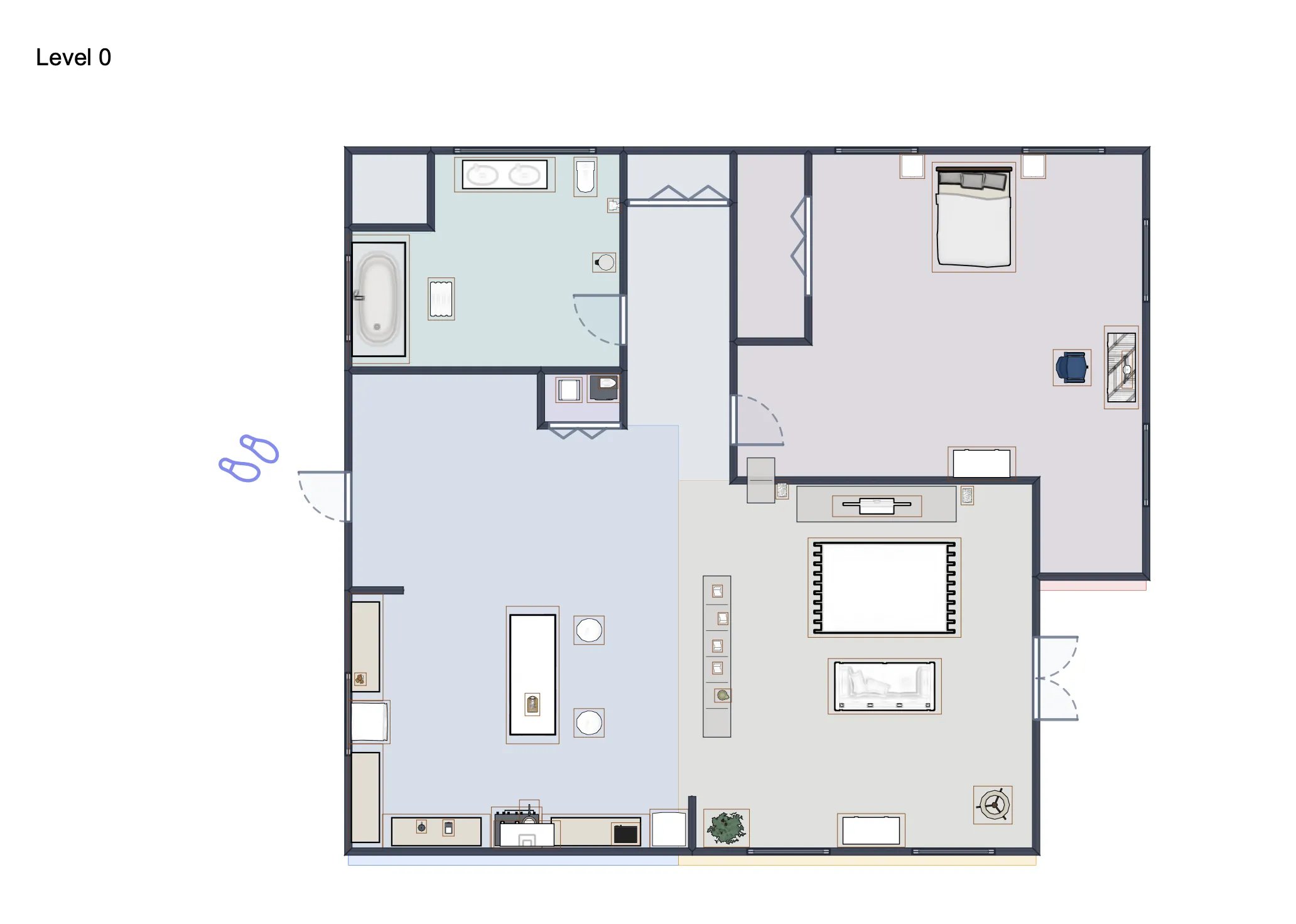
A page from an exported floorplan PDF
Back up scene data
To keep a raw copy of your scene’s data, use Save Build in the Save & Load section of the Settings panel. It downloads a JSON file you can re-import later with Load Build — handy for offline backups or moving a design between accounts. The command palette’s Export Scene (JSON) does the same kind of raw data export.Baking: what happens when you publish
When you publish a project (Save & publish in the editor), Pascal automatically bakes the published version in the background: the scene is converted into a self-contained, optimized 3D model that the shared viewer loads much faster than rebuilding the scene from scratch.- Baking starts automatically after every publish — there’s nothing to trigger.
- It usually finishes within a few minutes. Until the bake is ready, your viewer link shows the live scene, so sharing is never blocked.
- Re-publishing (or republishing an older version) bakes again, so the viewer always matches what you published.
Import IFC files
Pascal can also bring building models in: the IFC importer converts an IFC model into an editable Pascal scene.- Go to editor.pascal.app/ifc (you’ll need to be signed in).
- Drop an
.ifcfile (up to 100 MB) or browse for one. - Watch the conversion progress, then preview the result in 3D.
- Click Edit in Pascal to create a project from the conversion and open it in the editor.
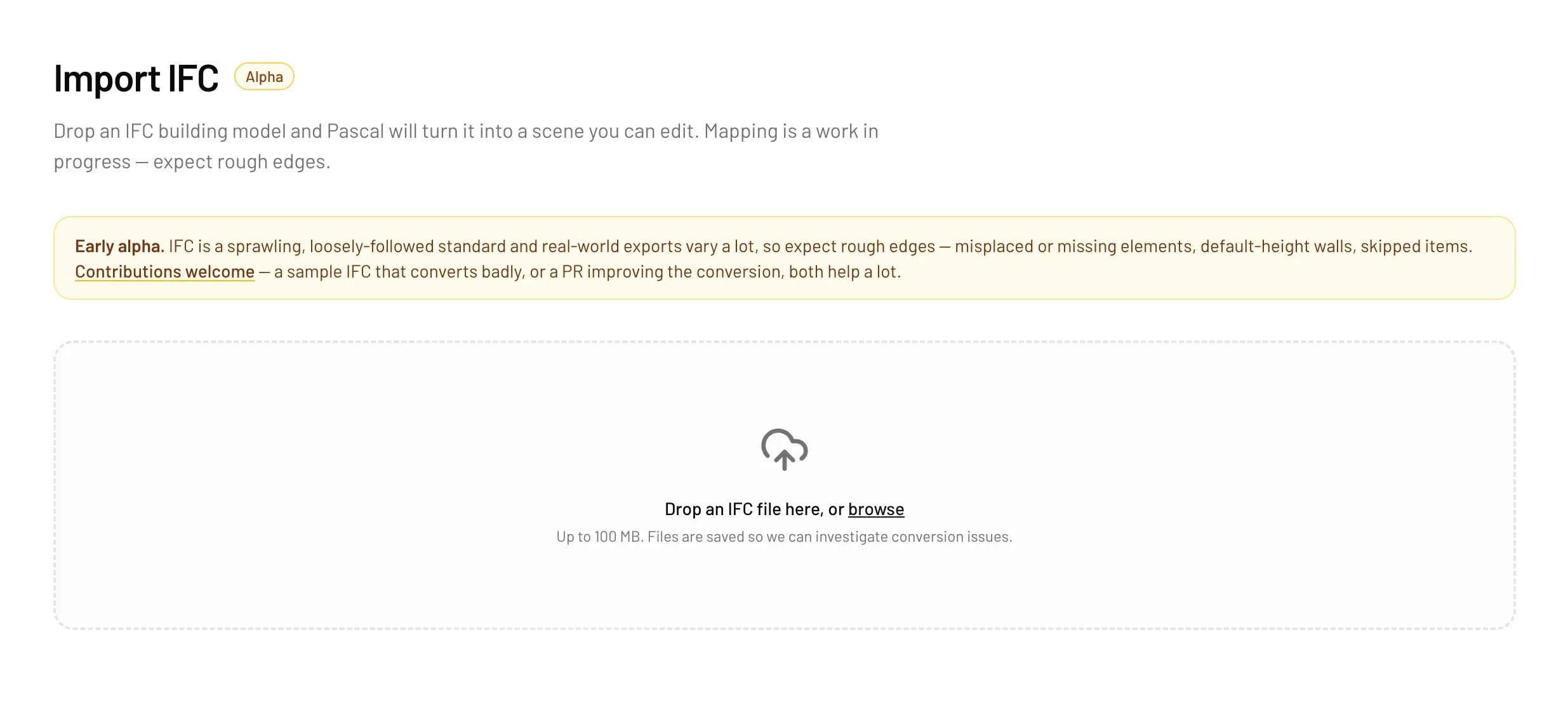
The IFC importer