

<iframe>
pointing at its viewer page. Visitors get the full interactive viewer — orbiting the
camera, toggling levels and wall cutaways, and walking through the scene in first
person — with no accounts, SDKs, or scripts required on your side.
We rely on the same embed ourselves: the Pascal Capture iOS app
shows scenes through this exact viewer.
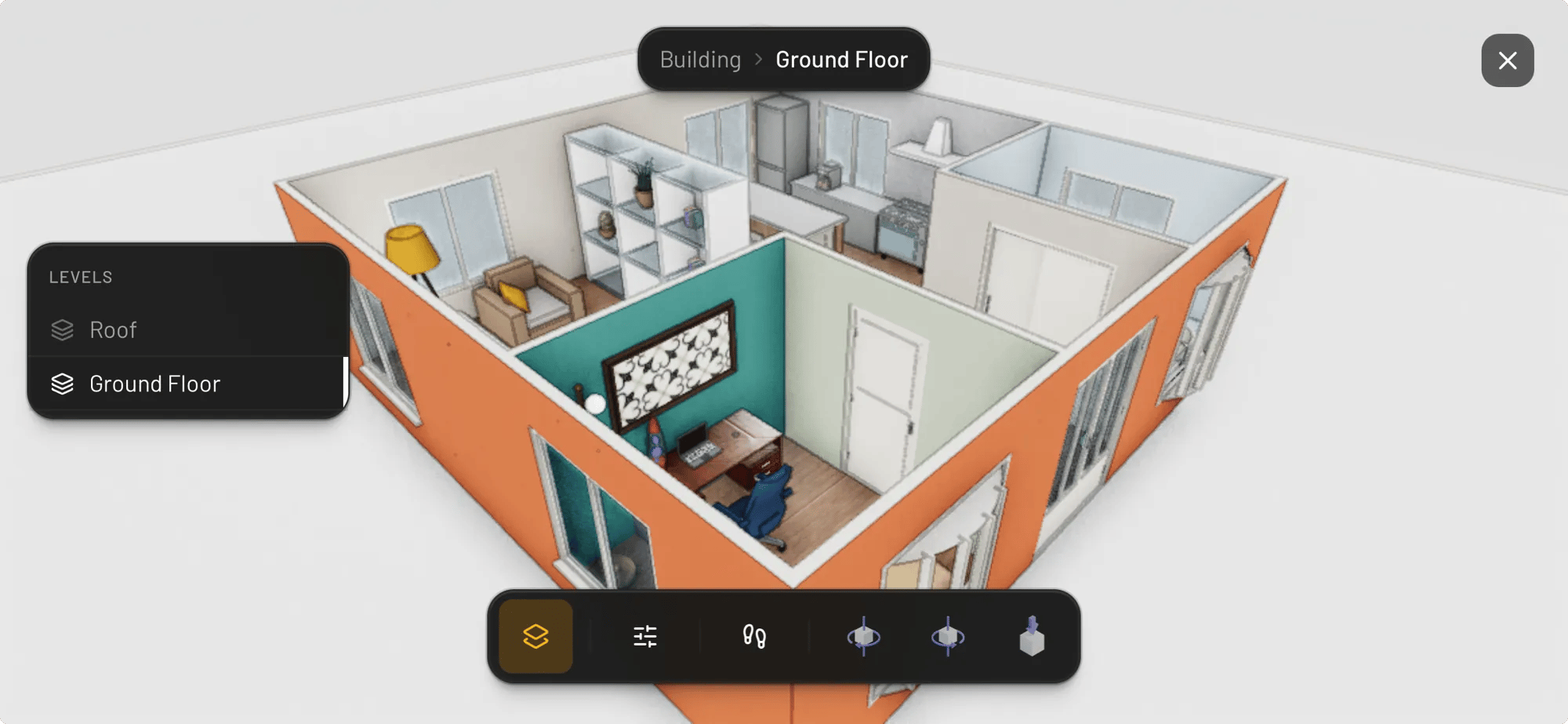
The embedded viewer inside the Pascal Capture iOS app — levels panel and controls bar included
Requirements
- The project must be public. Flip the visibility control in the editor’s top bar from Private to Public. Private projects render an access screen instead of the scene.
- Grab the URL with the Copy viewer link button next to the visibility control, or copy it from the address bar on the project’s viewer page. It has the form:
Basic embed
PROJECT_ID with your project’s id (the last path segment of your viewer
link). For a responsive embed, wrap the iframe in a container with a fixed aspect
ratio:
Embed mode for listings
Addembed=1 to show the scene the way the editor’s Preview does: the scene header
(project name, breadcrumb and levels), the controls bar and the 2D/3D switcher. The
community’s owner card, likes, Duplicate button, collections and the “Get Started” card are
hidden.
When the scene is loaded and the opening view has landed, the frame posts one message
to its parent, so your page can reveal the frame without showing the default view
first:
URL parameters
The viewer accepts two flags to reduce its chrome inside embeds. A value of1,
true, or yes enables a flag.
Signed-out visitors see a small “Get Started” card in the top-right corner of the
viewer. It is part of the hosted viewer and can’t be turned off by a URL flag.
What the embed serves
Embeds load the same thing your shared viewer link does: once a published project has finished baking, the viewer serves the optimized baked copy for fast loading, with doors and windows still interactive. Until a fresh bake is ready, it falls back to rendering the live scene. Republishing your project updates every embed automatically — the iframe URL never changes.Current limits
- An iframe is the only supported embed today. There is no oEmbed endpoint or
JavaScript API; the frame posts one message,
pascal:viewer-ready, and accepts none. - Only the read-only viewer can be embedded, not the editor.