

Save something to your catalog
Select an element in the scene. If it can be saved as a preset, a Save to my catalog button appears below the inspector on the right. Clicking it starts a two-step flow:- Frame it. The editor temporarily hides everything except your selection and
shows a square crop with the prompt Frame your item. Orbit and zoom until it
looks good, then click Capture at the bottom — this photo becomes the preset’s
catalog thumbnail. Press
Escto cancel. - Describe it. Give the preset a Name and optional Description, pick at least one Function tag (these decide where it shows up in the catalog) and optionally the Rooms it belongs in, then choose its Visibility — Public or Private. Click Save to my catalog to finish.
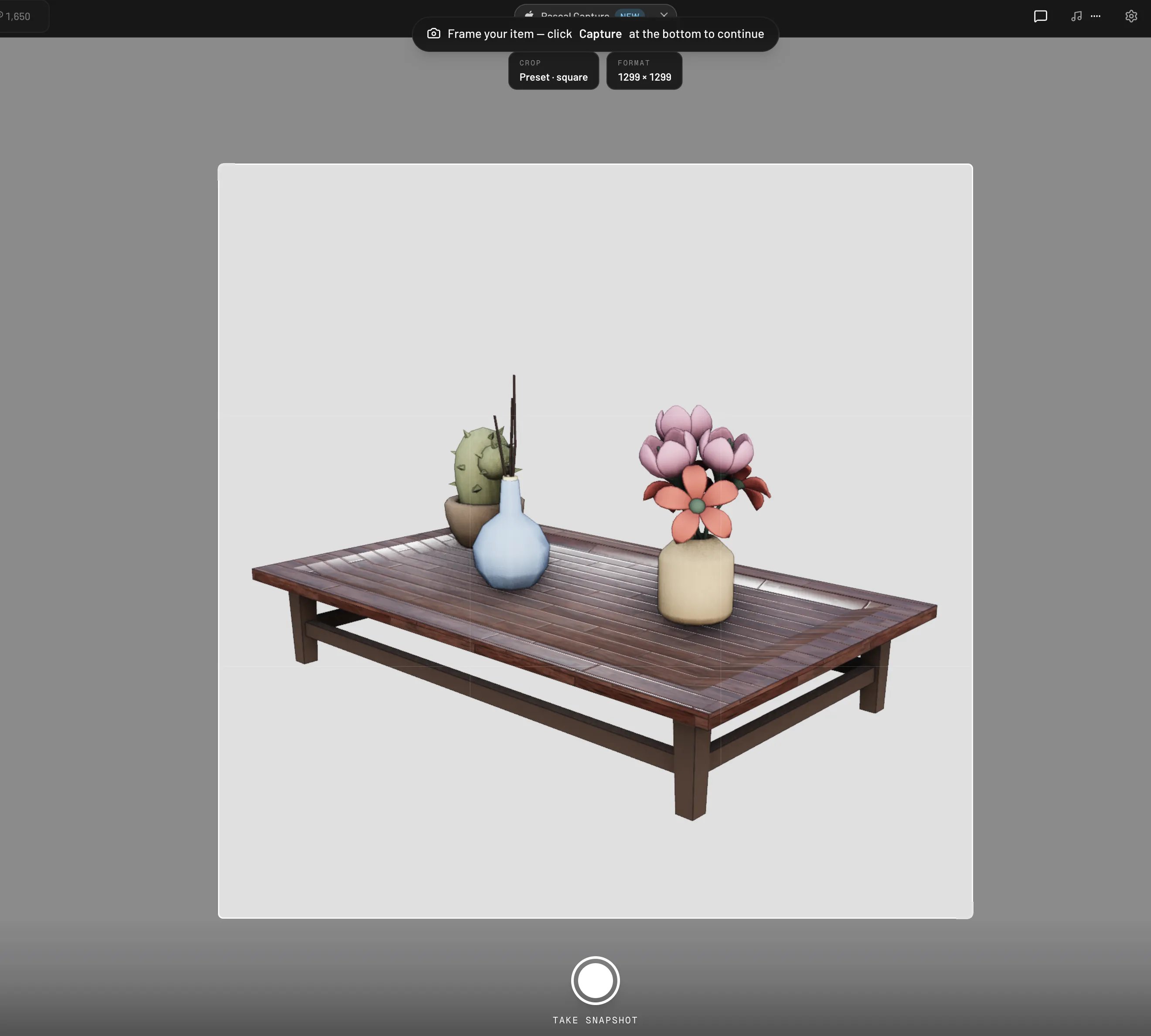
Saving a dressed table as a preset
Whole rooms
Selecting a room works too — the button opens a Save room to catalog flow that captures the room’s walls, floor, and contents together, with room tags instead of function tags. Saved rooms appear in the Build tab under Pre-built rooms. You can’t save a whole level or building as a preset — save it room by room instead, or share the project itself (see Sharing your work).Where presets show up
- Furnishing presets (items, shelves, and compositions) join the regular catalog in the Items, By room, and Search tabs, placed by their tags right next to the built-in library. Use the Mine source filter to see just yours — see Finding items for how the All / Pascal / Mine / Community filter works.
- Build presets live in the Build tab: select a type tile (for example Wall) and its presets appear below, with the same source filter. Roof features show under Roof, and saved rooms under Pre-built rooms.
- Everything you’ve saved is also listed at editor.pascal.app/items, alongside your uploaded and AI-generated items.
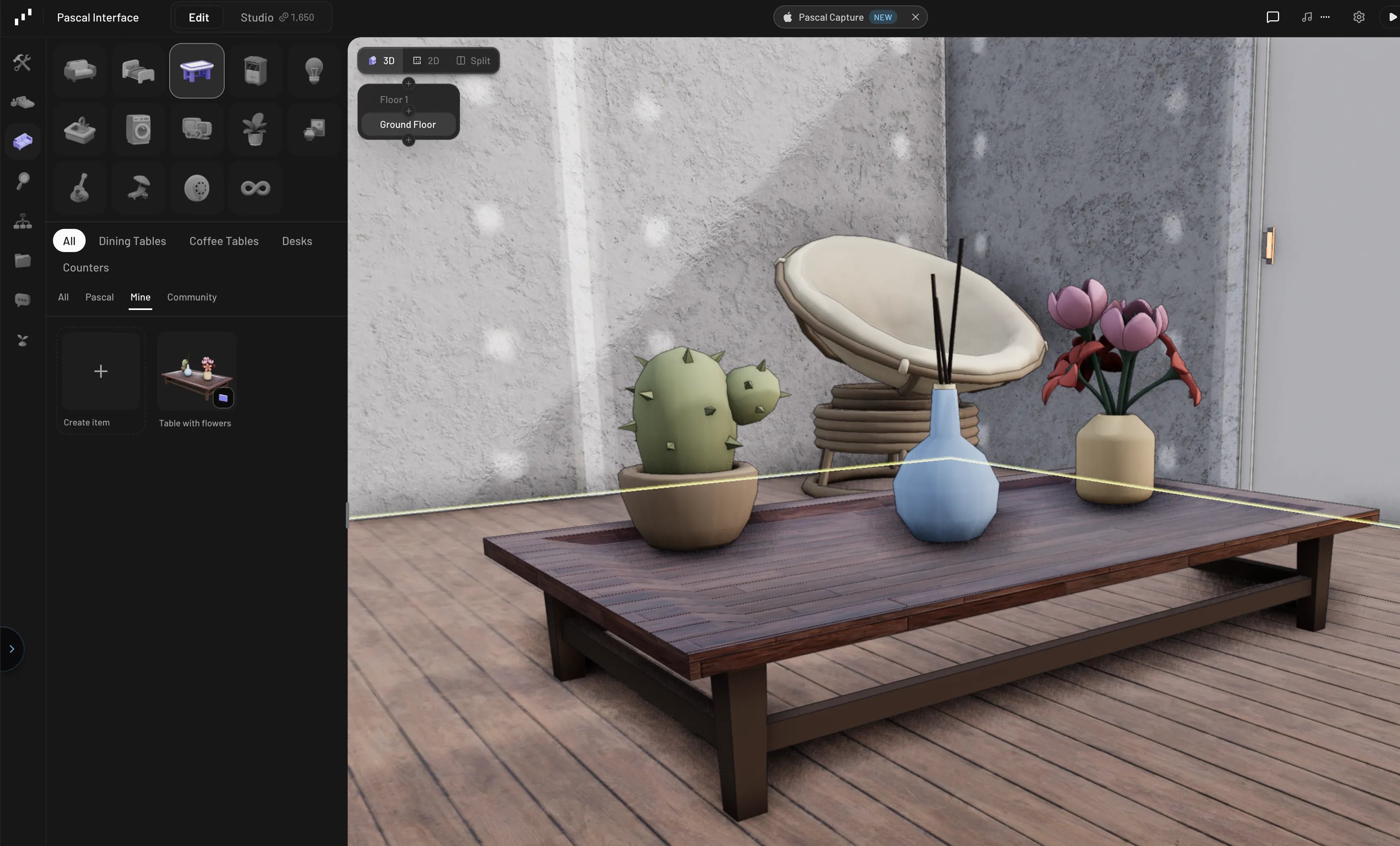
The table you saved, waiting in the Mine tab
Private or public
The Visibility choice controls who sees a preset:- Public (the default) — published to the community; anyone can find and place it.
- Private — only you can see it, under your Mine filter.
Managing your presets
Hover one of your preset tiles in the catalog to reveal its actions:- Edit details — rename it, change its tags and rooms, or switch it between public and private.
- Update with the current selection — replace the preset’s contents with whatever you have selected in the scene. Copies you’ve already placed are unaffected.
- Archive — remove it from the catalog. Anything you’ve already placed keeps working.
Using community presets
Presets published by other users appear under the Community source filter. Place them directly like any other catalog entry, or hover a tile and click Save to my catalog to copy it into your own collection — the copy is yours to rename, retag, and modify without affecting the original.Presets, custom items, and templates
Three ways to reuse work in Pascal, at three different scales:- Custom items add a new 3D model to the catalog — a
.glbupload or an AI-generated model. See Creating your own items. - Presets save a configured arrangement of things that already exist — no new model, just your setup, ready to reuse. Both kinds live side by side in the same catalog with the same source filters.
- Templates are whole projects you can start from when creating a new project. See Your first scene.