

Placing items in Pascal
Placing an item
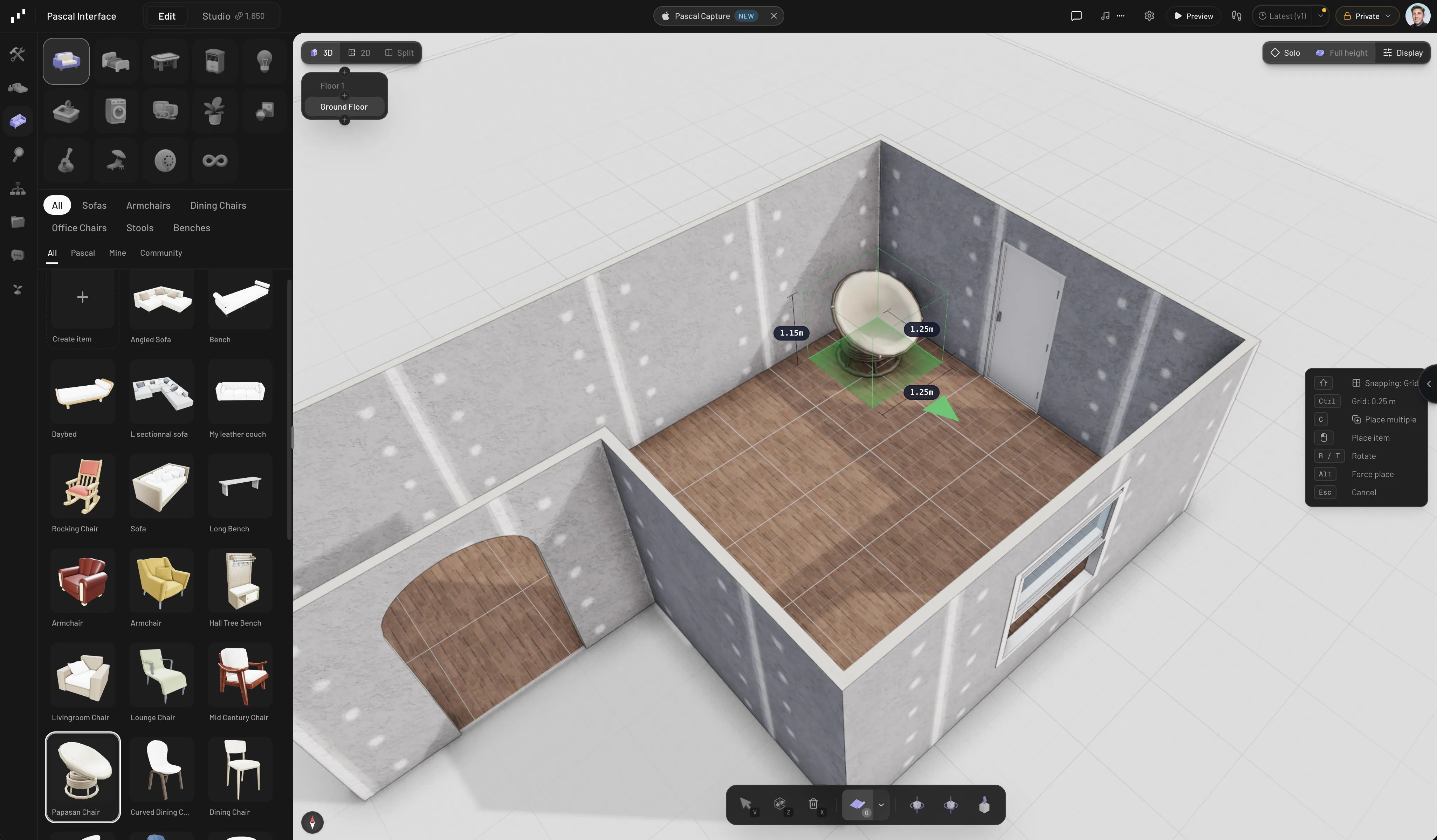
Pick any item from the catalog (pressF to jump straight to the Items panel).
A preview follows your cursor with a wireframe outline and live dimension guides.
The on-screen hints spell out the controls:
Left click— place the itemR/T— rotate the preview in 45° steps (clockwise / counter-clockwise)Shift— cycle the snapping modeAlt— force place, bypassing placement checksEsc— cancel (a quick right-click cancels too)
C while placing.
Items with a wall or ceiling badge in the catalog snap to their surface: a picture
glides along walls, a ceiling lamp along the ceiling. Everything else lands on the
floor — or on another item.
A floor item that stands in a door’s way, or that its room can’t hold in any
rotation, gets a warning in the hints’ ! row while you place or move it (“Blocks
the door to Bath”, “Too large for Bath”), and at the top of its properties panel once
placed. It’s a warning, not a block: you can still place it there. The assistant
uses the same check and won’t place an item there.
Stacking items on items
Any item with a usable top surface can host other items: a lamp on a table, books on a shelf, a plant on a counter. Just hover the preview over the host — it snaps onto the surface. Stacks can go up to six levels deep (a chair on a platform on a truck is fine). Hosted items ride along: move or rotate the table and the lamp moves with it. Two exceptions to know about: nothing stacks on ceiling-mounted items, and flat floor coverings like rugs don’t capture what you drop on them — items sit on the rug visually but stay independent.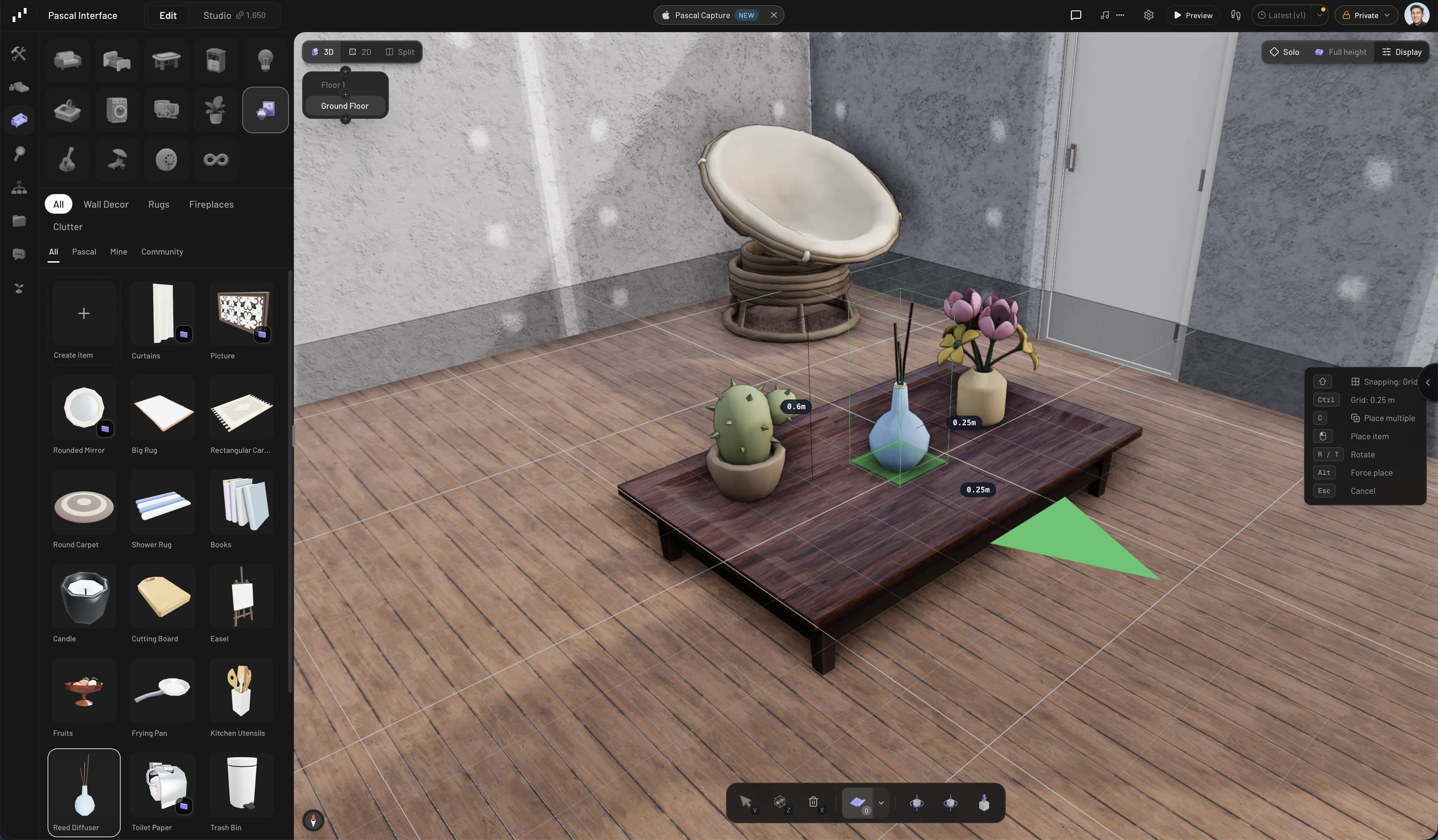
Hosted items move with their host
Selecting
PressV for the select tool (the default), then:
- Click an item to select it.
Cmd/Ctrl + clickadds or removes items from a multi-selection — this works on the 3D canvas, the 2D floor plan, and the scene graph alike.Shift + clickalso multi-selects on the canvas.- Drag on empty space to box-select everything inside the rectangle; hold
Cmd/CtrlorShiftwhile dragging to add to the current selection. Escor a click on empty space clears the selection.
Moving and rotating
With an item selected:- Move: hold
Cmd/Ctrland drag the item with the left mouse button. Guided snapping and alignment guides are on by default. - Rotate: drag the curved-arrow handle next to the item. Rotation snaps to 15°
steps with a live degree readout — hold
Shiftto rotate freely. You can also holdCmd/Ctrland drag with the right mouse button to rotate in place. - The Move button in the item’s action menu re-arms cursor placement for the item, with the same snapping and dimension guides as first placement.
Fine-tuning in the properties panel
Selecting an item opens its panel with precise controls:- Position —
X,Y,Zsliders in meters.Yraises or lowers the item. - Rotation — a degree slider plus -45° and +45° step buttons.
- Scale — a Uniform Scale toggle; linked, one slider scales the whole item,
unlinked you get separate
X,Y,Zscale sliders. - Info — the item’s real dimensions at its current scale.
- Actions — Move, Duplicate, and Delete buttons.
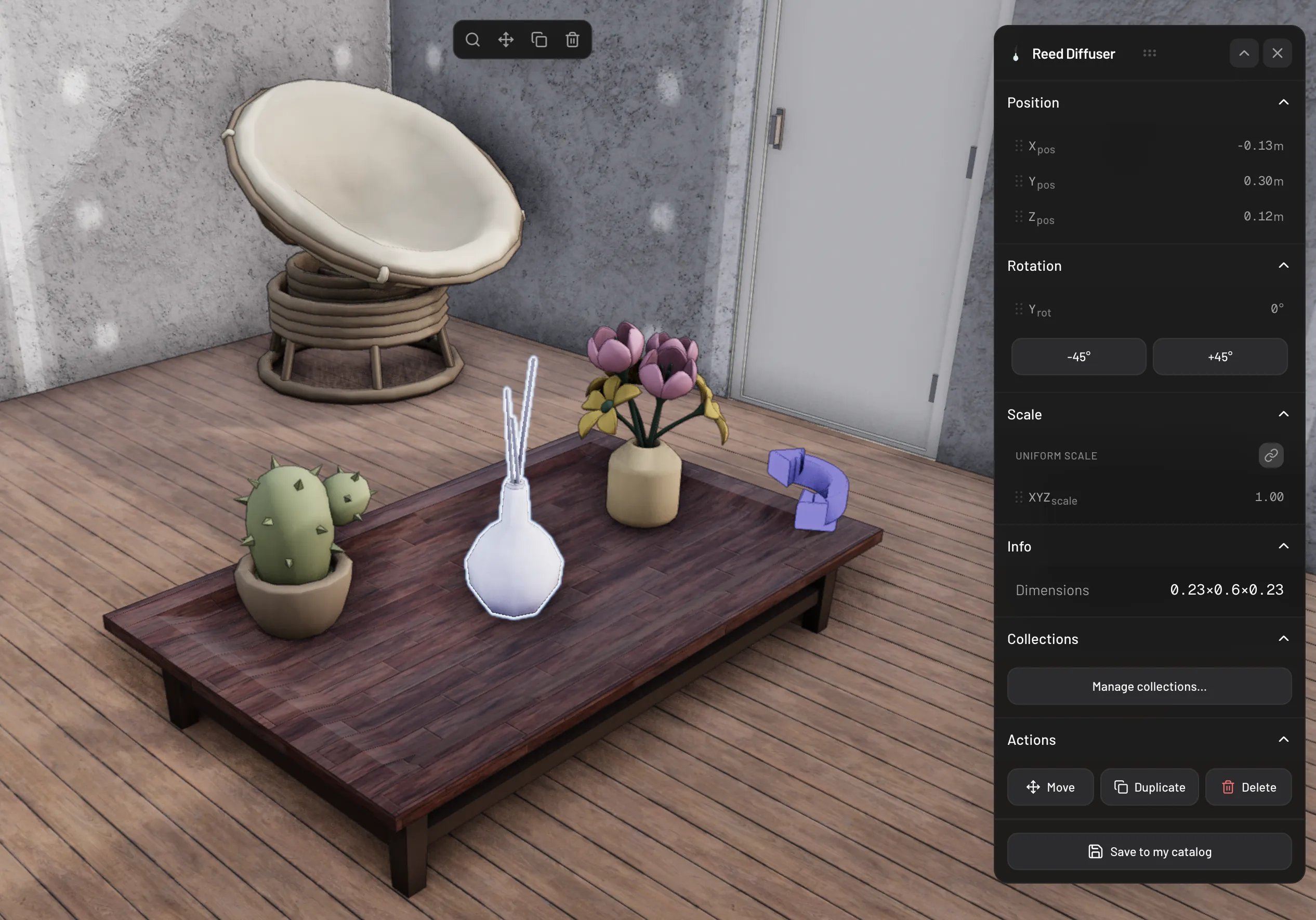
The item properties panel
Duplicating
Click Duplicate in the floating action menu (or the properties panel). The copy follows your cursor like a fresh placement — click to drop it. Nothing is added to the scene until you commit, soEsc abandons the copy cleanly.
You can also copy and paste: Cmd/Ctrl + C copies the selection, Cmd/Ctrl + V
pastes it onto the current level and selects the pasted items.
Deleting
PressDelete or Backspace to remove the selection, or use the Delete button
in the action menu or properties panel. Deleting ten or more things at once asks
for confirmation first.
Undo and redo
Every placement, move, paint, and delete is undoable:Cmd/Ctrl + Z— undoCmd/Ctrl + Shift + Z— redo
Watch it in action
How to furnish and customize your home in Pascal