

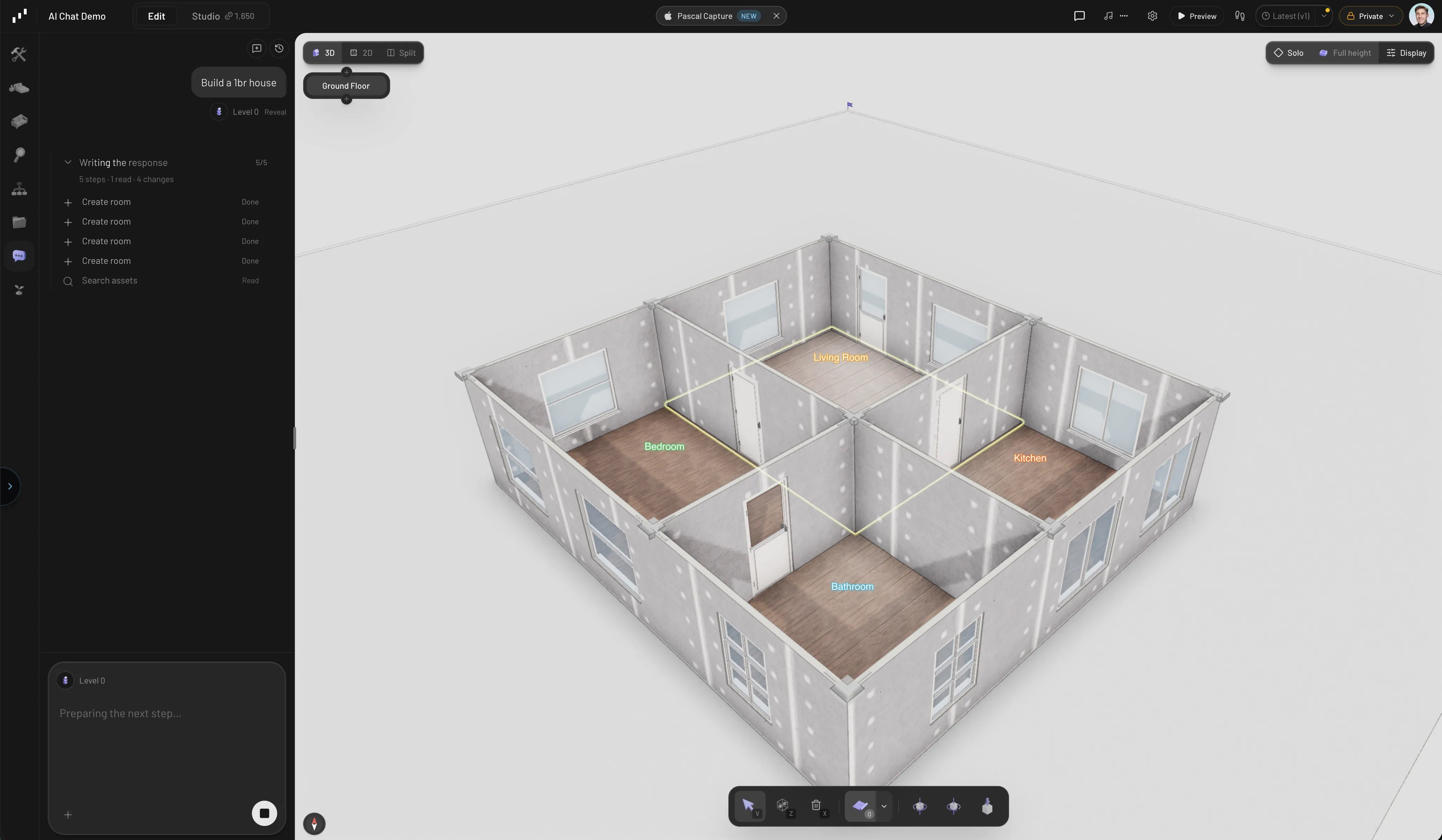
The assistant building a room from a chat message
Open the assistant
There are two ways to reach it inside an open project:- The Chat tab — select Chat in the sidebar rail. This opens the full conversation panel, where you can see the assistant’s steps, past messages, and attachments.
- The command palette — press
Cmd/Ctrl + K, type what you want, and choose Ask AI. Your request is sent straight to the assistant.
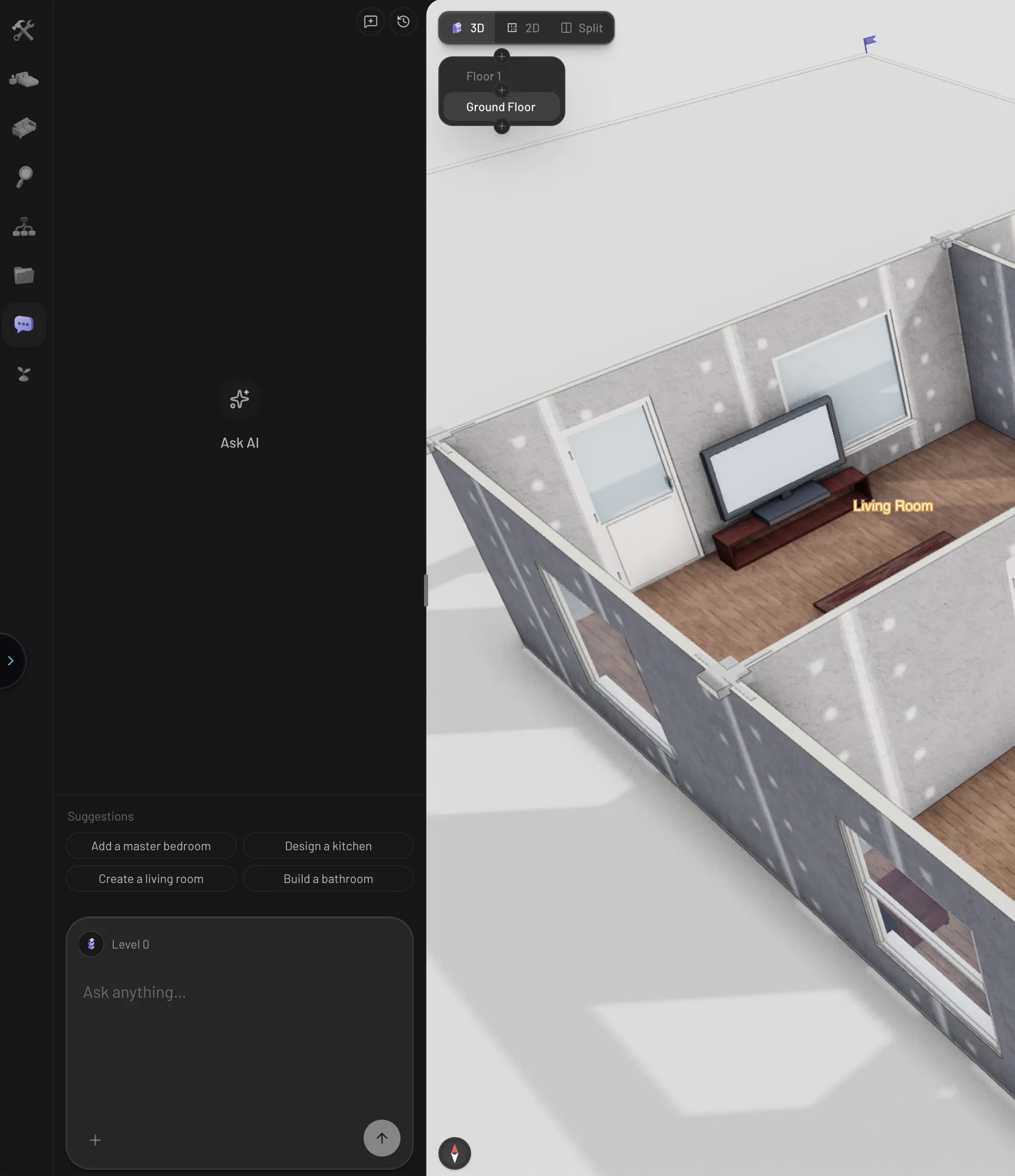
The Chat tab with suggestions
Choose a model
The model name sits in the composer controls, next to your credit balance; click it to switch. The picker lists the models Pascal offers, most capable first, with what each one is best for and an estimated credit range per message — “NEW” marks the newest arrivals and “FAST” the quickest ones. Pascal starts you on a default that handles complex edits; drop to a fast model for small tweaks, and pick a more capable one for a whole build. Your choice is remembered in this browser and applies to your next messages. Next to the model, the brain button sets how hard the model thinks before acting. Each model offers only the levels it really has, from Off or Low up to its top (High on most models, Max on Claude Opus 5.5 and Fable 5.1), and opens on its top (Extra high on Opus and Fable). The brain is full at the model’s top. More effort takes longer and spends more credits. A level you picked on another model moves to the nearest one this model has. When your ChatGPT subscription pays for the conversation, there is no effort to choose. Assistant messages cost credits — how many depends on the model, the effort, and the size of the request.What it can do
The assistant edits your scene through the same building blocks you use manually.Answer questions
It can inspect your scene without changing anything: list what’s on a level, measure rooms, check where doors and windows sit, or summarize the whole building. Ask things like “how big is the living room?” or “which walls have no windows?”.Build structure
- Rooms — draw a room from a description, complete with walls, floor, ceiling, doors, and windows. Adjacent rooms share walls and get connecting doors. It can also divide a room in two, merge, move, rotate or duplicate rooms, cut a floor opening, or add a mezzanine — the same actions as the room’s pill and panel.
- Walls, doors, and windows — add individual walls, or place openings on existing walls in a range of door and window styles.
- Levels and stairs — add, duplicate, and reorder floors, and place staircases that automatically cut an opening in the floor above.
- Roofs, columns, fences, and shelves — finish a build with a gable roof, add columns or a site fence, or place parametric shelving.
- Plugins — it can list the plugins bundled with Pascal and install one into the project, the same install the Plugins panel performs.
Furnish and decorate
It searches the same item catalog you browse in the Items tab, places furniture in rooms, and stacks smaller items onto hosts — a lamp on a nightstand, art on a wall, a pendant light on the ceiling. It won’t put a floor item in a door’s way or in a room too small for it; when you place one there yourself, the editor warns you. After placing items it checks its own work against a floor-plan view of the room, and it can look at the scene from any angle to check what it built.Edit what’s there
Ask it to rename, recolor, resize, rotate, move, or delete anything in the scene — “make the kitchen walls sage green”, “delete the second sofa”, “rotate the bed to face the window”.Plan a whole build
For a brief like “build a two-storey, three-bedroom house”, the assistant plans the build instead of placing things one at a time: it lays out the structure first, then furnishes it, then adds the finishing touches — roof, lights, garden, fence. Each phase shows up as one row in the activity list with what it created (for example “6 rooms · 22 walls · 14 windows · 9 doors”) and how its own check came out. That check is the assistant reviewing its result: rooms with no door, walls with no window, a missing stair between floors, a missing roof, fixtures in the wrong kind of room. Whatever it could not resolve is listed as Open items under the reply rather than left for you to find in the scene.Give it context
The more the assistant knows about what you mean, the better the result:- Select something first. Your current selection is attached to your message, so “make this taller” or “change its color” refers to the thing you selected.
- Attach images and PDFs. Drop files into the chat or use the attachment button — a reference photo, a floor plan, a furniture brochure. Images and PDF documents are supported.
- Project files. Files you’ve uploaded to the project’s Files tab (scans, guides, reference images) are available to the assistant — it can look them up on its own when they’re relevant.
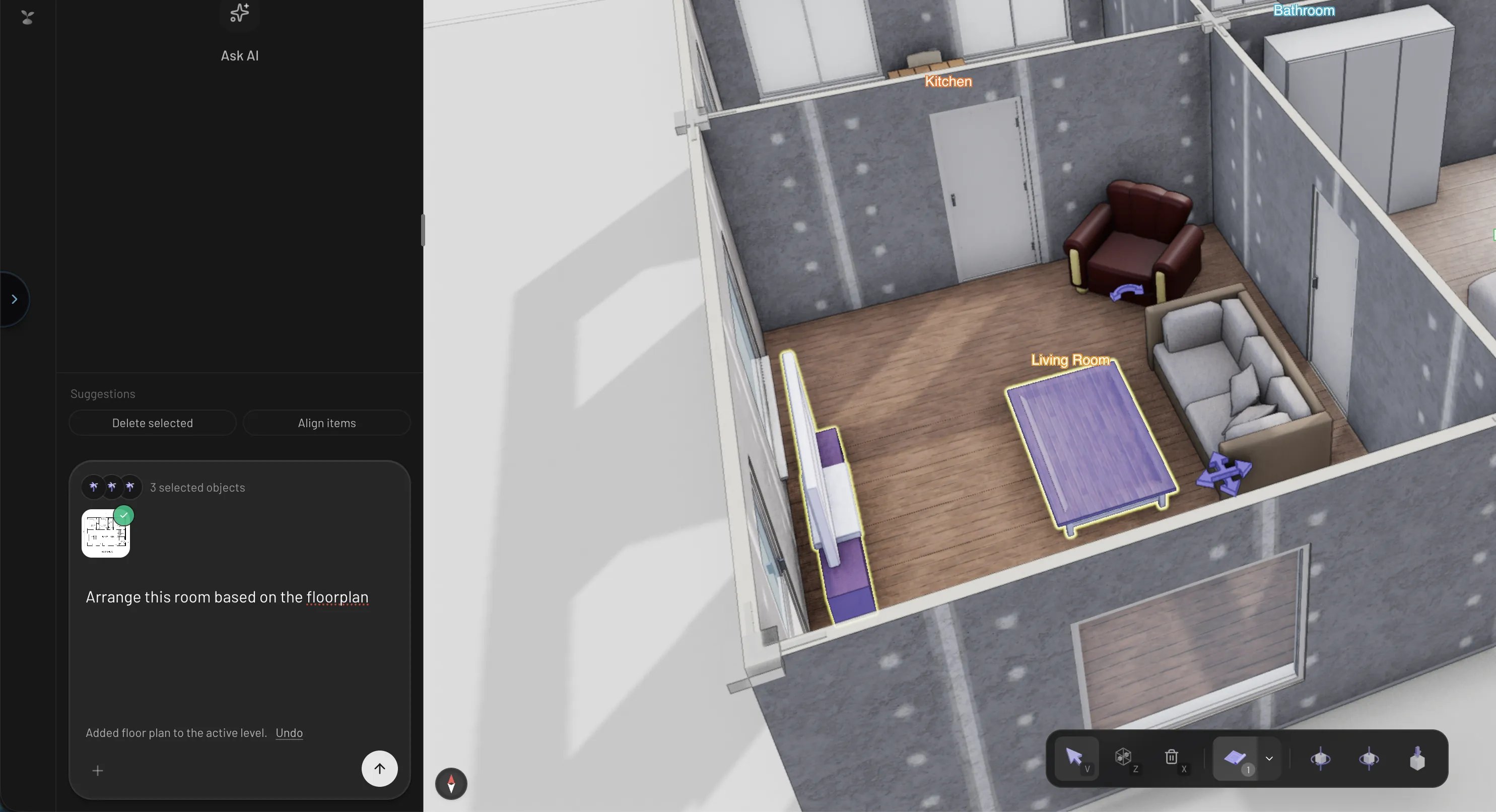
A message with a selection and an image attached
Versions and control
- Every AI edit is checkpointed. After the assistant changes your scene, a saved version appears in the conversation. Restore or publish it from the versions menu above the scene tree — you can always roll back to before any AI edit.
- Stop any time. While the assistant is working, the send button becomes a stop button. Stopping keeps whatever was already applied.
- Threads. Start a fresh conversation with the new-chat button, and revisit past conversations from the history button at the top of the panel.
- Starting over. Ask “start over: clear the project” and the assistant empties the project on purpose. A save that would empty a project by accident is refused instead, with a notice offering Clear the project if that is what you meant.
Limits
- One request at a time. A turn keeps working until the result passes its own check or it runs out of build phases. When it stops early it tells you what it finished and what is still missing, so “keep going” picks up where it left off. Very large briefs are still easier to steer in stages (“build the ground floor layout”, then “furnish the bedrooms”).
- It stops when you run out of credits, keeping everything already placed — see Credits.
- It targets the level you’re viewing unless you name another one, so switch to the right floor (or say which floor you mean) on multi-level builds.
- Check the result. The assistant verifies its own placements, but it can still misjudge — the version checkpoint after each turn means a bad result is one restore away.
- It doesn’t generate rendered images. For turning your scene into AI-rendered images and video, use Studio renders.