> ## Documentation Index
> Fetch the complete documentation index at: https://editor.pascal.app/docs/llms.txt
> Use this file to discover all available pages before exploring further.
# Presets
> Save any configured element — a styled wall, a dressed table, a whole room — to your catalog as a reusable preset, kept private or shared with the community.
A preset is a piece of your scene saved to your catalog so you can place it again —
here or in any other project. Almost anything you can select qualifies: a wall with
your favorite thickness and finish, a door you've configured, a table together with
everything arranged on top of it, or an entire room. Presets can stay private to your
account or be published for the whole community to use.
## Save something to your catalog
Select an element in the scene. If it can be saved as a preset, a **Save to my
catalog** button appears below the inspector on the right. Clicking it starts a
two-step flow:
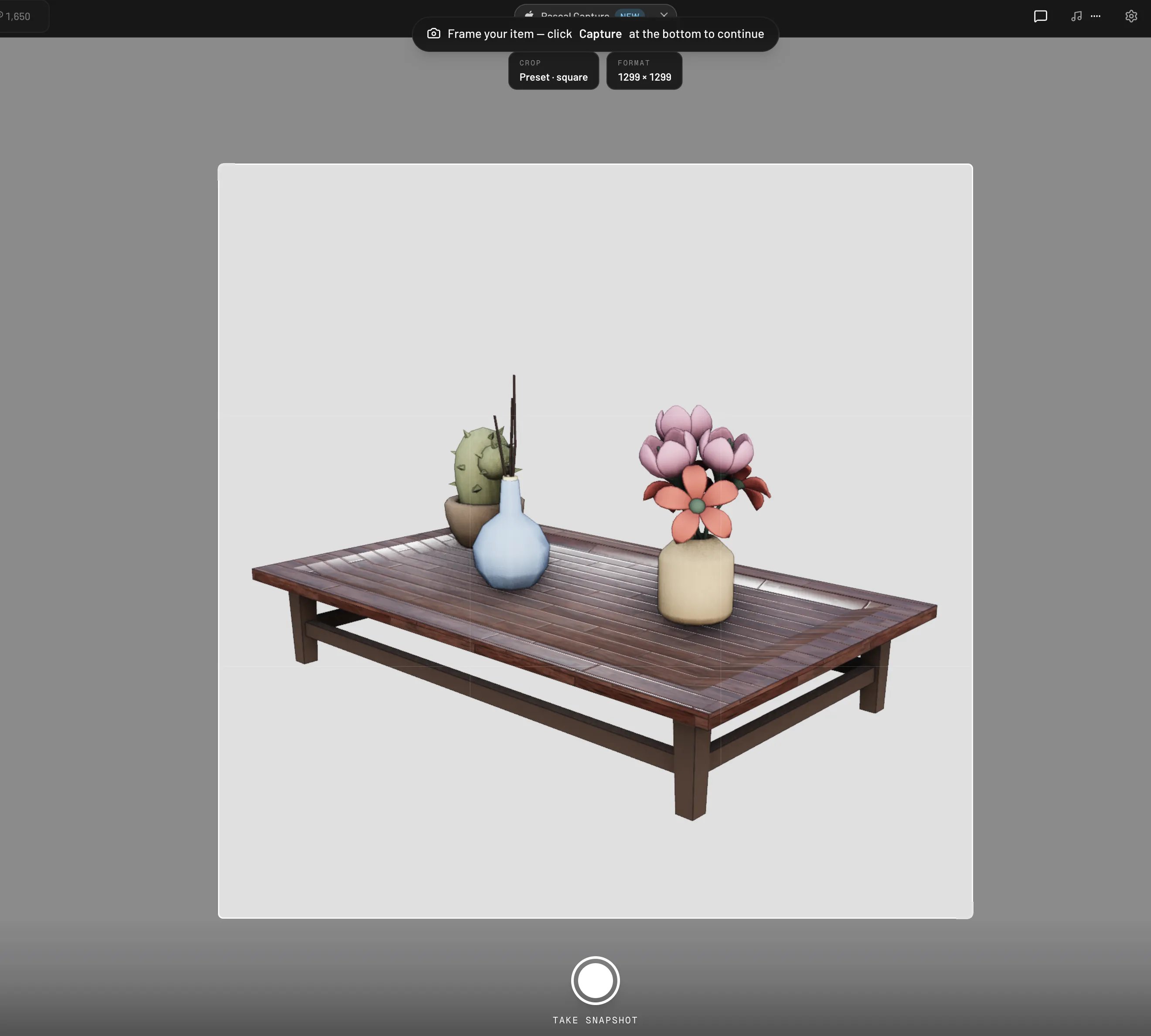
1. **Frame it.** The editor temporarily hides everything except your selection and
shows a square crop with the prompt **Frame your item**. Orbit and zoom until it
looks good, then click **Capture** at the bottom — this photo becomes the preset's
catalog thumbnail. Press `Esc` to cancel.
2. **Describe it.** Give the preset a **Name** and optional **Description**, pick at
least one **Function tag** (these decide where it shows up in the catalog) and
optionally the **Rooms** it belongs in, then choose its **Visibility** — **Public**
or **Private**. Click **Save to my catalog** to finish.
 The preset captures the element exactly as configured — including custom paint and
materials, and everything hosted on it. Save a shelf with books on it and the books
travel with the preset; save a table with a lamp and the whole arrangement comes back
when you place it. Position and wall attachment aren't stored, so a saved sconce
re-attaches to whichever wall you drop it on later.
Structural elements skip the tag step: wall, fence, slab, ceiling, roof, stair,
door, window, and column presets (plus roof features like dormers and chimneys) are
organized by type in the **Build** tab, so they need no function or room tags.
### Whole rooms
Selecting a room works too — the button opens a **Save room to catalog** flow that
captures the room's walls, floor, and contents together, with room tags instead of
function tags. Saved rooms appear in the **Build** tab under **Pre-built rooms**.
You can't save a whole level or building as a preset — save it room by room instead,
or share the project itself (see [Sharing your work](/community/sharing-your-work)).
## Where presets show up
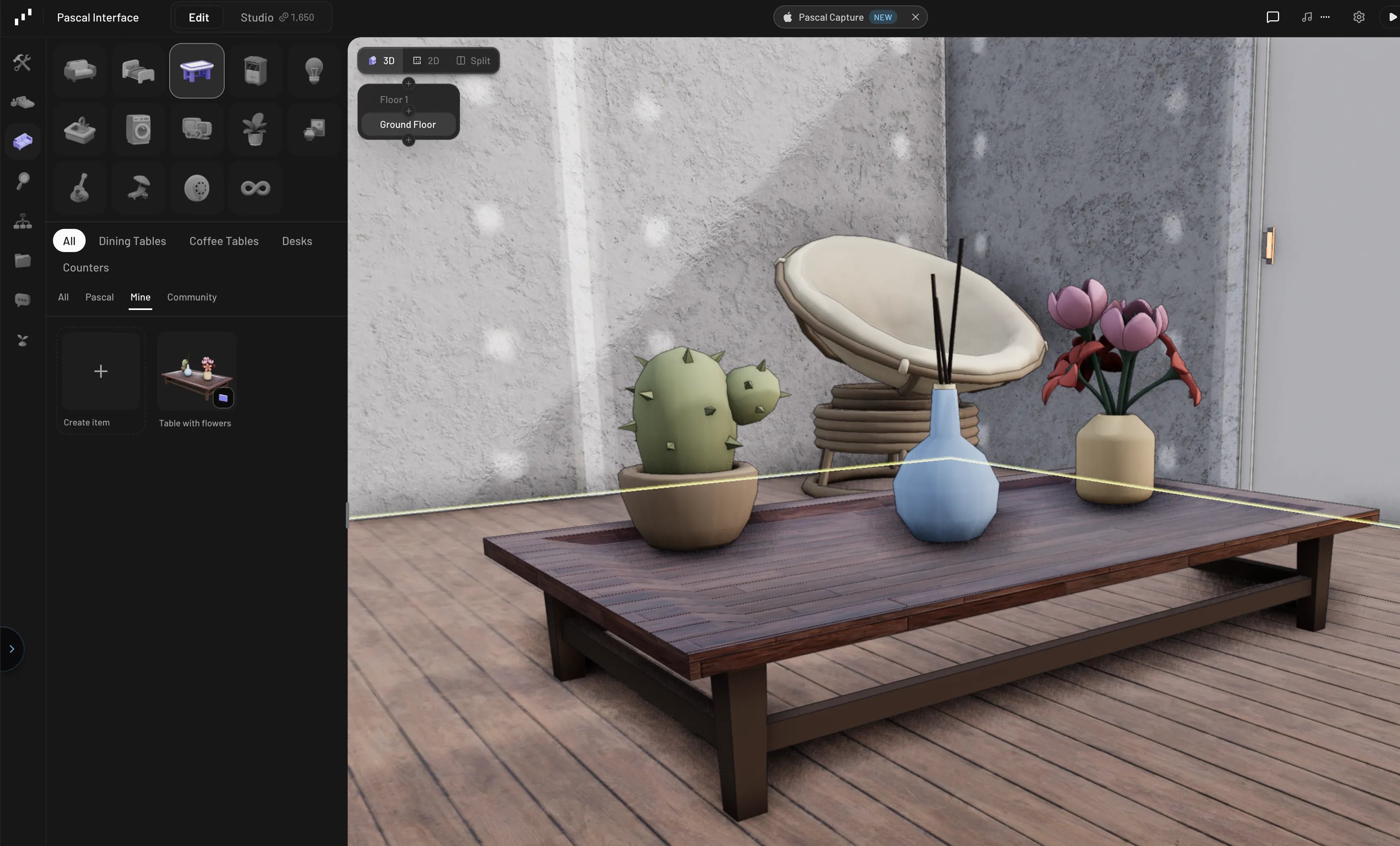
* **Furnishing presets** (items, shelves, and compositions) join the regular catalog
in the **Items**, **By room**, and **Search** tabs, placed by their tags right next
to the built-in library. Use the **Mine** source filter to see just yours — see
[Finding items](/items/finding-items) for how the **All / Pascal / Mine /
Community** filter works.
* **Build presets** live in the **Build** tab: select a type tile (for example
**Wall**) and its presets appear below, with the same source filter. Roof features
show under **Roof**, and saved rooms under **Pre-built rooms**.
* Everything you've saved is also listed at
[editor.pascal.app/items](https://editor.pascal.app/items), alongside your uploaded
and AI-generated items.
The preset captures the element exactly as configured — including custom paint and
materials, and everything hosted on it. Save a shelf with books on it and the books
travel with the preset; save a table with a lamp and the whole arrangement comes back
when you place it. Position and wall attachment aren't stored, so a saved sconce
re-attaches to whichever wall you drop it on later.
Structural elements skip the tag step: wall, fence, slab, ceiling, roof, stair,
door, window, and column presets (plus roof features like dormers and chimneys) are
organized by type in the **Build** tab, so they need no function or room tags.
### Whole rooms
Selecting a room works too — the button opens a **Save room to catalog** flow that
captures the room's walls, floor, and contents together, with room tags instead of
function tags. Saved rooms appear in the **Build** tab under **Pre-built rooms**.
You can't save a whole level or building as a preset — save it room by room instead,
or share the project itself (see [Sharing your work](/community/sharing-your-work)).
## Where presets show up
* **Furnishing presets** (items, shelves, and compositions) join the regular catalog
in the **Items**, **By room**, and **Search** tabs, placed by their tags right next
to the built-in library. Use the **Mine** source filter to see just yours — see
[Finding items](/items/finding-items) for how the **All / Pascal / Mine /
Community** filter works.
* **Build presets** live in the **Build** tab: select a type tile (for example
**Wall**) and its presets appear below, with the same source filter. Roof features
show under **Roof**, and saved rooms under **Pre-built rooms**.
* Everything you've saved is also listed at
[editor.pascal.app/items](https://editor.pascal.app/items), alongside your uploaded
and AI-generated items.
 Placing a preset works like placing any catalog item — click the tile and drop it in
the scene (see [Placing and arranging](/items/placing-and-arranging)). Presets for
drawn elements behave a little differently: a wall, slab, ceiling, roof, or fence
preset pre-loads the drawing tool with the saved settings, so you draw fresh elements
in that exact style.
## Private or public
The **Visibility** choice controls who sees a preset:
* **Public** (the default) — published to the community; anyone can find and place it.
* **Private** — only you can see it, under your **Mine** filter.
You can flip visibility any time from the preset's **Edit details** action. Public
and private map to the **Published** and **Draft** statuses you see on your
[My items](https://editor.pascal.app/items) page.
## Managing your presets
Hover one of your preset tiles in the catalog to reveal its actions:
* **Edit details** — rename it, change its tags and rooms, or switch it between
public and private.
* **Update with the current selection** — replace the preset's contents with whatever
you have selected in the scene. Copies you've already placed are unaffected.
* **Archive** — remove it from the catalog. Anything you've already placed keeps
working.
## Using community presets
Presets published by other users appear under the **Community** source filter. Place
them directly like any other catalog entry, or hover a tile and click **Save to my
catalog** to copy it into your own collection — the copy is yours to rename, retag,
and modify without affecting the original.
## Presets, custom items, and templates
Three ways to reuse work in Pascal, at three different scales:
* **Custom items** add a *new 3D model* to the catalog — a `.glb` upload or an
AI-generated model. See
[Creating your own items](/items/finding-items#creating-your-own-items).
* **Presets** save a *configured arrangement* of things that already exist — no new
model, just your setup, ready to reuse. Both kinds live side by side in the same
catalog with the same source filters.
* **Templates** are *whole projects* you can start from when creating a new project.
See [Your first scene](/getting-started/your-first-scene).
Placing a preset works like placing any catalog item — click the tile and drop it in
the scene (see [Placing and arranging](/items/placing-and-arranging)). Presets for
drawn elements behave a little differently: a wall, slab, ceiling, roof, or fence
preset pre-loads the drawing tool with the saved settings, so you draw fresh elements
in that exact style.
## Private or public
The **Visibility** choice controls who sees a preset:
* **Public** (the default) — published to the community; anyone can find and place it.
* **Private** — only you can see it, under your **Mine** filter.
You can flip visibility any time from the preset's **Edit details** action. Public
and private map to the **Published** and **Draft** statuses you see on your
[My items](https://editor.pascal.app/items) page.
## Managing your presets
Hover one of your preset tiles in the catalog to reveal its actions:
* **Edit details** — rename it, change its tags and rooms, or switch it between
public and private.
* **Update with the current selection** — replace the preset's contents with whatever
you have selected in the scene. Copies you've already placed are unaffected.
* **Archive** — remove it from the catalog. Anything you've already placed keeps
working.
## Using community presets
Presets published by other users appear under the **Community** source filter. Place
them directly like any other catalog entry, or hover a tile and click **Save to my
catalog** to copy it into your own collection — the copy is yours to rename, retag,
and modify without affecting the original.
## Presets, custom items, and templates
Three ways to reuse work in Pascal, at three different scales:
* **Custom items** add a *new 3D model* to the catalog — a `.glb` upload or an
AI-generated model. See
[Creating your own items](/items/finding-items#creating-your-own-items).
* **Presets** save a *configured arrangement* of things that already exist — no new
model, just your setup, ready to reuse. Both kinds live side by side in the same
catalog with the same source filters.
* **Templates** are *whole projects* you can start from when creating a new project.
See [Your first scene](/getting-started/your-first-scene).