> ## Documentation Index
> Fetch the complete documentation index at: https://editor.pascal.app/docs/llms.txt
> Use this file to discover all available pages before exploring further.
# Materials and paint
> Paint walls, floors, and furniture with Pascal's material catalog — colors, wood, stone, tile, and more — or create your own custom materials.
Painting changes what a surface is made of. The same brush works on architecture —
walls, floors, ceilings, stairs, columns, fences, doors, and windows — and on items,
so you can recolor a sofa the same way you retile a bathroom floor.
## Entering paint mode
Three ways in:
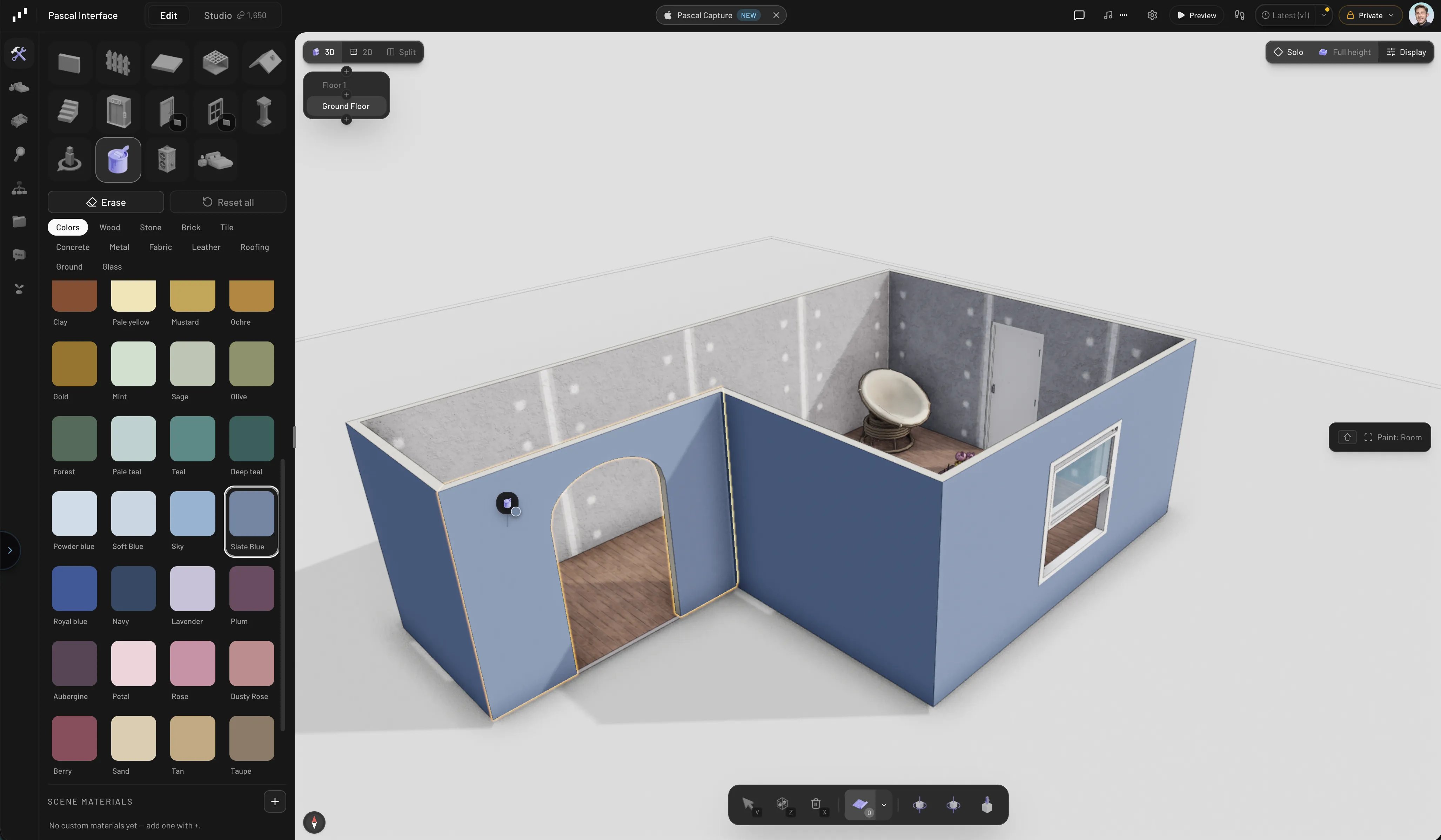
* Open the **Build** tab in the sidebar and select **Painting**.
* Press `P`. If something is selected, its current material is picked up as your
brush — handy for reusing a finish you've already applied.
* Search for **Material Paint** in the command palette.
Press `V` (or `Esc`) to return to the select tool. Every paint action is undoable
with `Cmd/Ctrl + Z`.
## The material catalog
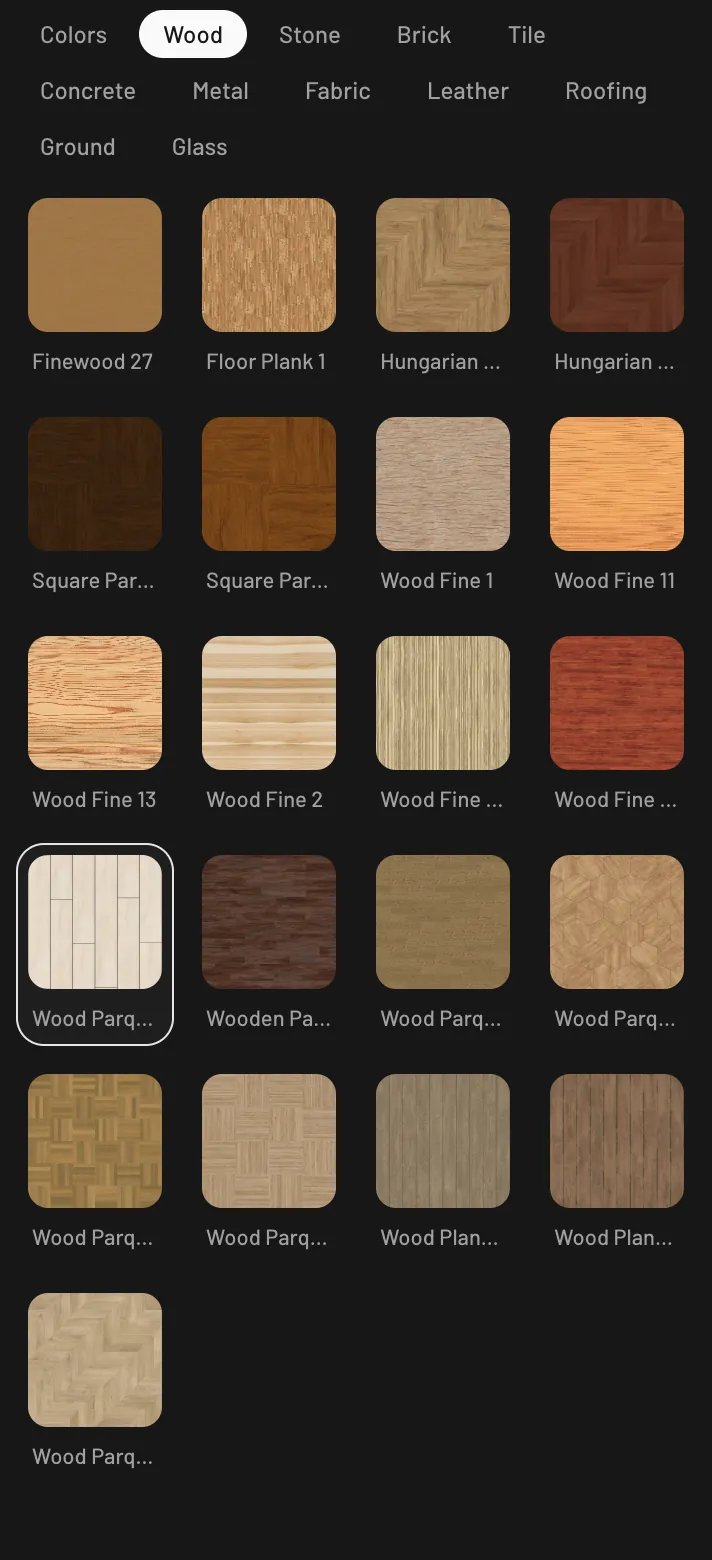
The paint panel groups materials into category tabs:
| Category | Examples |
| ------------ | ------------------------------------------------------------------------------ |
| **Colors** | 45 flat presets, from White and Greige to Navy and Espresso |
| **Wood** | plank and parquet finishes — Floor Plank 1, Hungarian Parquet 10, Wood Fine 22 |
| **Stone** | Terrazzo, Stone Wall, Green Quartzite A, Statuaretto White |
| **Brick** | Rustic Brick, Aged Brick, Weathered Brick |
| **Tile** | Checker Tiles, Pool Tiles, Ceramic Mosaic, Terracotta Tile |
| **Concrete** | Painted Plaster, Polished Concrete, White Stucco, Prepared Drywall |
| **Metal** | Brushed Steel, Copper, Brass, Chrome |
| **Fabric** | Linen, Cotton, Velvet, Wool, Suede, Bouclé |
| **Leather** | Black Leather, Calf Leather |
| **Roofing** | Classic Shingles, Clay Tiles, Terracotta Tiles, Weathered Shingles |
| **Ground** | Earth Ground |
| **Glass** | Glass |
Selecting a category loads its first material as your brush right away, so you can
start clicking surfaces immediately.
## Painting a surface
Pick a material, then click any surface in the scene. The helper chip walks you
through it: **Select a material to paint**, then **Hover a surface to paint**.
Surfaces are painted individually, so you have real control:
* **Walls** have separate **Interior** and **Exterior** faces — paint the inside of
a room without touching the facade.
* **Floors** split into **Top** and **Sides**.
* **Ceilings** are a single surface.
* **Stairs** split into **Treads**, **Body**, and **Railing**.
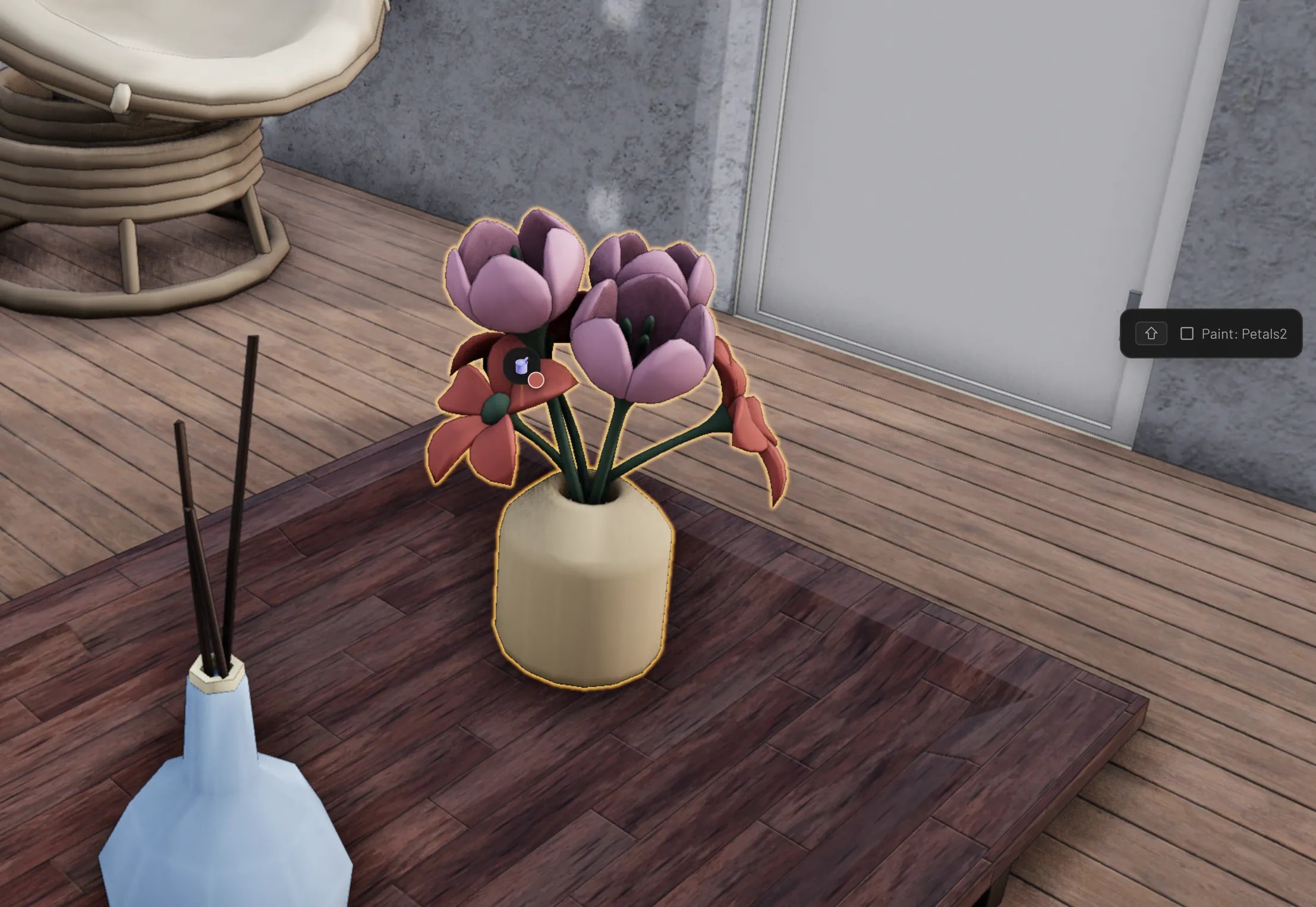
* **Items** are painted per part — click a chair's seat to recolor just the seat.
## Paint scope
By default one click paints one surface — the chip names the part you're hovering.
Press `Shift` while hovering to cycle through wider scopes (each surface offers the
ones that make sense for it):
* **Whole object** — every surface of the hovered element or item at once (shown
as **Whole wall**, **Whole shelf**, and so on).
* **All matching** — the same part on every copy of that item in the scene.
Repaint all twelve dining chairs in one click.
* **Room** — for walls and floors: every wall and floor surface bounding the room
under the cursor.
## Erasing and resetting
* **Erase** — toggle the eraser at the top of the paint panel, then click a painted
surface to return it to its default material.
* **Reset all** — with an element selected, strips every applied material from it
in one go.
## Custom materials
Below the catalog, the **Scene materials** section holds materials you create for
this scene. Click **Add material** (`+`) to make one, then tune it:
* **Color** — a free color picker with a hex value field, so you're not limited to
the 45 presets.
* **Roughness**, **Metalness**, **Opacity** — sliders from matte plaster to
polished mirror to tinted glass.
* **Side** — render the material on the **Front**, **Back**, or **Double** (both)
sides of a surface.
Each scene material shows how many parts use it (**Used by 3 parts**), can be
renamed inline, and has **Paint with** (load it as your brush), **Duplicate**, and
**Delete** actions. Editing a scene material updates every surface painted with it.
## Watch it in action
 ## Entering paint mode
Three ways in:
* Open the **Build** tab in the sidebar and select **Painting**.
* Press `P`. If something is selected, its current material is picked up as your
brush — handy for reusing a finish you've already applied.
* Search for **Material Paint** in the command palette.
Press `V` (or `Esc`) to return to the select tool. Every paint action is undoable
with `Cmd/Ctrl + Z`.
## The material catalog
The paint panel groups materials into category tabs:
| Category | Examples |
| ------------ | ------------------------------------------------------------------------------ |
| **Colors** | 45 flat presets, from White and Greige to Navy and Espresso |
| **Wood** | plank and parquet finishes — Floor Plank 1, Hungarian Parquet 10, Wood Fine 22 |
| **Stone** | Terrazzo, Stone Wall, Green Quartzite A, Statuaretto White |
| **Brick** | Rustic Brick, Aged Brick, Weathered Brick |
| **Tile** | Checker Tiles, Pool Tiles, Ceramic Mosaic, Terracotta Tile |
| **Concrete** | Painted Plaster, Polished Concrete, White Stucco, Prepared Drywall |
| **Metal** | Brushed Steel, Copper, Brass, Chrome |
| **Fabric** | Linen, Cotton, Velvet, Wool, Suede, Bouclé |
| **Leather** | Black Leather, Calf Leather |
| **Roofing** | Classic Shingles, Clay Tiles, Terracotta Tiles, Weathered Shingles |
| **Ground** | Earth Ground |
| **Glass** | Glass |
Selecting a category loads its first material as your brush right away, so you can
start clicking surfaces immediately.
## Entering paint mode
Three ways in:
* Open the **Build** tab in the sidebar and select **Painting**.
* Press `P`. If something is selected, its current material is picked up as your
brush — handy for reusing a finish you've already applied.
* Search for **Material Paint** in the command palette.
Press `V` (or `Esc`) to return to the select tool. Every paint action is undoable
with `Cmd/Ctrl + Z`.
## The material catalog
The paint panel groups materials into category tabs:
| Category | Examples |
| ------------ | ------------------------------------------------------------------------------ |
| **Colors** | 45 flat presets, from White and Greige to Navy and Espresso |
| **Wood** | plank and parquet finishes — Floor Plank 1, Hungarian Parquet 10, Wood Fine 22 |
| **Stone** | Terrazzo, Stone Wall, Green Quartzite A, Statuaretto White |
| **Brick** | Rustic Brick, Aged Brick, Weathered Brick |
| **Tile** | Checker Tiles, Pool Tiles, Ceramic Mosaic, Terracotta Tile |
| **Concrete** | Painted Plaster, Polished Concrete, White Stucco, Prepared Drywall |
| **Metal** | Brushed Steel, Copper, Brass, Chrome |
| **Fabric** | Linen, Cotton, Velvet, Wool, Suede, Bouclé |
| **Leather** | Black Leather, Calf Leather |
| **Roofing** | Classic Shingles, Clay Tiles, Terracotta Tiles, Weathered Shingles |
| **Ground** | Earth Ground |
| **Glass** | Glass |
Selecting a category loads its first material as your brush right away, so you can
start clicking surfaces immediately.
 ## Painting a surface
Pick a material, then click any surface in the scene. The helper chip walks you
through it: **Select a material to paint**, then **Hover a surface to paint**.
Surfaces are painted individually, so you have real control:
* **Walls** have separate **Interior** and **Exterior** faces — paint the inside of
a room without touching the facade.
* **Floors** split into **Top** and **Sides**.
* **Ceilings** are a single surface.
* **Stairs** split into **Treads**, **Body**, and **Railing**.
* **Items** are painted per part — click a chair's seat to recolor just the seat.
## Paint scope
By default one click paints one surface — the chip names the part you're hovering.
Press `Shift` while hovering to cycle through wider scopes (each surface offers the
ones that make sense for it):
* **Whole object** — every surface of the hovered element or item at once (shown
as **Whole wall**, **Whole shelf**, and so on).
* **All matching** — the same part on every copy of that item in the scene.
Repaint all twelve dining chairs in one click.
* **Room** — for walls and floors: every wall and floor surface bounding the room
under the cursor.
## Painting a surface
Pick a material, then click any surface in the scene. The helper chip walks you
through it: **Select a material to paint**, then **Hover a surface to paint**.
Surfaces are painted individually, so you have real control:
* **Walls** have separate **Interior** and **Exterior** faces — paint the inside of
a room without touching the facade.
* **Floors** split into **Top** and **Sides**.
* **Ceilings** are a single surface.
* **Stairs** split into **Treads**, **Body**, and **Railing**.
* **Items** are painted per part — click a chair's seat to recolor just the seat.
## Paint scope
By default one click paints one surface — the chip names the part you're hovering.
Press `Shift` while hovering to cycle through wider scopes (each surface offers the
ones that make sense for it):
* **Whole object** — every surface of the hovered element or item at once (shown
as **Whole wall**, **Whole shelf**, and so on).
* **All matching** — the same part on every copy of that item in the scene.
Repaint all twelve dining chairs in one click.
* **Room** — for walls and floors: every wall and floor surface bounding the room
under the cursor.
 ## Erasing and resetting
* **Erase** — toggle the eraser at the top of the paint panel, then click a painted
surface to return it to its default material.
* **Reset all** — with an element selected, strips every applied material from it
in one go.
## Custom materials
Below the catalog, the **Scene materials** section holds materials you create for
this scene. Click **Add material** (`+`) to make one, then tune it:
* **Color** — a free color picker with a hex value field, so you're not limited to
the 45 presets.
* **Roughness**, **Metalness**, **Opacity** — sliders from matte plaster to
polished mirror to tinted glass.
* **Side** — render the material on the **Front**, **Back**, or **Double** (both)
sides of a surface.
Each scene material shows how many parts use it (**Used by 3 parts**), can be
renamed inline, and has **Paint with** (load it as your brush), **Duplicate**, and
**Delete** actions. Editing a scene material updates every surface painted with it.
## Watch it in action
## Erasing and resetting
* **Erase** — toggle the eraser at the top of the paint panel, then click a painted
surface to return it to its default material.
* **Reset all** — with an element selected, strips every applied material from it
in one go.
## Custom materials
Below the catalog, the **Scene materials** section holds materials you create for
this scene. Click **Add material** (`+`) to make one, then tune it:
* **Color** — a free color picker with a hex value field, so you're not limited to
the 45 presets.
* **Roughness**, **Metalness**, **Opacity** — sliders from matte plaster to
polished mirror to tinted glass.
* **Side** — render the material on the **Front**, **Back**, or **Double** (both)
sides of a surface.
Each scene material shows how many parts use it (**Used by 3 parts**), can be
renamed inline, and has **Paint with** (load it as your brush), **Duplicate**, and
**Delete** actions. Editing a scene material updates every surface painted with it.
## Watch it in action