> ## Documentation Index
> Fetch the complete documentation index at: https://editor.pascal.app/docs/llms.txt
> Use this file to discover all available pages before exploring further.
# Finding items
> Browse the Pascal item catalog by category or room, search everything at once, and add your own items with a GLB upload or AI generation.
Everything you furnish a scene with — sofas, appliances, lamps, plants, rugs — comes
from the item catalog in the left sidebar. You can browse it by what an item *is*,
by the room it belongs in, or search the whole catalog at once.
 ## Browse by category
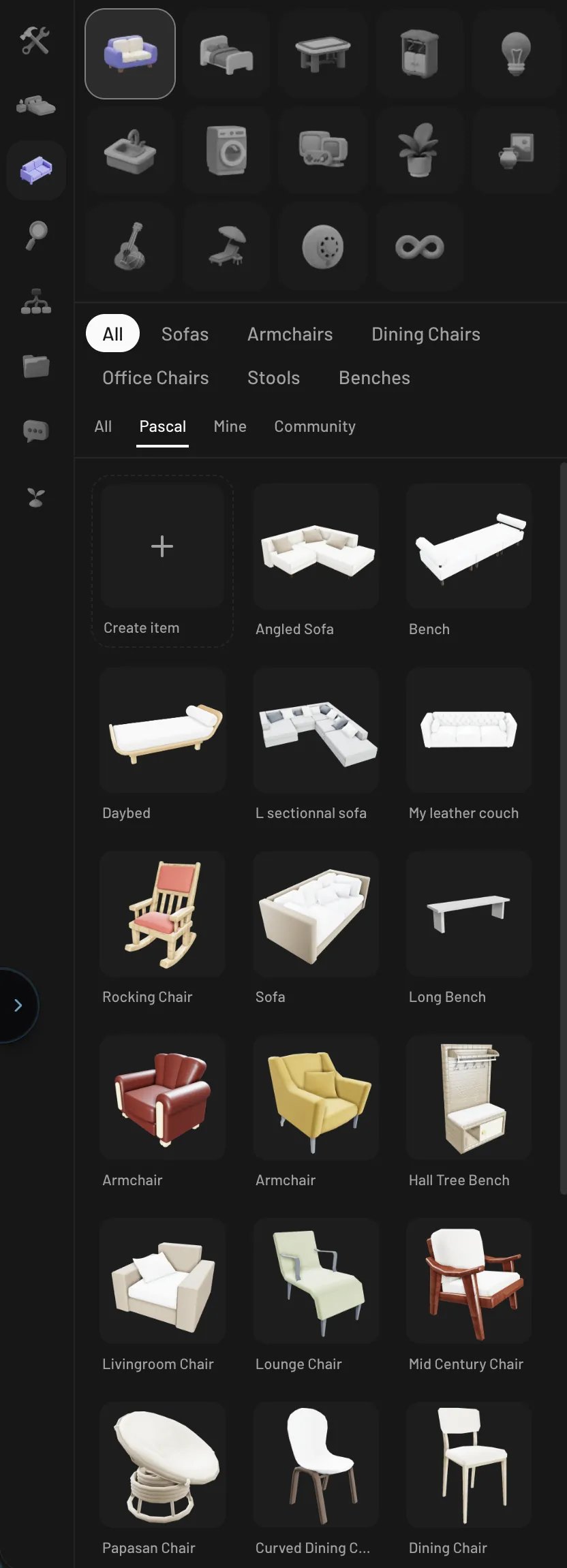
Open the **Items** tab in the sidebar. The icon grid at the top groups the catalog
by what each item does:
* **Seating** — sofas, armchairs, dining chairs, office chairs, stools, benches
* **Beds** — single, double, and bunk beds
* **Tables & surfaces** — dining tables, coffee tables, desks, counters
* **Storage** — shelves, cabinets, dressers, wardrobes, racks
* **Lighting** — table lamps, floor lamps, wall lights, ceiling lights
* **Plumbing** — sinks, toilets, showers, bathtubs
* **Appliances** — kitchen, laundry, and climate appliances
* **Electronics** — TVs, audio, computers, and other devices
* **Plants** — indoor plants and trees
* **Decorations** — wall decor, rugs, fireplaces, small clutter
* **Activities** — fitness, music, toys
* **Outdoor** — garden pieces and vehicles
* **Utilities** and **Misc** — outlets, detectors, and everything else
Selecting a category shows chips for its subcategories (for example **Seating** exposes
**Sofas**, **Armchairs**, **Dining chairs**, **Office chairs**, **Stools**, **Benches**),
plus **All** to see the whole group.
Doors, windows, and structural pieces like columns and stairs aren't in the Items
catalog — they're placed from the **Build** tab. See
[Doors and windows](/building/doors-and-windows).
## Browse by room
The **By room** tab is the same catalog organized by where items typically live:
**Living room**, **Dining room**, **Kitchen**, **Bedroom**, **Kids room**, **Bathroom**,
**Office**, **Outdoor**, **Garage**, **Utility**, and **Universal** for items that fit
anywhere. Picking a room shows chips for the item types found in it — useful when
you're furnishing one room and want everything relevant in one place.
## Search
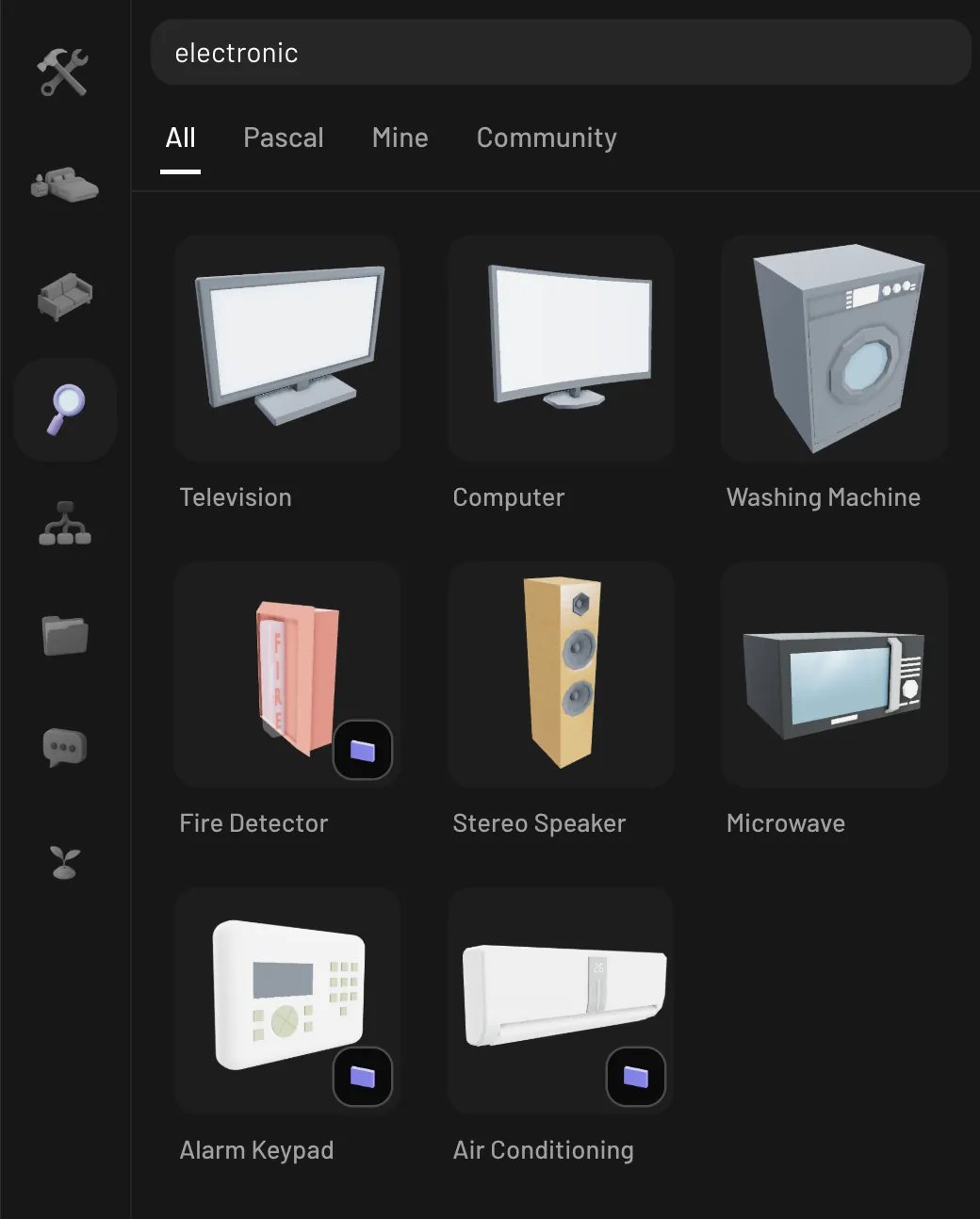
The **Search** tab searches the entire catalog at once — every category, single items
and presets alike. Type in the **Search everything...** box; results update as you
type. With no query, the tab shows a curated slice of the catalog to browse.
## Browse by category
Open the **Items** tab in the sidebar. The icon grid at the top groups the catalog
by what each item does:
* **Seating** — sofas, armchairs, dining chairs, office chairs, stools, benches
* **Beds** — single, double, and bunk beds
* **Tables & surfaces** — dining tables, coffee tables, desks, counters
* **Storage** — shelves, cabinets, dressers, wardrobes, racks
* **Lighting** — table lamps, floor lamps, wall lights, ceiling lights
* **Plumbing** — sinks, toilets, showers, bathtubs
* **Appliances** — kitchen, laundry, and climate appliances
* **Electronics** — TVs, audio, computers, and other devices
* **Plants** — indoor plants and trees
* **Decorations** — wall decor, rugs, fireplaces, small clutter
* **Activities** — fitness, music, toys
* **Outdoor** — garden pieces and vehicles
* **Utilities** and **Misc** — outlets, detectors, and everything else
Selecting a category shows chips for its subcategories (for example **Seating** exposes
**Sofas**, **Armchairs**, **Dining chairs**, **Office chairs**, **Stools**, **Benches**),
plus **All** to see the whole group.
Doors, windows, and structural pieces like columns and stairs aren't in the Items
catalog — they're placed from the **Build** tab. See
[Doors and windows](/building/doors-and-windows).
## Browse by room
The **By room** tab is the same catalog organized by where items typically live:
**Living room**, **Dining room**, **Kitchen**, **Bedroom**, **Kids room**, **Bathroom**,
**Office**, **Outdoor**, **Garage**, **Utility**, and **Universal** for items that fit
anywhere. Picking a room shows chips for the item types found in it — useful when
you're furnishing one room and want everything relevant in one place.
## Search
The **Search** tab searches the entire catalog at once — every category, single items
and presets alike. Type in the **Search everything...** box; results update as you
type. With no query, the tab shows a curated slice of the catalog to browse.
 ## Filter by source
Every browse tab has the same source filter underneath the categories:
* **All** — everything, ordered Pascal → Mine → Community
* **Pascal** — the curated built-in library
* **Mine** — items you created, including drafts
* **Community** — items published by other users (your own published items show
here too, so you see them the way everyone else does)
## Reading a tile
Each tile shows the item's thumbnail and name. A small badge in the corner means the
item attaches to a specific surface when placed — a wall badge for wall-mounted items
(pictures, wall lights) or a ceiling badge for ceiling-mounted ones (ceiling lamps,
smoke detectors). Everything else sits on the floor or on top of other items.
Clicking a tile arms placement: the item follows your cursor in the scene, ready to
drop. See [Placing and arranging](/items/placing-and-arranging).
## Creating your own items
Can't find what you need? Click the **Create item** tile (the dashed **+** card at the
start of any item grid — sign in required). Give the item a name and Pascal opens the
item editor in a new tab, where you can either:
* **Upload a model** — a `.glb` or `.gltf` file, or
* **Generate with AI** — upload a reference photo and Pascal generates a 3D model
from it.
## Filter by source
Every browse tab has the same source filter underneath the categories:
* **All** — everything, ordered Pascal → Mine → Community
* **Pascal** — the curated built-in library
* **Mine** — items you created, including drafts
* **Community** — items published by other users (your own published items show
here too, so you see them the way everyone else does)
## Reading a tile
Each tile shows the item's thumbnail and name. A small badge in the corner means the
item attaches to a specific surface when placed — a wall badge for wall-mounted items
(pictures, wall lights) or a ceiling badge for ceiling-mounted ones (ceiling lamps,
smoke detectors). Everything else sits on the floor or on top of other items.
Clicking a tile arms placement: the item follows your cursor in the scene, ready to
drop. See [Placing and arranging](/items/placing-and-arranging).
## Creating your own items
Can't find what you need? Click the **Create item** tile (the dashed **+** card at the
start of any item grid — sign in required). Give the item a name and Pascal opens the
item editor in a new tab, where you can either:
* **Upload a model** — a `.glb` or `.gltf` file, or
* **Generate with AI** — upload a reference photo and Pascal generates a 3D model
from it.
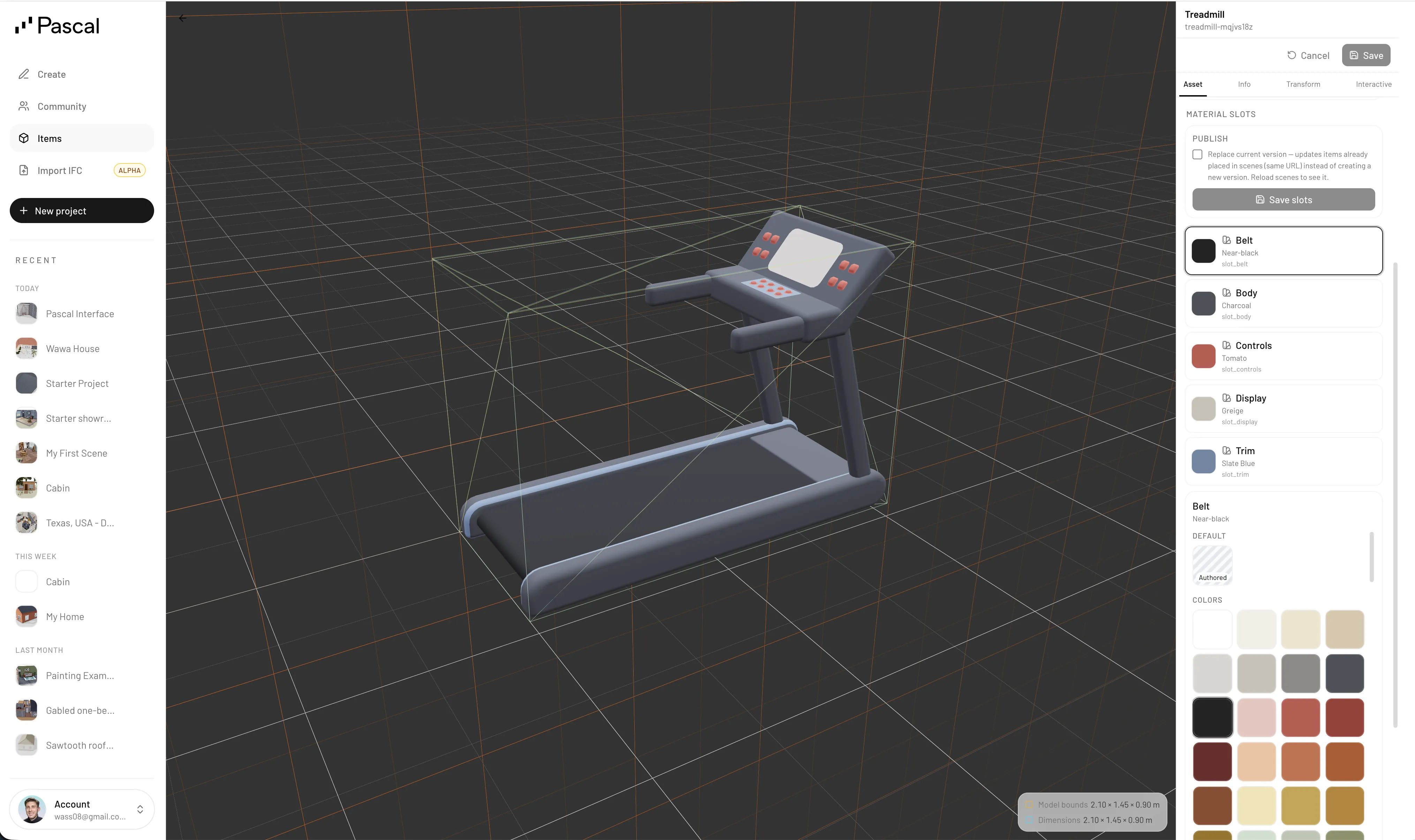 Your items live at [editor.pascal.app/items](https://editor.pascal.app/items) under
**My items**. Each item has a status — **Published**, **Draft**, or **Archived**.
Drafts only appear under your **Mine** filter; published items join the **Community**
catalog for everyone.
You can also save configured pieces straight from a scene: select an element (or a
whole room) and use **Save to my catalog** below the inspector to turn it into a
reusable preset, public or private.
Your items live at [editor.pascal.app/items](https://editor.pascal.app/items) under
**My items**. Each item has a status — **Published**, **Draft**, or **Archived**.
Drafts only appear under your **Mine** filter; published items join the **Community**
catalog for everyone.
You can also save configured pieces straight from a scene: select an element (or a
whole room) and use **Save to my catalog** below the inspector to turn it into a
reusable preset, public or private.