> ## Documentation Index
> Fetch the complete documentation index at: https://editor.pascal.app/docs/llms.txt
> Use this file to discover all available pages before exploring further.
# Interface tour
> What every region of the Pascal editor does — the top bar, sidebar tabs, viewer toolbars, level selector, bottom toolbar, and inspector.
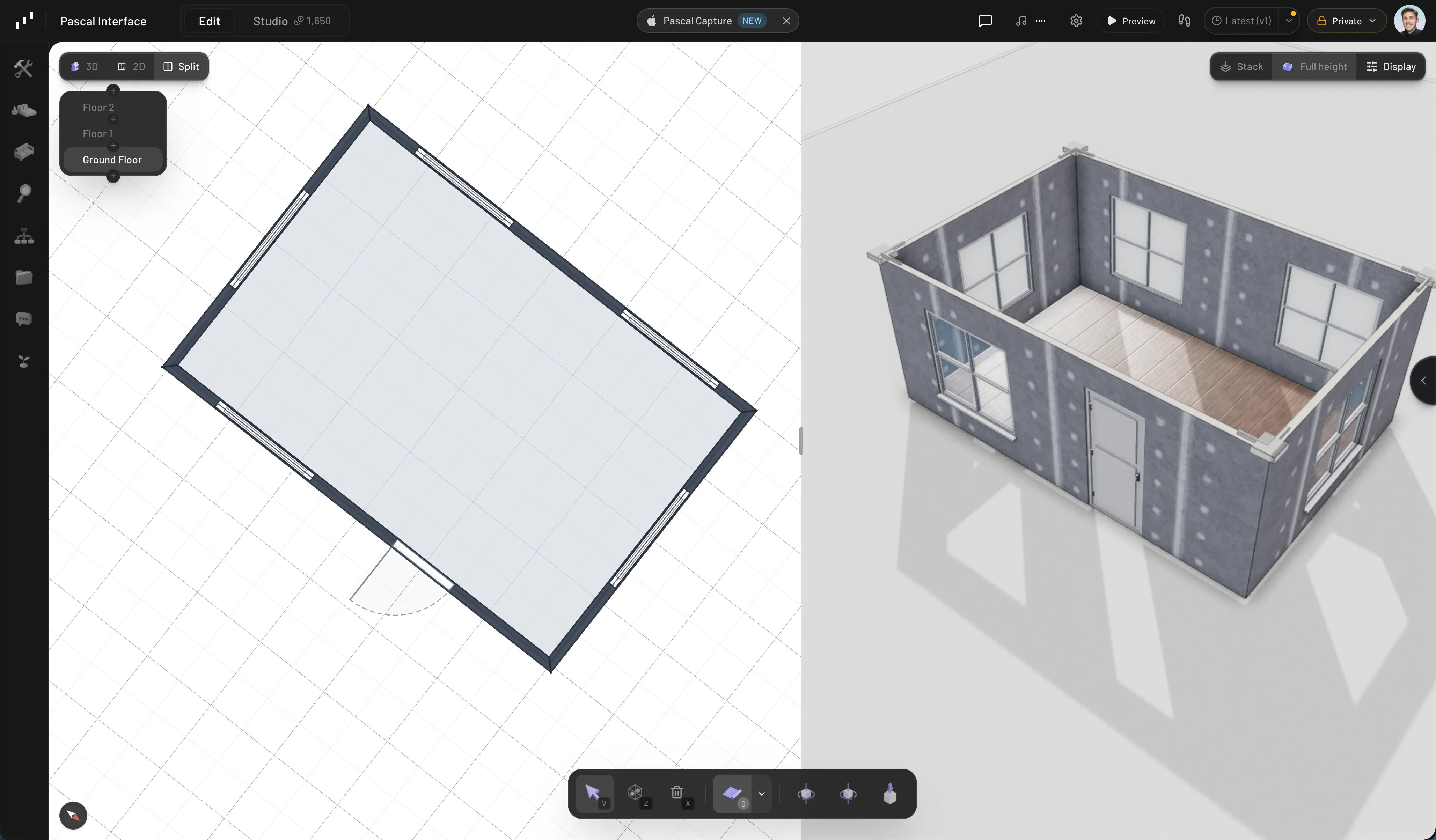
The editor has five main regions: the top bar, the left sidebar, the canvas with its
viewer toolbars, the bottom toolbar, and the floating panels that appear as you work.
 ## Top bar
From left to right:
* **Pascal logo** — click to go back to your projects; hovering opens a project
sidebar for quick switching.
* **Project title** — click it to rename the project inline.
* **Edit / Studio toggle** — switches the whole workspace between building (**Edit**)
and generating rendered images (**Studio**). The Studio button shows your credit
balance. See [Studio renders](/ai/studio-renders).
* **Feedback** — send feedback to the Pascal team.
* **Radio Pascal** — background music while you build.
* **Settings** — project settings, including what's visible to the public.
* **Preview** — view your scene without editing chrome.
* **Walkthrough** — enter a first-person walk through your building.
* **Version control** — shows the current version; click **Save** to pin a new
version, or open the dropdown for the version history and what's live.
* **Private / Public** — the project's visibility, with a copy-link button for the
viewer. See [Sharing your work](/community/sharing-your-work).
* **Profile** — your account menu.
## Left sidebar
An icon rail on the far left switches the sidebar between tabs. Click the active tab's
icon again to collapse the sidebar, and drag its right edge to resize it.
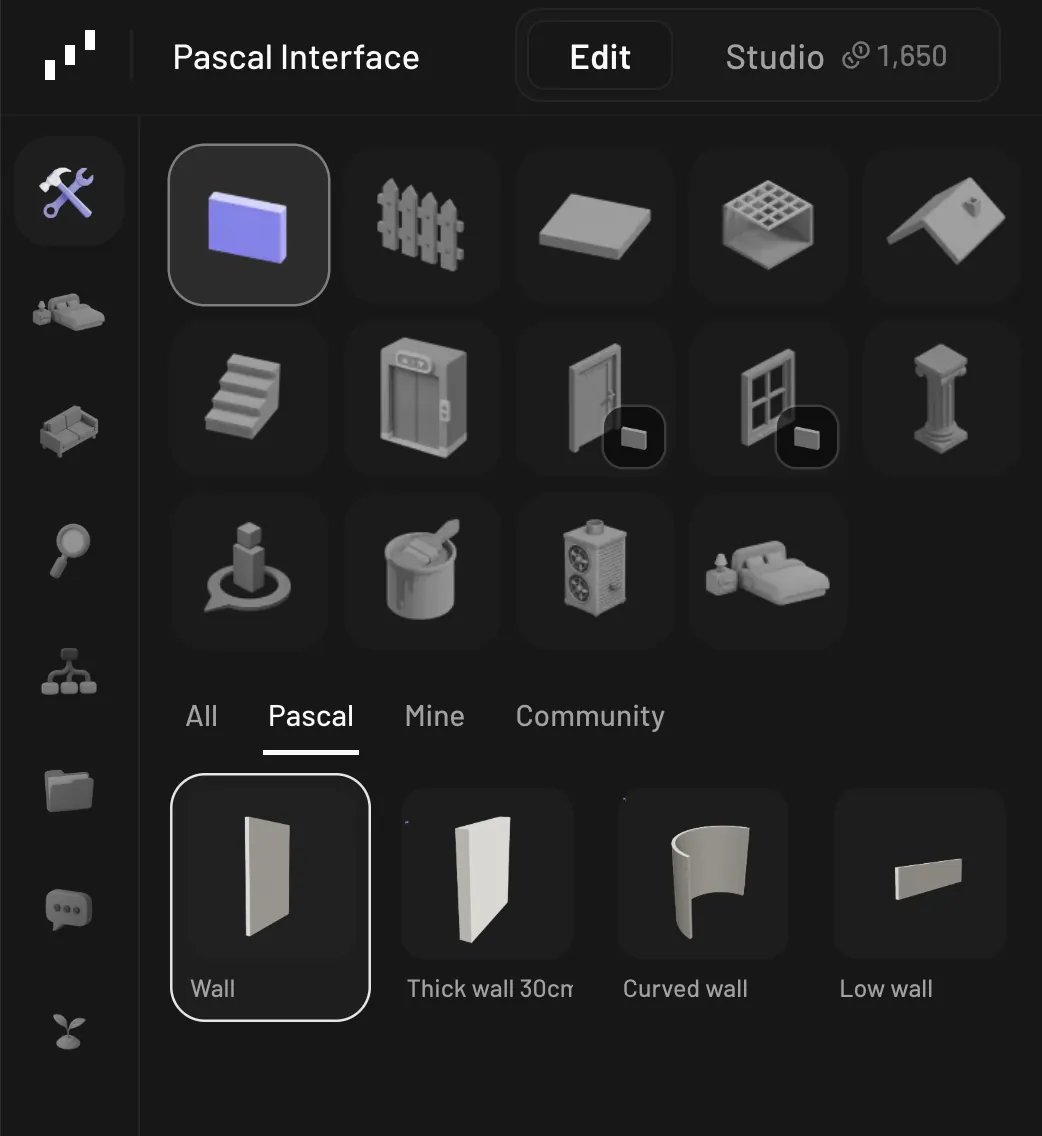
* **Build** — structural elements: **Wall**, **Fence**, **Slab**, **Ceiling**,
**Roof**, **Stairs**, **Elevator**, **Door**, **Window**, **Column**,
**Spawn Point**, plus **Painting** (materials), **MEP** (ducts and pipes), and
**Pre-built rooms**. Clicking a tile arms its tool and shows its presets below,
filtered by source (**All** / **Pascal** / **Mine** / **Community**).
* **By room** — the catalog filtered by room type (kitchen, bedroom, bathroom, …), so
you can furnish one room at a time.
* **Items** — the furniture and object catalog, organized by category. See
[Finding items](/items/finding-items).
* **Search** — search everything in the catalog at once.
* **Scene** — the scene tree: buildings, levels, and everything on them.
* **Files** — files attached to the project, such as uploaded scans and guide images.
* **Chat** — the AI assistant. It opens by default in a fresh session; see
[AI assistant](/ai/assistant).
In **Studio** mode the rail is replaced by a single **Generate** tab.
## Top bar
From left to right:
* **Pascal logo** — click to go back to your projects; hovering opens a project
sidebar for quick switching.
* **Project title** — click it to rename the project inline.
* **Edit / Studio toggle** — switches the whole workspace between building (**Edit**)
and generating rendered images (**Studio**). The Studio button shows your credit
balance. See [Studio renders](/ai/studio-renders).
* **Feedback** — send feedback to the Pascal team.
* **Radio Pascal** — background music while you build.
* **Settings** — project settings, including what's visible to the public.
* **Preview** — view your scene without editing chrome.
* **Walkthrough** — enter a first-person walk through your building.
* **Version control** — shows the current version; click **Save** to pin a new
version, or open the dropdown for the version history and what's live.
* **Private / Public** — the project's visibility, with a copy-link button for the
viewer. See [Sharing your work](/community/sharing-your-work).
* **Profile** — your account menu.
## Left sidebar
An icon rail on the far left switches the sidebar between tabs. Click the active tab's
icon again to collapse the sidebar, and drag its right edge to resize it.
* **Build** — structural elements: **Wall**, **Fence**, **Slab**, **Ceiling**,
**Roof**, **Stairs**, **Elevator**, **Door**, **Window**, **Column**,
**Spawn Point**, plus **Painting** (materials), **MEP** (ducts and pipes), and
**Pre-built rooms**. Clicking a tile arms its tool and shows its presets below,
filtered by source (**All** / **Pascal** / **Mine** / **Community**).
* **By room** — the catalog filtered by room type (kitchen, bedroom, bathroom, …), so
you can furnish one room at a time.
* **Items** — the furniture and object catalog, organized by category. See
[Finding items](/items/finding-items).
* **Search** — search everything in the catalog at once.
* **Scene** — the scene tree: buildings, levels, and everything on them.
* **Files** — files attached to the project, such as uploaded scans and guide images.
* **Chat** — the AI assistant. It opens by default in a fresh session; see
[AI assistant](/ai/assistant).
In **Studio** mode the rail is replaced by a single **Generate** tab.
 ## Viewer toolbars
Two small toolbars float over the top of the canvas.
**Top left — view mode.** A segmented **3D** / **2D** / **Split** control. 2D is a
flat floor plan of the active level; Split shows both side by side. Drawing tools work
in both views.
**Top right — display controls.**
* **Levels** — cycles how floors stack: **Stack**, **Exploded**, **Solo**.
* **Walls** — cycles wall height rendering: **Cutaway**, **Full height**, **Low**.
* **Display** — a menu gathering **Shadows** (On/Off), **Camera**
(Perspective/Orthographic), **Units** (Metric/Imperial), **Render**
(Solid/Rendered), **Materials** (Colored/Monochrome), **Edges**
(Off/Soft/Strong), and scene **Theme**.
## Level selector
A floating panel at the top left of the canvas lists your levels. Click a level to make
it active, and use **Add level above** / **Add level below** to grow the building. Each
level's menu supports rename, duplicate, and delete, and you can drag levels to reorder
them. `Cmd/Ctrl + ↑` / `Cmd/Ctrl + ↓` switch levels from the keyboard. See
[Floors & levels](/building/floors-and-levels).
## Bottom toolbar
Centered at the bottom of the canvas:
* **Select** (`V`) — the default mode: click to select, drag to move.
* **Zone** (`Z`) — draw named zones (rooms/areas) on the floor plan.
* **Delete** (`X`) — click elements to remove them.
* **References** — toggles uploaded scans and guide images on the current level, with
per-item opacity, visibility, and upload controls.
* **Orbit Left**, **Orbit Right**, **Top View** — camera buttons.
## Viewer toolbars
Two small toolbars float over the top of the canvas.
**Top left — view mode.** A segmented **3D** / **2D** / **Split** control. 2D is a
flat floor plan of the active level; Split shows both side by side. Drawing tools work
in both views.
**Top right — display controls.**
* **Levels** — cycles how floors stack: **Stack**, **Exploded**, **Solo**.
* **Walls** — cycles wall height rendering: **Cutaway**, **Full height**, **Low**.
* **Display** — a menu gathering **Shadows** (On/Off), **Camera**
(Perspective/Orthographic), **Units** (Metric/Imperial), **Render**
(Solid/Rendered), **Materials** (Colored/Monochrome), **Edges**
(Off/Soft/Strong), and scene **Theme**.
## Level selector
A floating panel at the top left of the canvas lists your levels. Click a level to make
it active, and use **Add level above** / **Add level below** to grow the building. Each
level's menu supports rename, duplicate, and delete, and you can drag levels to reorder
them. `Cmd/Ctrl + ↑` / `Cmd/Ctrl + ↓` switch levels from the keyboard. See
[Floors & levels](/building/floors-and-levels).
## Bottom toolbar
Centered at the bottom of the canvas:
* **Select** (`V`) — the default mode: click to select, drag to move.
* **Zone** (`Z`) — draw named zones (rooms/areas) on the floor plan.
* **Delete** (`X`) — click elements to remove them.
* **References** — toggles uploaded scans and guide images on the current level, with
per-item opacity, visibility, and upload controls.
* **Orbit Left**, **Orbit Right**, **Top View** — camera buttons.
 ## Inspector and helpers
* **Inspector** — selecting an element opens a floating panel at the top right of the
canvas with its properties (dimensions, options, materials). Drag its header to move
it; click the header to collapse it to a title bar.
* **Contextual hints** — while a tool is active, a hint strip shows the keys that
matter right now (snapping mode, rotation, selection modifiers).
* **Command palette** — press `Cmd/Ctrl + K` to search commands: tools, level
actions, view toggles, snapshot, undo/redo, and more.
## Undo
`Cmd/Ctrl + Z` undoes, `Cmd/Ctrl + Shift + Z` redoes — for building, placing, painting,
and deleting alike. The full list of shortcuts is on the
[keyboard shortcuts](/getting-started/keyboard-shortcuts) page.
## Inspector and helpers
* **Inspector** — selecting an element opens a floating panel at the top right of the
canvas with its properties (dimensions, options, materials). Drag its header to move
it; click the header to collapse it to a title bar.
* **Contextual hints** — while a tool is active, a hint strip shows the keys that
matter right now (snapping mode, rotation, selection modifiers).
* **Command palette** — press `Cmd/Ctrl + K` to search commands: tools, level
actions, view toggles, snapshot, undo/redo, and more.
## Undo
`Cmd/Ctrl + Z` undoes, `Cmd/Ctrl + Shift + Z` redoes — for building, placing, painting,
and deleting alike. The full list of shortcuts is on the
[keyboard shortcuts](/getting-started/keyboard-shortcuts) page.