> ## Documentation Index
> Fetch the complete documentation index at: https://editor.pascal.app/docs/llms.txt
> Use this file to discover all available pages before exploring further.
# Screenshots and snapshots
> Capture images of your Pascal scene — quick viewport screenshots, framed high-quality snapshots with aspect-ratio presets, and the view settings that shape the result.
Pascal has two ways to capture an image of your scene. A **screenshot** downloads
exactly what's on your screen right now. A **snapshot** opens a framing overlay,
renders a high-quality image, and saves it to your project's gallery — freezing that
exact camera angle as a reusable reference for renders and videos.
## Take a quick screenshot
Press `Cmd/Ctrl + K` to open the command palette and pick **Take Screenshot**. A PNG
of the current viewport downloads immediately, named like `screenshot_2026-07-06.png`.
The screenshot captures the canvas as-is, so everything you see is in the image:
the active render mode, edge lines, scene theme, and any level or wall cutaway you
have applied.
## Take a snapshot
Choose **Take Snapshot** from the command palette (on mobile, use the **⋯** view
options menu and tap **Snapshot**). The capture overlay takes over the stage with a
rule-of-thirds grid and corner guides to help you frame the shot.
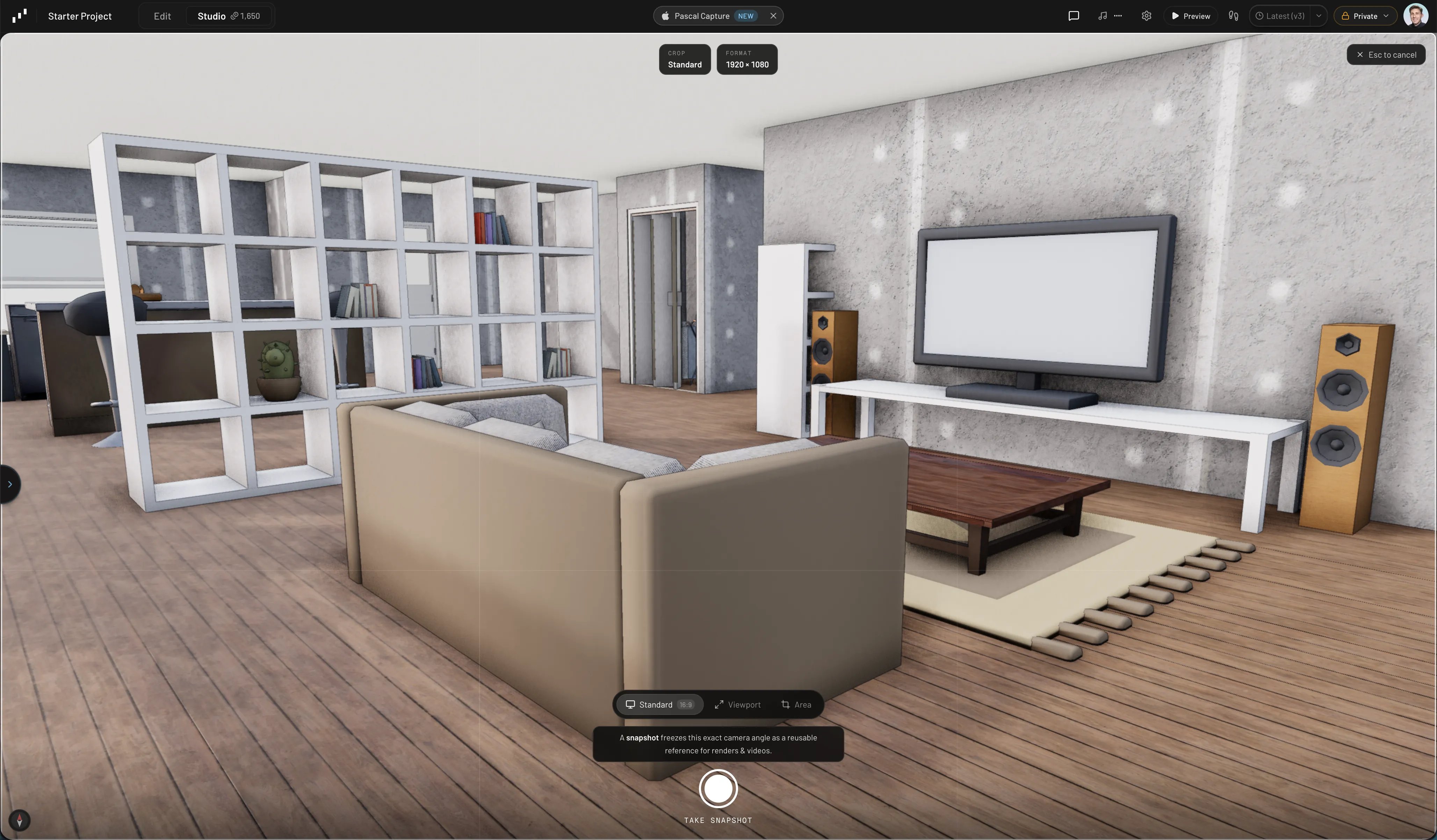 Pick a crop mode from the pill at the bottom:
* **Standard** — a letterboxed frame at a fixed aspect ratio. Click **Standard**
again to pick the ratio: `16:9`, `9:16`, `4:3`, `3:4`, or `1:1` (16:9 is the
default, captured at 1920 × 1080).
* **Viewport** — the whole canvas, at your screen's size.
* **Area** — drag a rectangle over exactly the region you want, then move or
resize it with the corner handles.
The chips at the top show the active crop mode and the output resolution. Press the
shutter button to capture, or `Esc` to cancel.
Snapshots don't download directly — they render through a dedicated high-quality
pipeline (always at full rendered quality, whatever your current viewport shading)
and save to your project.
## Find and download your snapshots
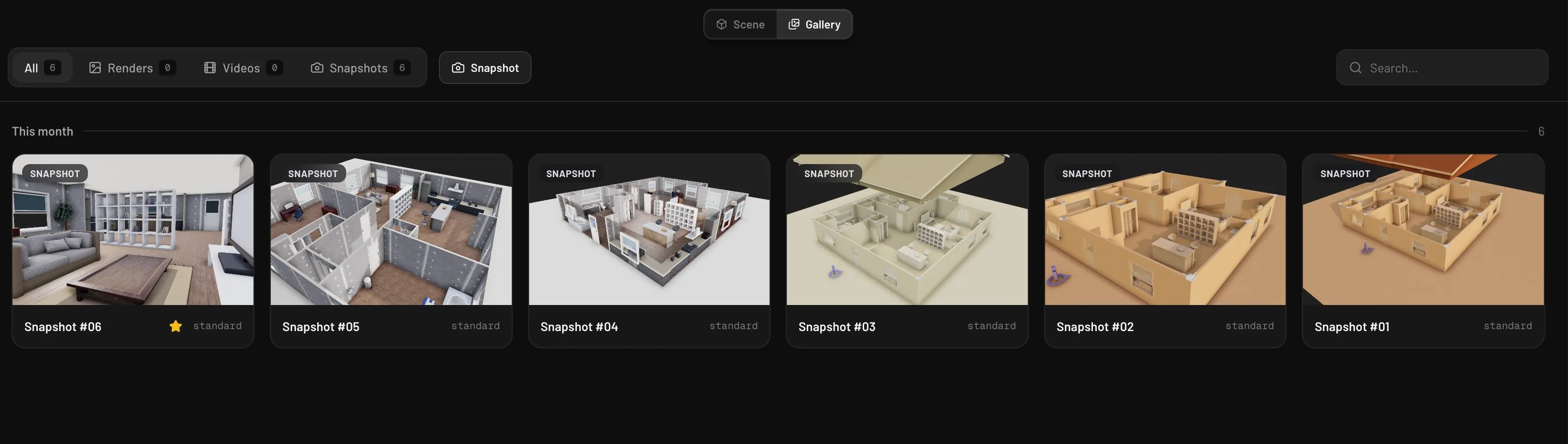
Saved snapshots live in your project's gallery alongside your AI renders: open the
**Studio** workspace and flip the **Scene ⇄ Gallery** switch at the top of the
stage. From the gallery you can open a snapshot, mark it as a favorite, and
**Download** it as a PNG.
Snapshots also do double duty as camera references for
[studio renders](/ai/studio-renders) — a saved snapshot pins the exact angle you
framed.
Pick a crop mode from the pill at the bottom:
* **Standard** — a letterboxed frame at a fixed aspect ratio. Click **Standard**
again to pick the ratio: `16:9`, `9:16`, `4:3`, `3:4`, or `1:1` (16:9 is the
default, captured at 1920 × 1080).
* **Viewport** — the whole canvas, at your screen's size.
* **Area** — drag a rectangle over exactly the region you want, then move or
resize it with the corner handles.
The chips at the top show the active crop mode and the output resolution. Press the
shutter button to capture, or `Esc` to cancel.
Snapshots don't download directly — they render through a dedicated high-quality
pipeline (always at full rendered quality, whatever your current viewport shading)
and save to your project.
## Find and download your snapshots
Saved snapshots live in your project's gallery alongside your AI renders: open the
**Studio** workspace and flip the **Scene ⇄ Gallery** switch at the top of the
stage. From the gallery you can open a snapshot, mark it as a favorite, and
**Download** it as a PNG.
Snapshots also do double duty as camera references for
[studio renders](/ai/studio-renders) — a saved snapshot pins the exact angle you
framed.
 ## Set up the shot
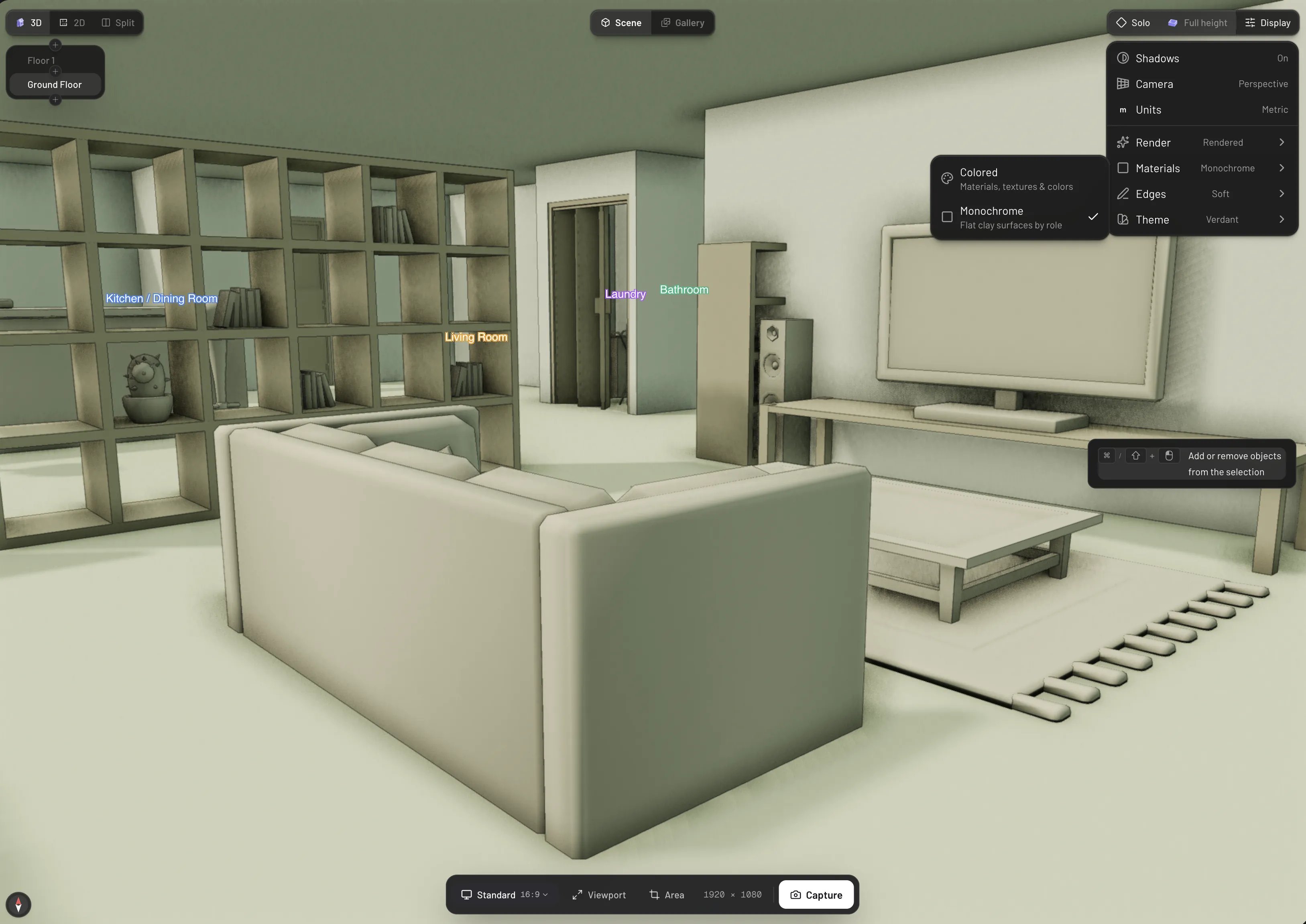
Everything in the viewer toolbar shapes what your capture looks like:
* **Display** menu — switch shading between **Solid** (flat and fast) and
**Rendered** (full ambient occlusion), textures between **Colored** and
**Monochrome** (a flat clay look), edge lines between **Off**, **Soft**, and
**Strong**, plus the scene theme and camera projection
(**Perspective**/**Orthographic**).
* **Levels** and **Walls** toggles — explode levels apart, isolate a single level,
or cut walls down so the camera can see into rooms.
Remember the difference: quick screenshots include these display settings exactly
as shown, while snapshots always render at full quality regardless of the
Solid/Rendered toggle.
## Set up the shot
Everything in the viewer toolbar shapes what your capture looks like:
* **Display** menu — switch shading between **Solid** (flat and fast) and
**Rendered** (full ambient occlusion), textures between **Colored** and
**Monochrome** (a flat clay look), edge lines between **Off**, **Soft**, and
**Strong**, plus the scene theme and camera projection
(**Perspective**/**Orthographic**).
* **Levels** and **Walls** toggles — explode levels apart, isolate a single level,
or cut walls down so the camera can see into rooms.
Remember the difference: quick screenshots include these display settings exactly
as shown, while snapshots always render at full quality regardless of the
Solid/Rendered toggle.