> ## Documentation Index
> Fetch the complete documentation index at: https://editor.pascal.app/docs/llms.txt
> Use this file to discover all available pages before exploring further.
# Sharing your work
> Make a Pascal project public, share a view-only link, and control what visitors see in the 3D viewer.
Every project starts private — only you can open it. When you're ready to show it off,
flip it to public: anyone with the link can explore it in a view-only 3D viewer, and it
appears in the [community hub](/community/explore) and on your profile.
## Make a project public
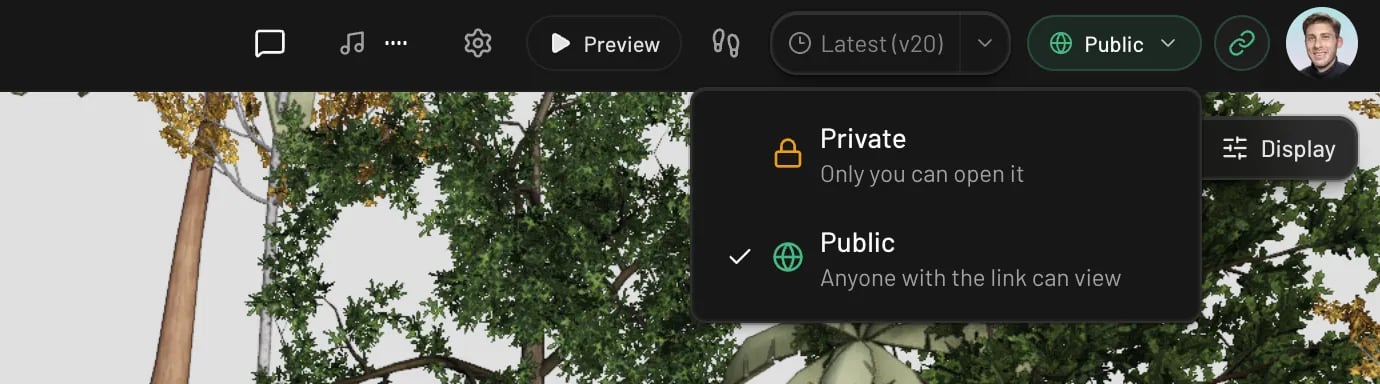
In the editor's top bar, click the visibility pill (it reads **Private** with a lock, or
**Public** with a globe) and pick:
* **Private** — "Only you can open it"
* **Public** — "Anyone with the link can view"
 You can also change it from your project list: hover a project card, open **Project
settings**, and flip the **Public project** switch.
Switching back to private works the same way, any time. The share link stops working
immediately — visitors see "This project is private. Ask the owner to make it public to
view it."
## Share a view-only link
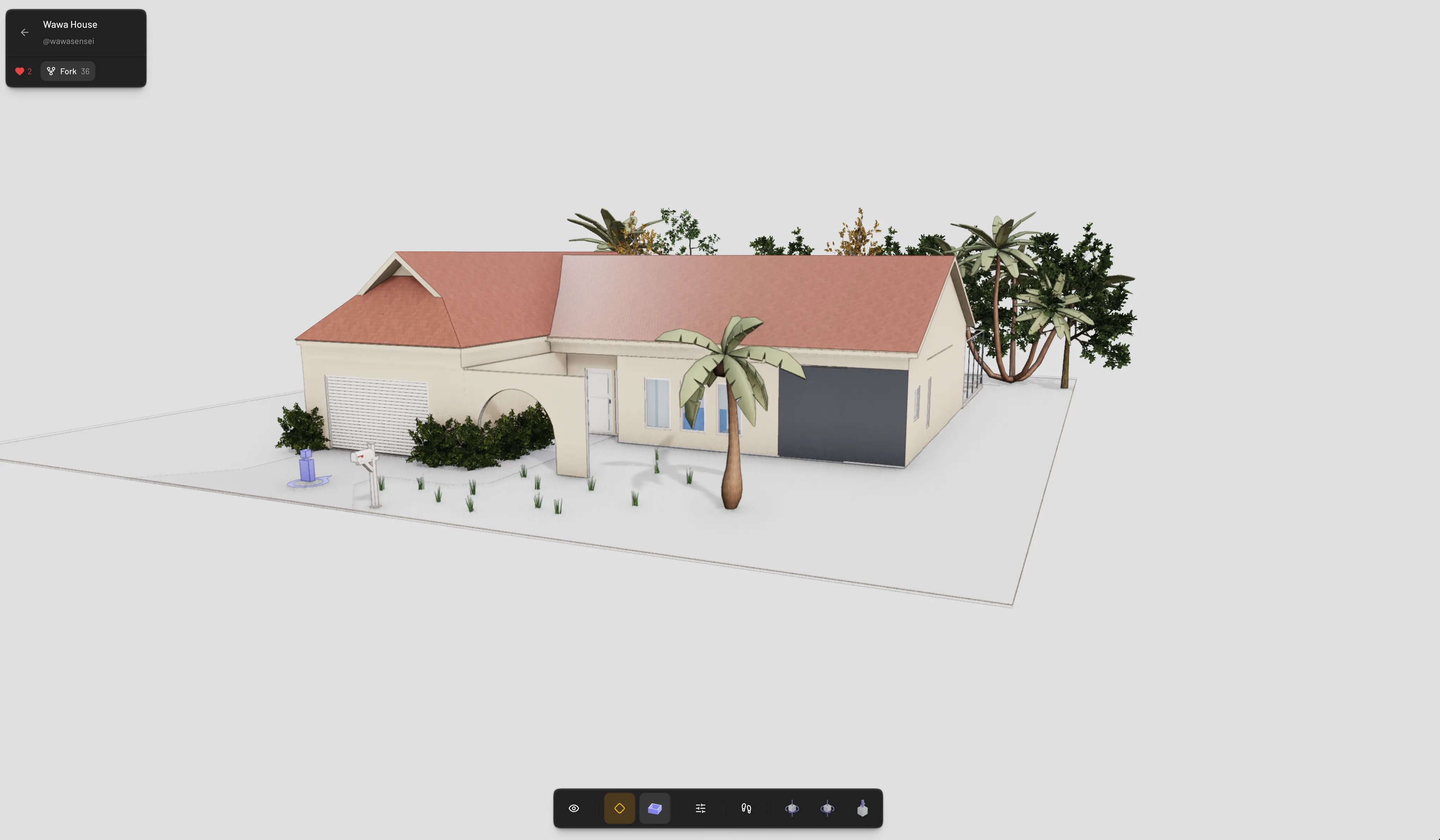
Once a project is public, a **Copy viewer link** button appears next to the visibility
pill. The link points to the project's viewer page
(`https://editor.pascal.app/viewer/...`), where anyone — no account needed — can:
* orbit, pan, and zoom around the scene
* switch levels and view them stacked, exploded, or solo
* change wall height (full height, cutaway, or low) to peek inside rooms
* adjust display settings: shadows, camera projection, colors, render mode, and scene theme
* walk through the design in first person (walkthrough mode; `Esc` exits)
Visitors can look but not touch — nothing in the viewer edits your project. Signed-in
visitors can also like the project or [fork it](/community/explore#fork-a-project) as a
starting point for their own.
You can also change it from your project list: hover a project card, open **Project
settings**, and flip the **Public project** switch.
Switching back to private works the same way, any time. The share link stops working
immediately — visitors see "This project is private. Ask the owner to make it public to
view it."
## Share a view-only link
Once a project is public, a **Copy viewer link** button appears next to the visibility
pill. The link points to the project's viewer page
(`https://editor.pascal.app/viewer/...`), where anyone — no account needed — can:
* orbit, pan, and zoom around the scene
* switch levels and view them stacked, exploded, or solo
* change wall height (full height, cutaway, or low) to peek inside rooms
* adjust display settings: shadows, camera projection, colors, render mode, and scene theme
* walk through the design in first person (walkthrough mode; `Esc` exits)
Visitors can look but not touch — nothing in the viewer edits your project. Signed-in
visitors can also like the project or [fork it](/community/explore#fork-a-project) as a
starting point for their own.
 ## What's public and what stays private
Making a project public shares the design itself. Two extras are controlled separately in
**Project settings**, under **Public viewer**:
* **3D scans** — captured scan data attached to the project
* **Floorplans** — floorplan guide images you've traced over
Each has its own switch, so you can share the finished design while keeping the scan of
your real home or the original floorplan hidden from visitors. Both are shown by default.
Public projects are also listed in the [community hub](/community/explore) and on your
public profile, with their view, like, and fork counts. Private projects never appear
anywhere except your own project list.
## Link previews
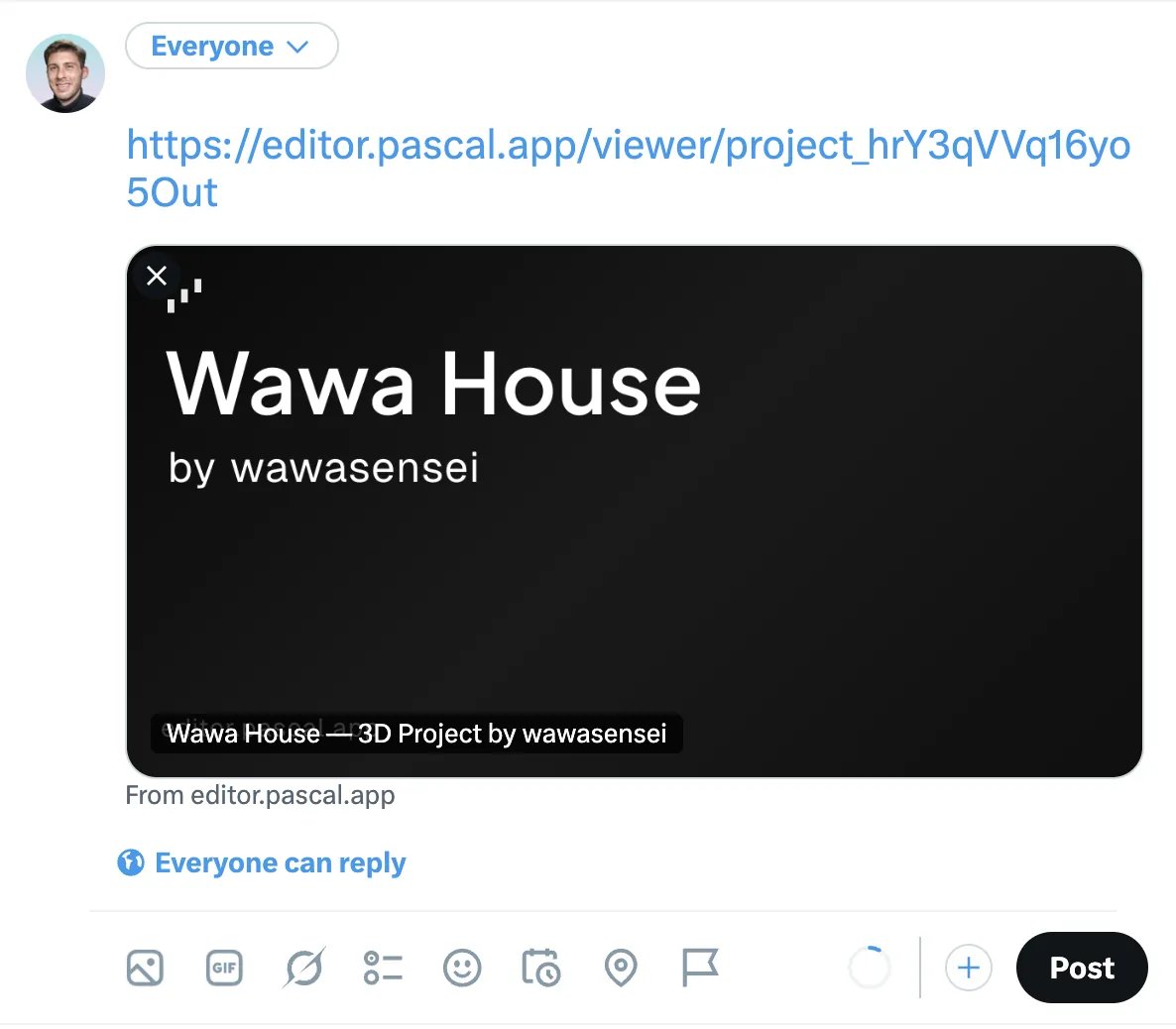
When you paste a public viewer link into a chat or social post, it unfurls with a preview
card showing the project's name and your username. Private projects don't leak anything —
their links fall back to a generic "3D Project Viewer" preview.
## What's public and what stays private
Making a project public shares the design itself. Two extras are controlled separately in
**Project settings**, under **Public viewer**:
* **3D scans** — captured scan data attached to the project
* **Floorplans** — floorplan guide images you've traced over
Each has its own switch, so you can share the finished design while keeping the scan of
your real home or the original floorplan hidden from visitors. Both are shown by default.
Public projects are also listed in the [community hub](/community/explore) and on your
public profile, with their view, like, and fork counts. Private projects never appear
anywhere except your own project list.
## Link previews
When you paste a public viewer link into a chat or social post, it unfurls with a preview
card showing the project's name and your username. Private projects don't leak anything —
their links fall back to a generic "3D Project Viewer" preview.