> ## Documentation Index
> Fetch the complete documentation index at: https://editor.pascal.app/docs/llms.txt
> Use this file to discover all available pages before exploring further.
# Working together live
> See who's online in your organization, follow their camera, and edit the same project at the same time.
Organization projects are multiplayer: open the same project as a teammate and you see
each other instantly — cursors, selections, cameras, and edits, live. Everything on this
page happens inside an [organization](/docs/collaboration/organizations) workspace; personal
projects stay single-player.
## See who's online
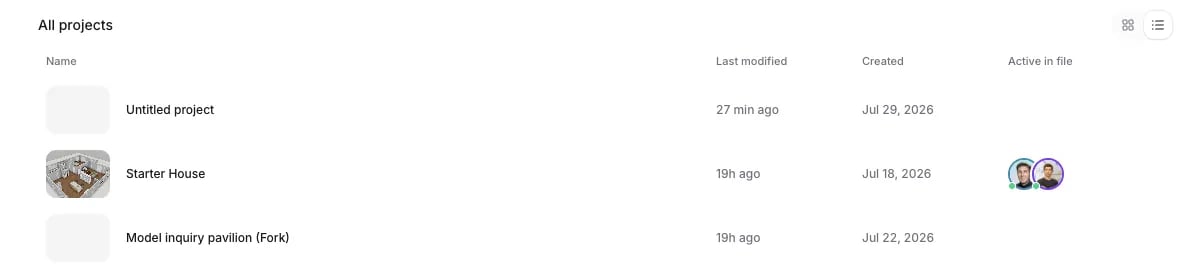
The workspace switcher shows who in your organization is online and which project each
person is in — click someone to jump into their project. Inside a project, an avatar
stack in the top bar lists every active session, whether each person is **Editing** or
**Observing**, and which view they're using (**2D**, **3D**, or **Split**). Every
collaborator gets their own color, used consistently for their avatar ring, cursor,
selection, and camera.
 ## Follow a teammate
Click a collaborator's avatar to follow them: your view glides to their camera and stays
with it, with a colored border marking that you're following. Take back control at any
moment — moving your own camera exits follow instantly.
## Cursors, selections, and previews
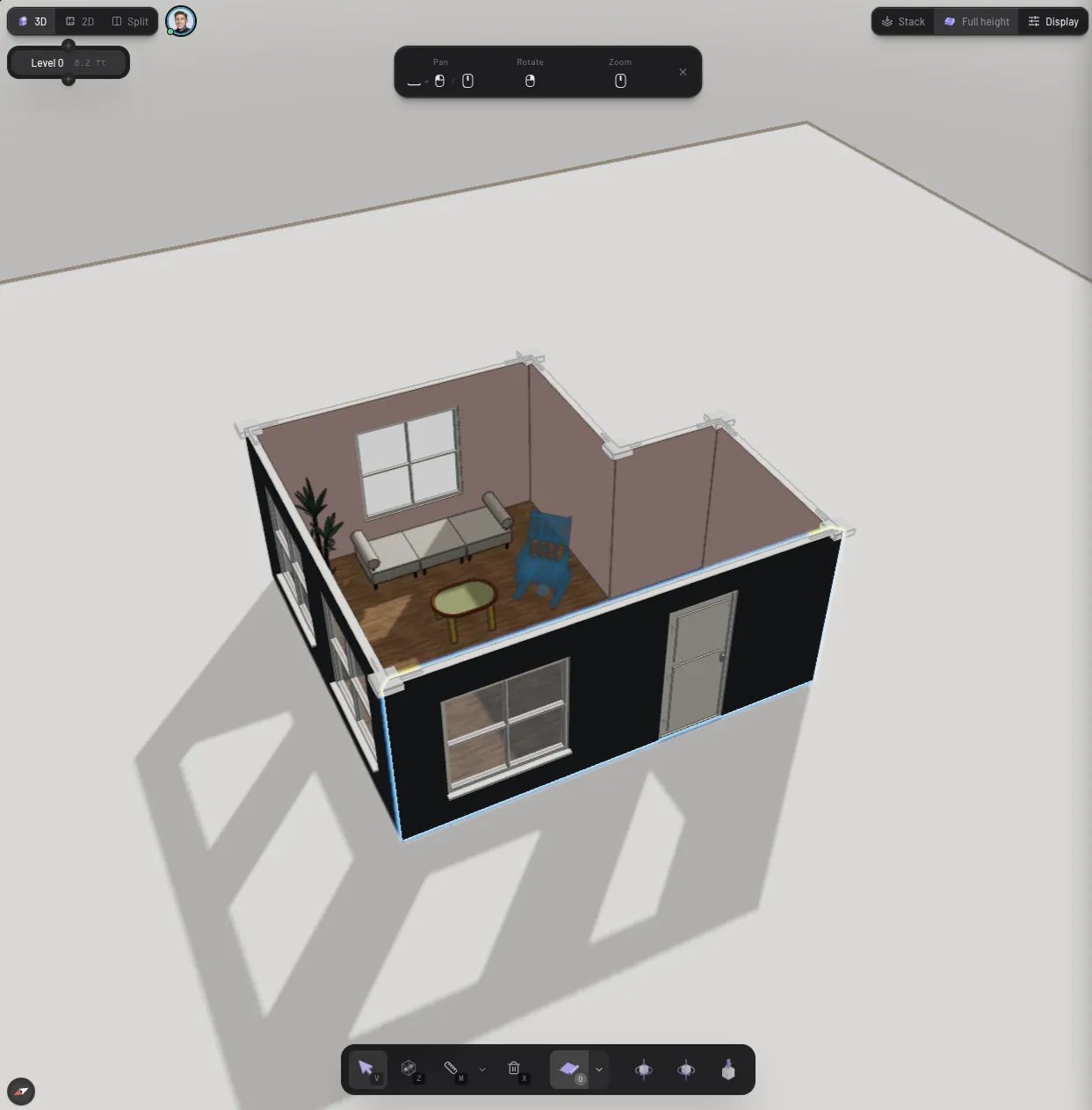
On the 2D floorplan, everyone working on the same level sees each other's cursors moving
in real time. Whatever a teammate selects is outlined in their color, and while they
draw or place something — a wall, a door, an item — you see a live ghost preview of it
before they commit. No surprises when the real thing lands.
## Edit at the same time
There's no locking and no taking turns: everyone edits at once, and changes merge in
the order the server accepts them. When a teammate places, moves, or deletes something,
a brief highlight in their color marks where it happened.
## Follow a teammate
Click a collaborator's avatar to follow them: your view glides to their camera and stays
with it, with a colored border marking that you're following. Take back control at any
moment — moving your own camera exits follow instantly.
## Cursors, selections, and previews
On the 2D floorplan, everyone working on the same level sees each other's cursors moving
in real time. Whatever a teammate selects is outlined in their color, and while they
draw or place something — a wall, a door, an item — you see a live ghost preview of it
before they commit. No surprises when the real thing lands.
## Edit at the same time
There's no locking and no taking turns: everyone edits at once, and changes merge in
the order the server accepts them. When a teammate places, moves, or deletes something,
a brief highlight in their color marks where it happened.
 A few things worth knowing:
* **Undo stays personal.** `Cmd/Ctrl + Z` only undoes your own changes, never a
teammate's.
* **Bad connections are fine.** Your edits stay visible locally and are retried when
you're back online; reconnecting catches you up on what you missed.
* **Not everything is collaborative yet.** Live co-editing covers the core building and
furnishing workflow; a few operations are still being brought over.
## One AI chat per project
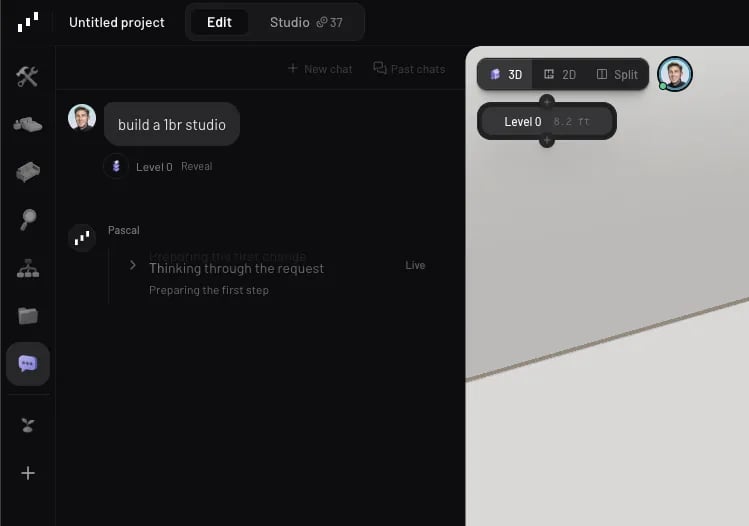
The [AI assistant](/docs/ai/assistant) is shared too: an organization project has a single
chat thread that every collaborator sees. Typing indicators show who's writing, the
assistant's replies stream live for everyone, and one request runs at a time — if a
teammate beats you to it, your draft stays put until the run finishes. Starting a
**New chat** starts it for everyone.
A few things worth knowing:
* **Undo stays personal.** `Cmd/Ctrl + Z` only undoes your own changes, never a
teammate's.
* **Bad connections are fine.** Your edits stay visible locally and are retried when
you're back online; reconnecting catches you up on what you missed.
* **Not everything is collaborative yet.** Live co-editing covers the core building and
furnishing workflow; a few operations are still being brought over.
## One AI chat per project
The [AI assistant](/docs/ai/assistant) is shared too: an organization project has a single
chat thread that every collaborator sees. Typing indicators show who's writing, the
assistant's replies stream live for everyone, and one request runs at a time — if a
teammate beats you to it, your draft stays put until the run finishes. Starting a
**New chat** starts it for everyone.