> ## Documentation Index
> Fetch the complete documentation index at: https://editor.pascal.app/docs/llms.txt
> Use this file to discover all available pages before exploring further.
# Organizations
> Create a shared workspace for your team, invite members with roles, and work on the same pool of projects, files, and credits.
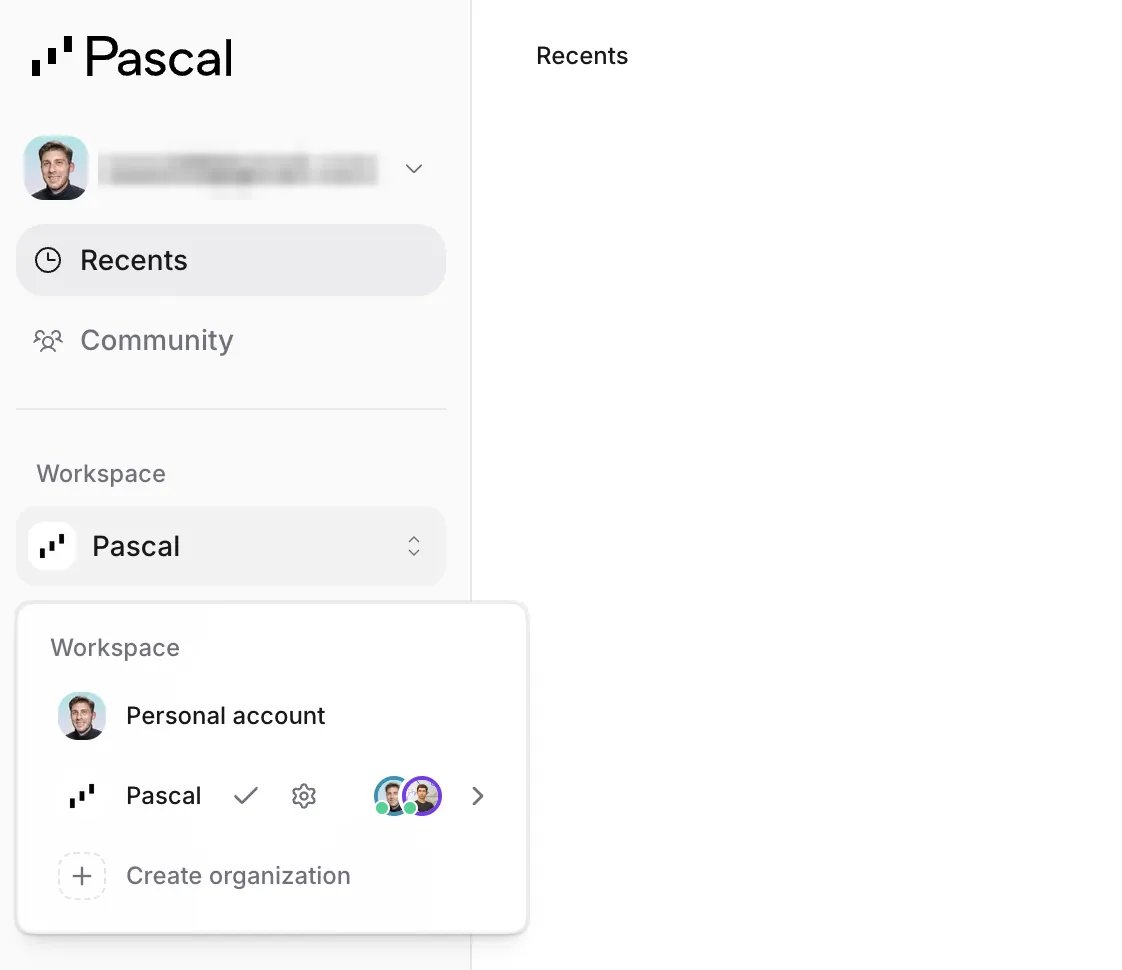
An organization is a shared workspace: every project created in it belongs to the team,
and every member can open and edit those projects — including
[live, at the same time](/docs/collaboration/realtime). You always keep your **Personal
account** workspace too; the workspace switcher at the top of the sidebar moves you
between them.
 ## Create an organization
Open the workspace switcher and pick **Create organization**, or go to **Settings** →
**Organizations** and click **+ New organization**. Give it a name — the URL slug fills
in automatically — and you're in as the organization's owner. Add a logo any time by
clicking the logo tile in the organization's settings.
## Invite your team
From **Settings** → **Organizations**, invite members by email and pick their role:
**Member** or **Admin**. Invitations arrive by email with an accept link and expire
after 48 hours; pending invites can be canceled from the same page. If you've been
invited, the invitation also shows up right in your workspace switcher and on the
settings page — accept or decline from either.
## Create an organization
Open the workspace switcher and pick **Create organization**, or go to **Settings** →
**Organizations** and click **+ New organization**. Give it a name — the URL slug fills
in automatically — and you're in as the organization's owner. Add a logo any time by
clicking the logo tile in the organization's settings.
## Invite your team
From **Settings** → **Organizations**, invite members by email and pick their role:
**Member** or **Admin**. Invitations arrive by email with an accept link and expire
after 48 hours; pending invites can be canceled from the same page. If you've been
invited, the invitation also shows up right in your workspace switcher and on the
settings page — accept or decline from either.
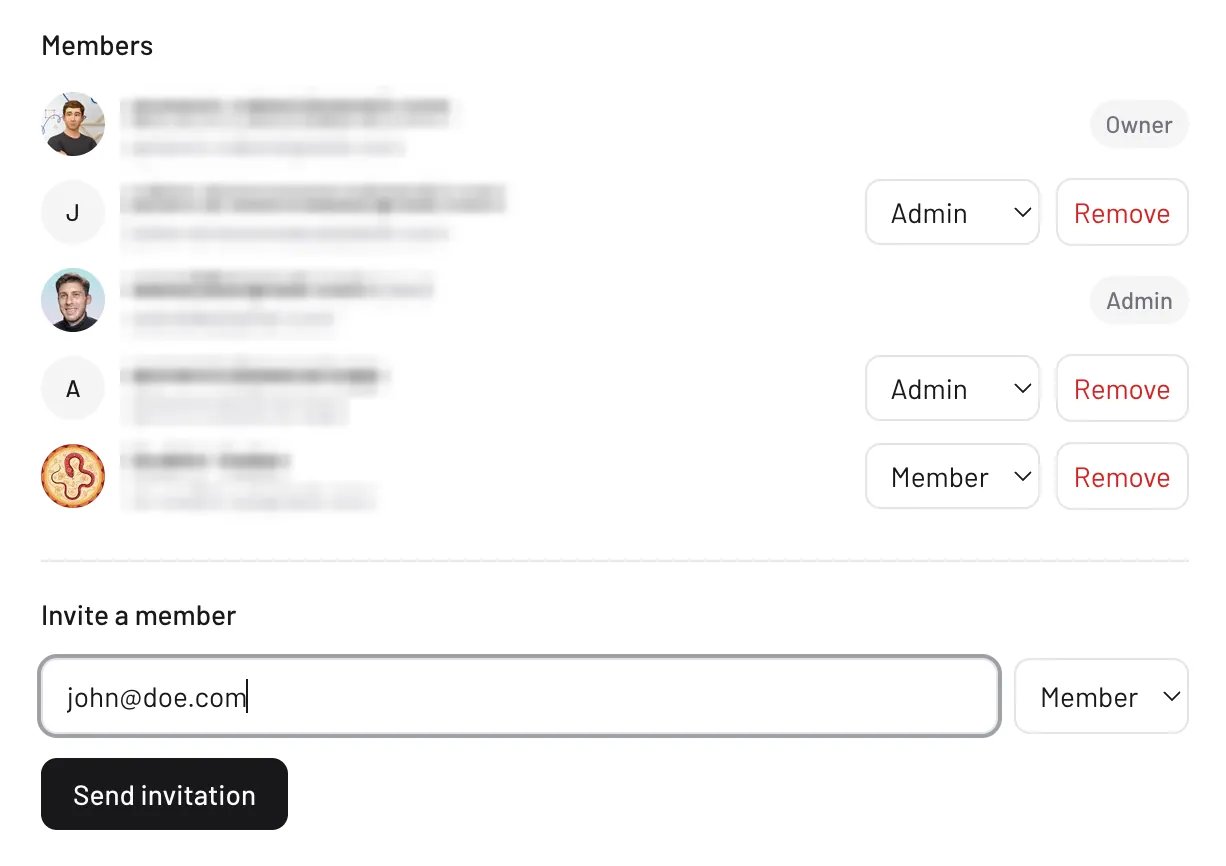 Three roles control what people can do:
| Role | What they can do |
| ---------- | ------------------------------------------------------------------------------ |
| **Owner** | Everything, including deleting the organization. |
| **Admin** | Manage the organization's profile, members, invitations, and project settings. |
| **Member** | Open and edit every organization project. |
Owners and admins can change a member's role or remove members from the settings page.
## Projects in an organization
Projects created while an organization is the active workspace belong to that
organization — every member can open and edit them, while renaming, changing settings,
or deleting stays with owners and admins. Newly created projects appear in your
teammates' project lists automatically, no reload needed.
You can move a project between workspaces from **Project settings**: under **Move
project**, pick the destination workspace (your personal account or another
organization) and click **Move project**. Projects that have started
[live collaborative editing](/docs/collaboration/realtime) can't move between workspaces for
now.
The **Files** page collects assets uploaded across every project in the organization, so
the whole team shares one asset library.
## Credits and billing
An organization has its own credit balance shared by all members — each member spends
their personal daily free credits first, then draws from the shared pool. Owners and
admins can top it up. See [credits](/docs/account/credits) for how credits are spent.
## Leave or delete
At the bottom of the organization's settings page, members can leave an organization at
any time. Deleting the whole organization is owner-only — and blocked while a paid
credit balance remains, so spend or wait it out first.
Three roles control what people can do:
| Role | What they can do |
| ---------- | ------------------------------------------------------------------------------ |
| **Owner** | Everything, including deleting the organization. |
| **Admin** | Manage the organization's profile, members, invitations, and project settings. |
| **Member** | Open and edit every organization project. |
Owners and admins can change a member's role or remove members from the settings page.
## Projects in an organization
Projects created while an organization is the active workspace belong to that
organization — every member can open and edit them, while renaming, changing settings,
or deleting stays with owners and admins. Newly created projects appear in your
teammates' project lists automatically, no reload needed.
You can move a project between workspaces from **Project settings**: under **Move
project**, pick the destination workspace (your personal account or another
organization) and click **Move project**. Projects that have started
[live collaborative editing](/docs/collaboration/realtime) can't move between workspaces for
now.
The **Files** page collects assets uploaded across every project in the organization, so
the whole team shares one asset library.
## Credits and billing
An organization has its own credit balance shared by all members — each member spends
their personal daily free credits first, then draws from the shared pool. Owners and
admins can top it up. See [credits](/docs/account/credits) for how credits are spent.
## Leave or delete
At the bottom of the organization's settings page, members can leave an organization at
any time. Deleting the whole organization is owner-only — and blocked while a paid
credit balance remains, so spend or wait it out first.