> ## Documentation Index
> Fetch the complete documentation index at: https://editor.pascal.app/docs/llms.txt
> Use this file to discover all available pages before exploring further.
# Pascal Capture
> Scan a real room with the LiDAR sensor on your iPhone Pro or iPad Pro and turn it into an editable Pascal scene.
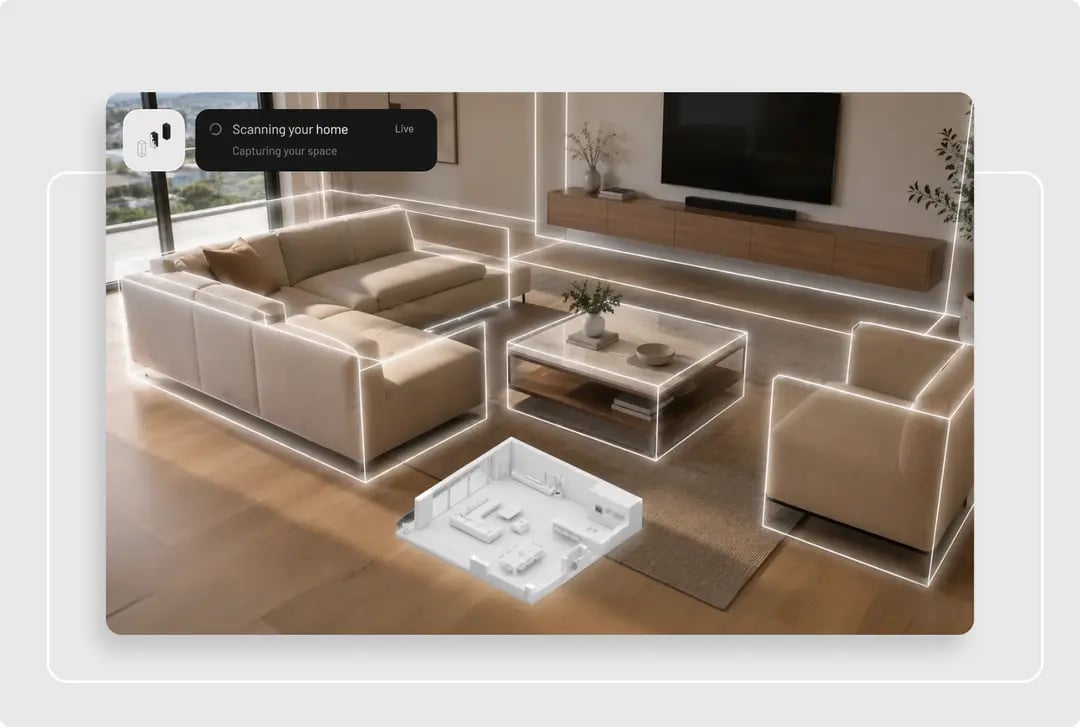
Pascal Capture is a free companion app for iPhone and iPad. Walk slowly around a room and
it captures the walls, doors, windows, and furniture, then converts the scan into a real
Pascal scene — editable walls and items, not a frozen 3D mesh — synced to your account and
ready to open at [editor.pascal.app](https://editor.pascal.app).
 ## Get the app
Pascal Capture is free on the
[App Store](https://apps.apple.com/us/app/pascal-capture/id6767281866). It's iOS-only —
room scanning is built on Apple's RoomPlan framework, which needs a LiDAR sensor:
* **iPhone 12 Pro / Pro Max or later** — Pro models only
* **iPad Pro 11″ (2nd generation, 2020) or later**, and **iPad Pro 12.9″ (4th generation, 2020) or later**
* **iOS or iPadOS 17 or later**
iPad Air, iPad mini, and the base iPad don't have LiDAR, so they can't scan rooms. You can
still sign in on those devices to view your projects, but the scan screen shows a
not-supported message.
Sign in with Apple, Google, or your email address (the app sends a 6-digit code). Use the
same account you use on [editor.pascal.app](https://editor.pascal.app) — scans land in the
same project list you see in the editor.
## Scan a room
1. From the **Projects** tab, pick or create a project, then pick or create a level. New
projects start with a **Level 0**.
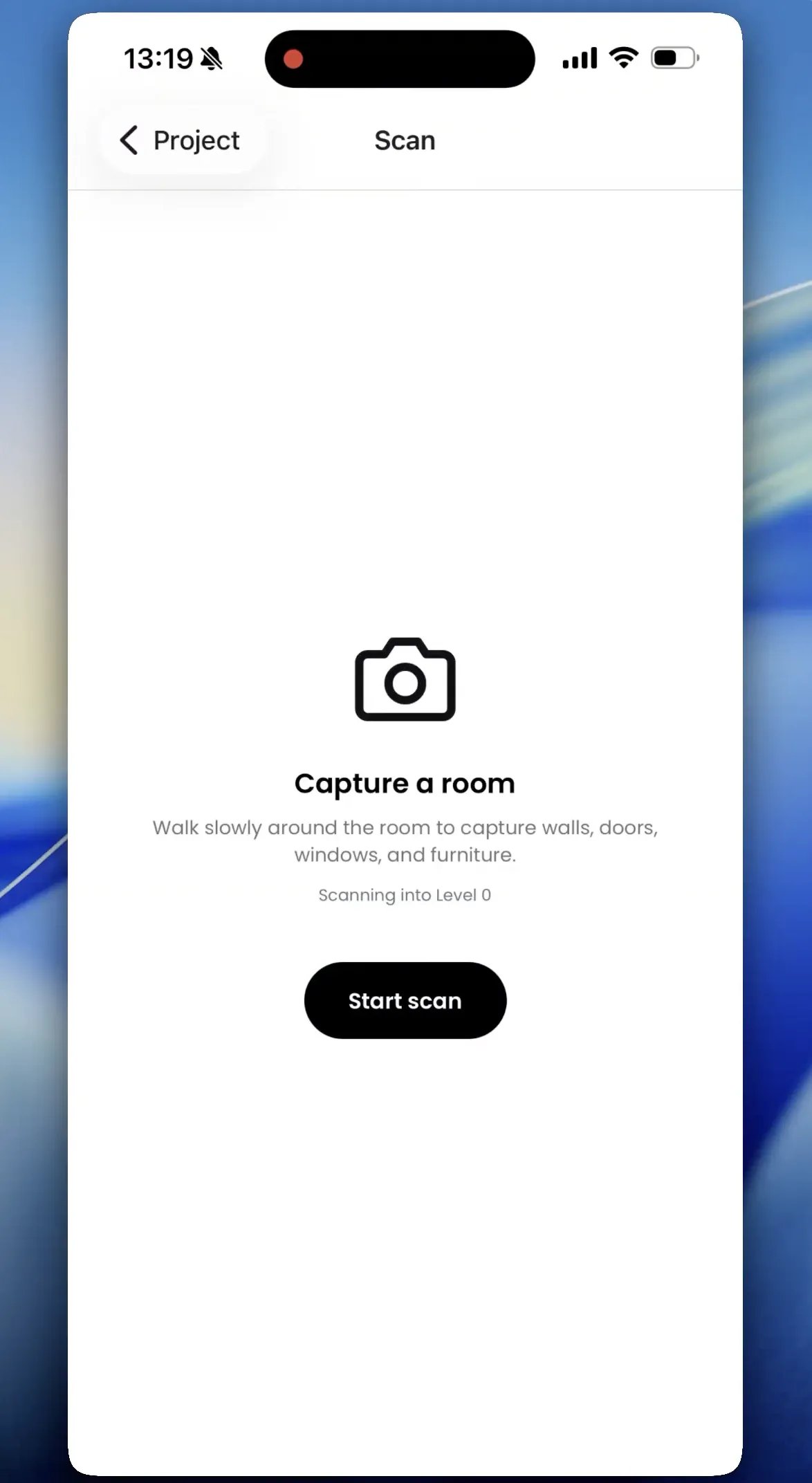
2. On the scan screen, press **Start scan**.
3. Walk slowly around the room to capture walls, doors, windows, and furniture. The
scanner works best in good light with visible furniture or edges to track against.
## Get the app
Pascal Capture is free on the
[App Store](https://apps.apple.com/us/app/pascal-capture/id6767281866). It's iOS-only —
room scanning is built on Apple's RoomPlan framework, which needs a LiDAR sensor:
* **iPhone 12 Pro / Pro Max or later** — Pro models only
* **iPad Pro 11″ (2nd generation, 2020) or later**, and **iPad Pro 12.9″ (4th generation, 2020) or later**
* **iOS or iPadOS 17 or later**
iPad Air, iPad mini, and the base iPad don't have LiDAR, so they can't scan rooms. You can
still sign in on those devices to view your projects, but the scan screen shows a
not-supported message.
Sign in with Apple, Google, or your email address (the app sends a 6-digit code). Use the
same account you use on [editor.pascal.app](https://editor.pascal.app) — scans land in the
same project list you see in the editor.
## Scan a room
1. From the **Projects** tab, pick or create a project, then pick or create a level. New
projects start with a **Level 0**.
2. On the scan screen, press **Start scan**.
3. Walk slowly around the room to capture walls, doors, windows, and furniture. The
scanner works best in good light with visible furniture or edges to track against.
 ## Place and name the room
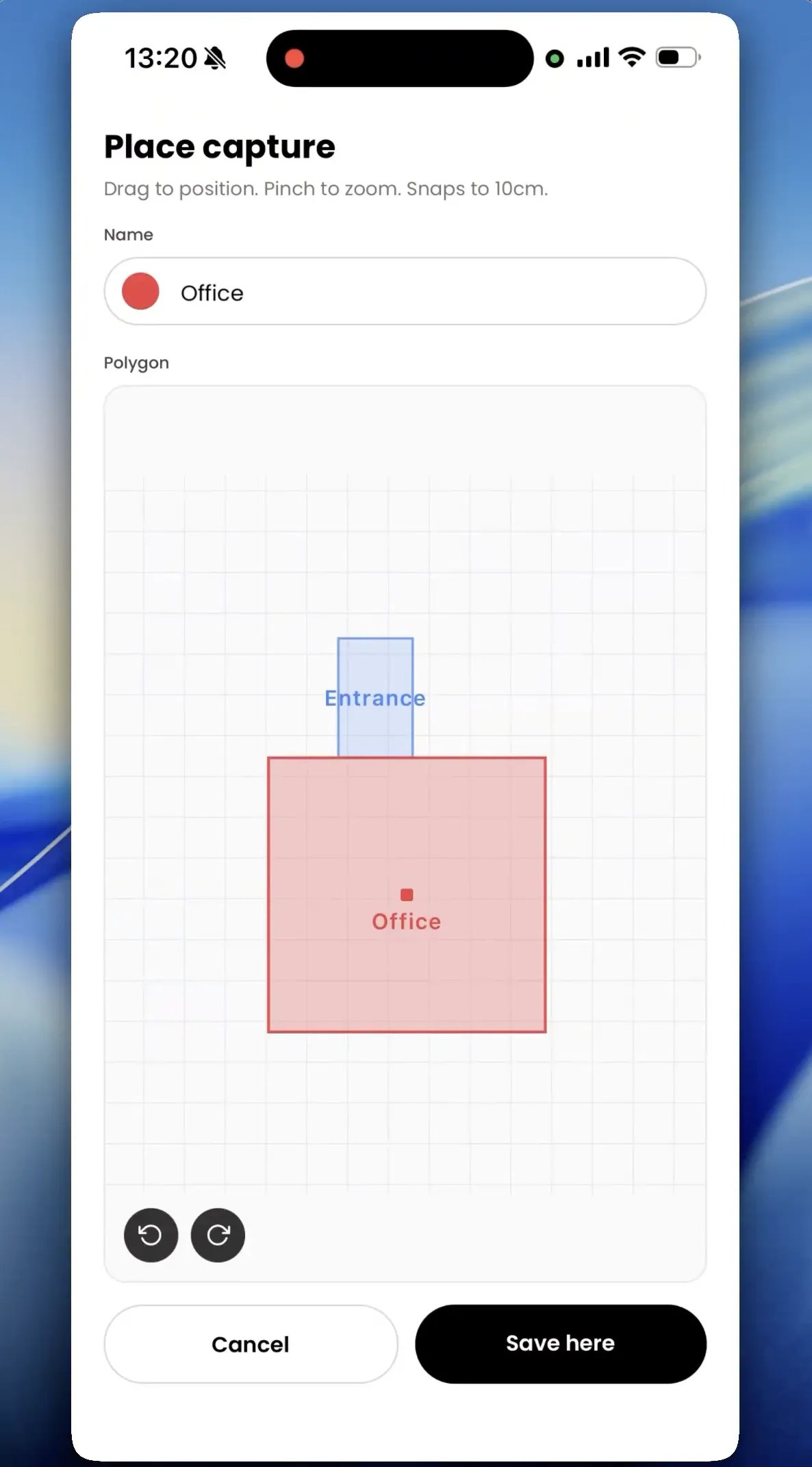
When the scanner finishes, Capture shows the new room's footprint on a 2D floorplan. Give
the room a name, pick its color, and — if the level already has rooms — drag it into
position next to its neighbors. Rotation snaps in 90° steps, so walls line up with the
rooms you've already captured. A whole floor comes together one scan at a time.
## Place and name the room
When the scanner finishes, Capture shows the new room's footprint on a 2D floorplan. Give
the room a name, pick its color, and — if the level already has rooms — drag it into
position next to its neighbors. Rotation snaps in 90° steps, so walls line up with the
rooms you've already captured. A whole floor comes together one scan at a time.
 ## How a scan becomes a scene
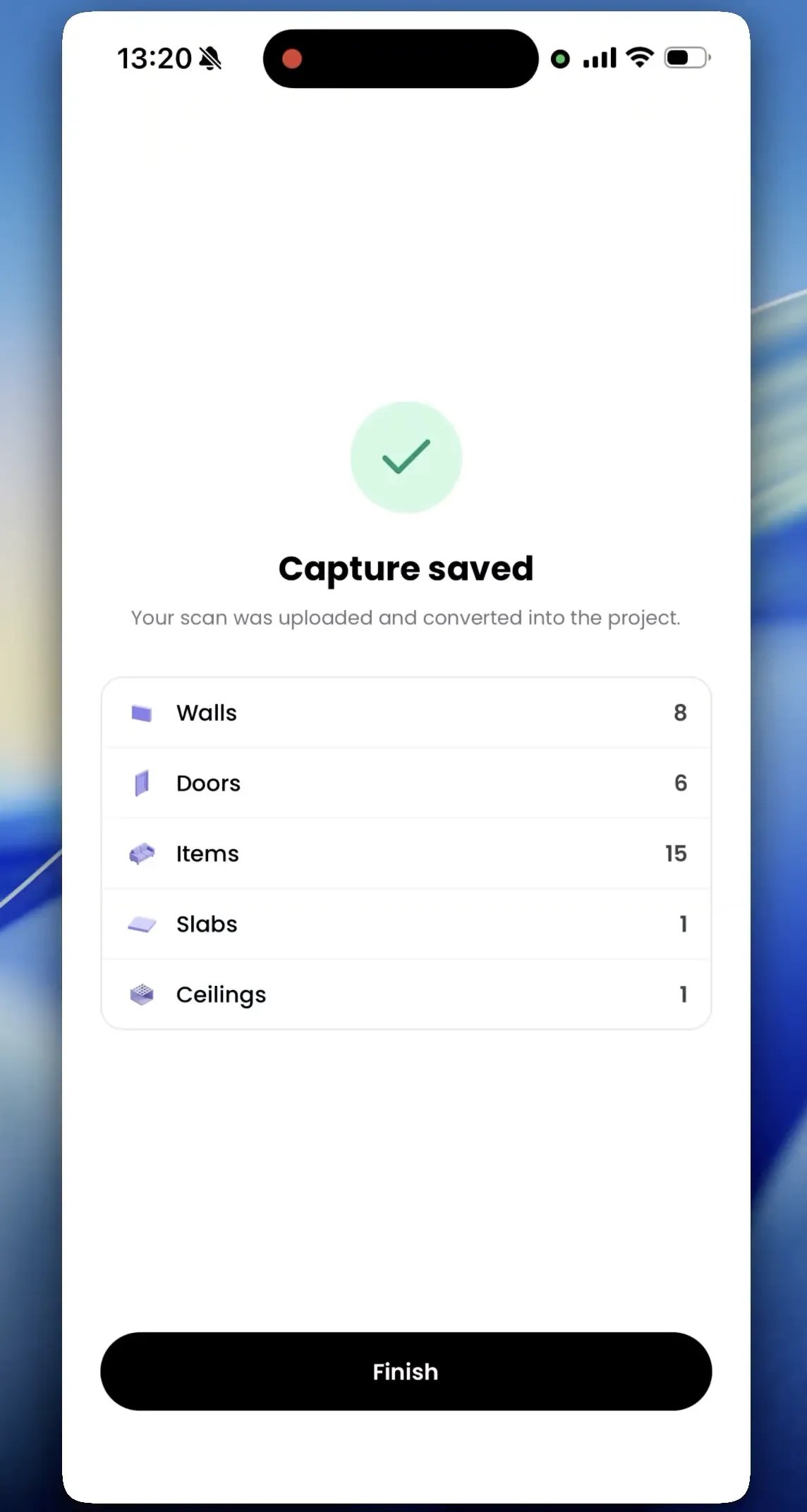
After placement, Capture uploads the scan and converts it on the spot. You get a
**Capture saved** summary counting what was created: walls, doors, windows, items, slabs,
and ceilings.
The conversion produces regular Pascal elements, not a static scan mesh:
* The room arrives as a named, colored zone on the level you picked.
* Walls, doors, and windows become the same editable elements you'd draw by hand, with the
room auto-rotated so its walls align with the grid.
* Recognized furniture is matched against the Pascal catalog. When there's no close match,
a placeholder model stands in — the summary lists which items used one, so you know what
to swap later.
## How a scan becomes a scene
After placement, Capture uploads the scan and converts it on the spot. You get a
**Capture saved** summary counting what was created: walls, doors, windows, items, slabs,
and ceilings.
The conversion produces regular Pascal elements, not a static scan mesh:
* The room arrives as a named, colored zone on the level you picked.
* Walls, doors, and windows become the same editable elements you'd draw by hand, with the
room auto-rotated so its walls align with the grid.
* Recognized furniture is matched against the Pascal catalog. When there's no close match,
a placeholder model stands in — the summary lists which items used one, so you know what
to swap later.
 Tap **Finish**, then open the project at
[editor.pascal.app](https://editor.pascal.app) to keep going — tidy up walls, swap
placeholder furniture, paint materials, or add the next level. See
[Placing and arranging](/items/placing-and-arranging) for working with the imported items.
## If a scan fails
* **Start scan is greyed out** — pick a project and a level first, or check that your
device has LiDAR (see the list above).
* **"Scan didn't save"** — iOS interrupted the capture (backgrounding, a phone call, low
memory). Try again and walk the full perimeter without leaving the app.
* **The scanner reports an error** — move to a brighter spot with visible furniture or
edges, then walk slowly around the room.
For anything else, see the
[Capture support page](https://editor.pascal.app/capture/support) or email
[support@pascal.app](mailto:support@pascal.app).
Tap **Finish**, then open the project at
[editor.pascal.app](https://editor.pascal.app) to keep going — tidy up walls, swap
placeholder furniture, paint materials, or add the next level. See
[Placing and arranging](/items/placing-and-arranging) for working with the imported items.
## If a scan fails
* **Start scan is greyed out** — pick a project and a level first, or check that your
device has LiDAR (see the list above).
* **"Scan didn't save"** — iOS interrupted the capture (backgrounding, a phone call, low
memory). Try again and walk the full perimeter without leaving the app.
* **The scanner reports an error** — move to a brighter spot with visible furniture or
edges, then walk slowly around the room.
For anything else, see the
[Capture support page](https://editor.pascal.app/capture/support) or email
[support@pascal.app](mailto:support@pascal.app).