> ## Documentation Index
> Fetch the complete documentation index at: https://editor.pascal.app/docs/llms.txt
> Use this file to discover all available pages before exploring further.
# Item builder
> Generate a 3D item from a photo or a description, tune it, then place it in your scene, keep it private, or publish it to the community.
The item catalog is large, but it will never hold the exact chair from your living room.
The item builder makes the missing one: give it a photo or a description, pick a
generation model, and Pascal builds a real 3D item — optimized, categorized, and ready to
place — that lives in your catalog across every project.
## Open the item builder
Two ways in:
* Switch to **Studio** with the **Edit / Studio** toggle in the navbar, then pick
**Item builder** in the icon rail — under **Renders** and **Materials**.
* From the **Items** tab while building: the first tile in any item grid is
**Create item**, which jumps you straight here with the create dialog already open.
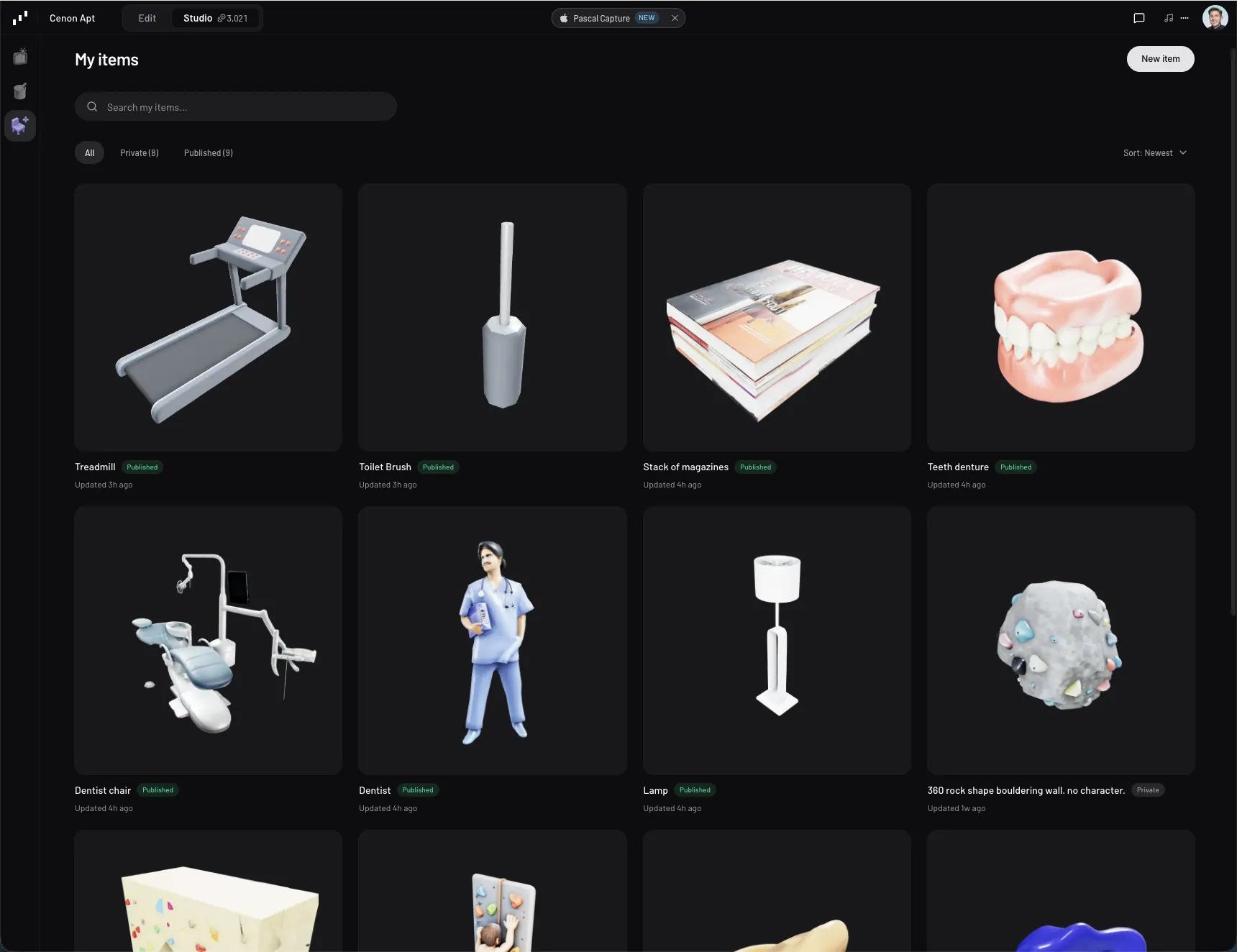
Either way you land on **My items** — every item you have made, across all your projects.
Search it, filter by **All** / **Private** / **Published**, and sort by **Newest**,
**Oldest**, or **Name**.
## Start a new item
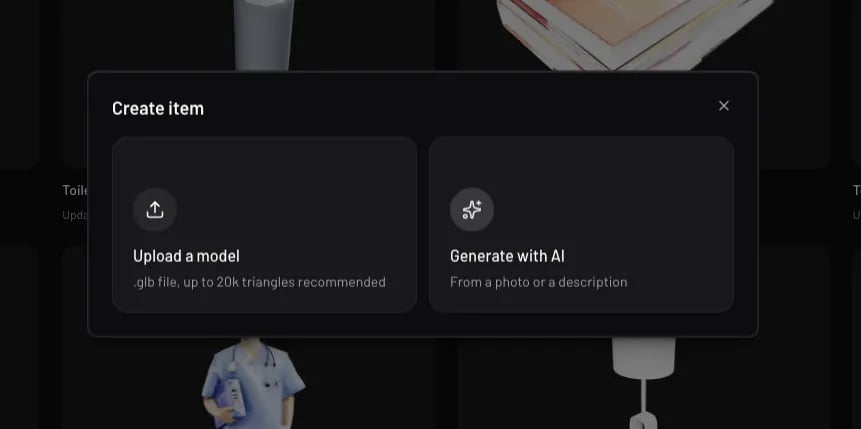
**New item** offers two starting points:
* **Upload a model** — a `.glb` file you already have. See
[Uploading your own model](#uploading-your-own-model).
* **Generate with AI** — from a photo, a description, or both.
## Pick a model
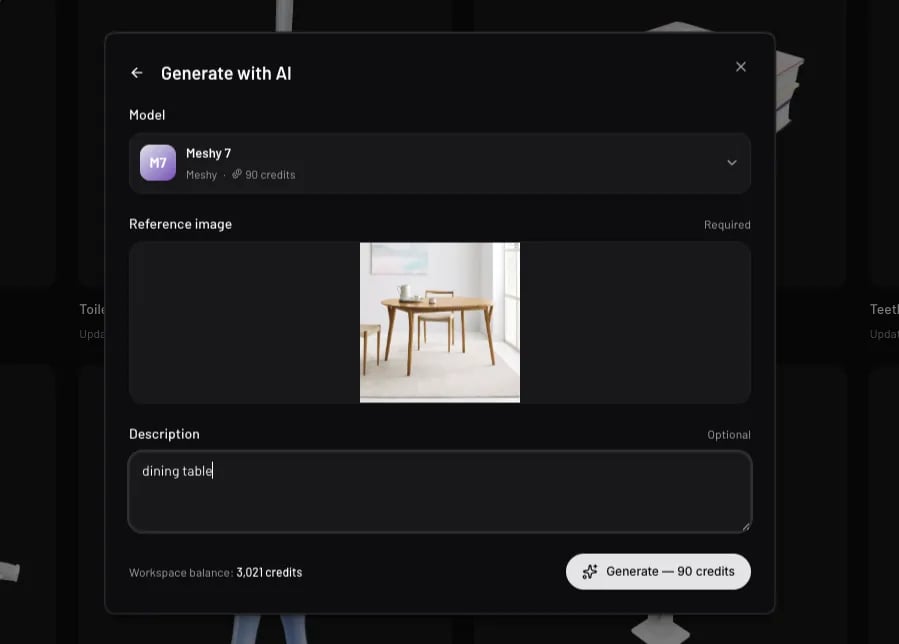
The **Model** picker groups every generation model by what it starts from — **Image to
3D** and **Text to 3D**. Each row shows its vendor, what it's good at, and what it costs
in credits; your selection is remembered for next time.
| Model | Vendor | Starts from | Best for |
| ------------------ | ------- | -------------------- | ---------------------------------------------------------------------------- |
| **Tripo P1** | Tripo | image or description | Production-ready stylized models with clean textures. |
| **SAM 3D** | Meta | image | Fast object extraction from a photo — the cheapest way to get a simple item. |
| **Hunyuan 3D 3.1** | Tencent | image or description | Balanced quality with PBR materials. |
| **Rodin** | Deemos | image or description | Real-world photos with clutter in them; also works from text alone. |
| **Meshy 6** | Meshy | image or description | High-fidelity meshes and materials. |
| **Meshy 7** | Meshy | image | The cleanest topology and materials of the catalog. |
Photos beat prose. If you can shoot or find a picture of the thing you want, an
image-to-3D model will get closer than any description — and cost less to iterate on.
## Describe what you want
Below the model come the two inputs, each labelled **Required** or **Optional** for the
model you picked:
* **Reference image** — drop a PNG, JPEG, or WebP, or click to browse. One clean subject
against an uncluttered background works best; Rodin is the one to reach for when the
photo is busy.
* **Description** — what the object is ("a walnut mid-century sideboard with brass legs").
Required for text-to-3D models. On models that take both, it steers the result.
The footer shows your workspace balance and the exact cost, and the button reads
**Generate — N credits**. Press it and you're back on **My items**.
## While it generates
The new item appears immediately as a **Generating** card with the model's name and a
running clock. Generations take a few minutes depending on the model, and nothing about
them is exclusive — start a second, a third, or keep editing an item you already have
while they run.
Keep the item builder open while a generation is in flight: Pascal picks up finished
models from the listing. If you navigate away, come back to **My items** and it resumes
where it left off.
From a generating card's **⋯** menu you can **Cancel generation**. A card that fails says
so, and offers one of two things in its menu:
* **Retry** — the generation never reached the model provider, so it runs again.
* **Resume** — it failed *after* the model was built, so Pascal picks the finished model
up instead of generating it a second time.
Either way, credits for a failed generation are refunded automatically.
## What Pascal does for you
A finished model still isn't a usable item — it has to be measured, framed, named, and
filed. The builder does all of that while the card reads **Setting up**:
* **Optimizes the mesh** — models over 20k triangles are simplified and their textures
compressed. Simplification stops before it would visibly damage the mesh, so a genuinely
detailed model is allowed to stay above budget rather than be mangled.
* **Measures it** — dimensions and offset are read from the model's own bounding box, so
it's placeable at the right size straight away.
* **Captures its images** — the catalog thumbnail and the top-down floor plan drawn inside
the item's footprint in the editor's 2D floor plan view.
* **Names and files it** — a name, a category, and the rooms it belongs in, inferred from
your prompt and reference image. All of it is yours to overwrite.
When the card settles, the item is ready to place.
## Tune the item
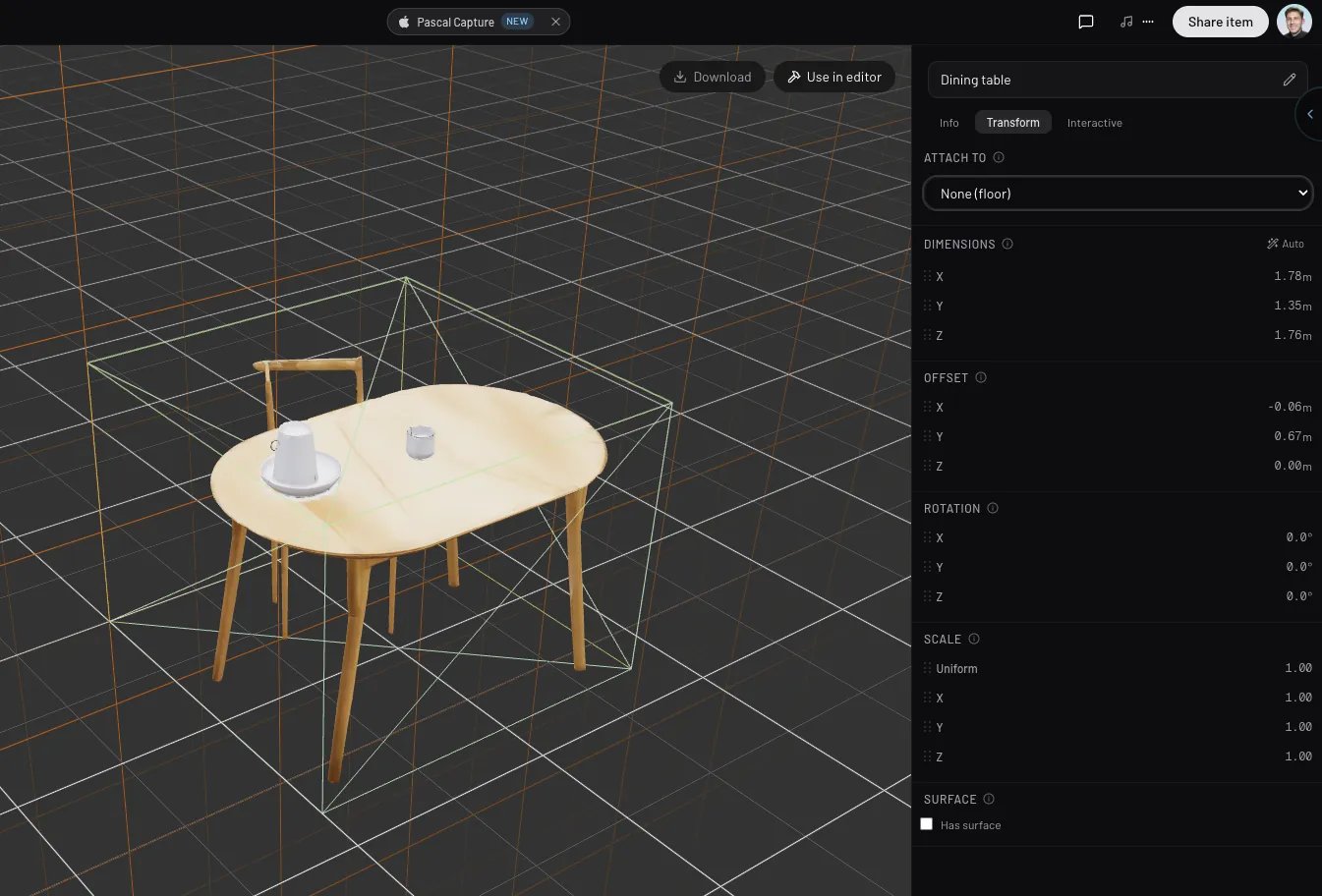
Click any finished card to open it on the stage with its panel on the right. Rename it at
the top, then work through the tabs:
* **Info** — categories, status, and the **Thumbnail** and **Floor plan** images. This is
where you re-capture either image if the automatic one didn't frame the item well. For a
generated item, the top of this tab shows its provenance: the model that made it, your
prompt, and the source photo.
* **Transform** — **Attach to** (floor, wall face, wall side, or ceiling), **Dimensions**,
**Offset**, **Rotation**, **Scale**, and **Surface** — the height of the flat top other
items can sit on, so lamps land correctly on a table.
* **Interactive** — animations and interactions the item exposes when someone walks
through the scene.
**Save** returns you to the listing. A generated item's model is fixed at birth — there's
no upload or re-generate on it, because a new generation is a new item. Everything else
stays editable forever.
## Use it, share it, export it
With an item open, **Download** and **Use in editor** sit above the stage and **Share
item** in the navbar. From the listing, the same actions live in each card's **⋯** menu:
* **Use in editor** — leaves Studio, arms the item for placement, and drops you back in
the scene with it on your cursor. See
[Placing and arranging](/docs/items/placing-and-arranging).
* **Download model** — the optimized `.glb`, for use anywhere else.
* **Publish to Community** — makes the item public. **Share item** does the same from
inside an open item, saving it first.
* **Delete item** — permanent.
Items you make are **Private** by default: they appear under the **Mine** filter of the
item catalog in every project you open, and nowhere else. Publishing adds them to the
**Community** filter for everyone. See [Sharing your work](/docs/community/sharing-your-work).
## Uploading your own model
The upload path takes a `.glb` file and runs the same setup pipeline — optimize, measure,
capture, classify. Upload-born items get one extra tab:
* **Asset** — replace the model, browse previous versions, and control optimization with
**Auto-optimize on save** and its **Compress textures (KTX2)** sub-option. Leave both on
unless you have already optimized the file yourself. Turning auto-optimize off exposes a
manual **Simplify ratio** you can preview before committing.
Every simplify keeps the original as the previous version, so a model is never optimized
into a corner.
## How credits work
Item generations draw from the same credit balance as
[Studio renders](/docs/ai/studio-renders#how-credits-work) and
[Material Studio](/docs/ai/material-studio): each model prices its own generation, the cost is
shown on the model row and on the generate button next to your workspace balance, failed
runs are refunded, and a balance too low for the selected model surfaces **Buy credits**
right where you are. See [Credits](/docs/account/credits) for balances and packs.
## Watch it in action
A full run start to finish: photographing a real object, generating it, and placing the
result in a home.
 ## Open the item builder
Two ways in:
* Switch to **Studio** with the **Edit / Studio** toggle in the navbar, then pick
**Item builder** in the icon rail — under **Renders** and **Materials**.
* From the **Items** tab while building: the first tile in any item grid is
**Create item**, which jumps you straight here with the create dialog already open.
Either way you land on **My items** — every item you have made, across all your projects.
Search it, filter by **All** / **Private** / **Published**, and sort by **Newest**,
**Oldest**, or **Name**.
## Start a new item
**New item** offers two starting points:
* **Upload a model** — a `.glb` file you already have. See
[Uploading your own model](#uploading-your-own-model).
* **Generate with AI** — from a photo, a description, or both.
## Open the item builder
Two ways in:
* Switch to **Studio** with the **Edit / Studio** toggle in the navbar, then pick
**Item builder** in the icon rail — under **Renders** and **Materials**.
* From the **Items** tab while building: the first tile in any item grid is
**Create item**, which jumps you straight here with the create dialog already open.
Either way you land on **My items** — every item you have made, across all your projects.
Search it, filter by **All** / **Private** / **Published**, and sort by **Newest**,
**Oldest**, or **Name**.
## Start a new item
**New item** offers two starting points:
* **Upload a model** — a `.glb` file you already have. See
[Uploading your own model](#uploading-your-own-model).
* **Generate with AI** — from a photo, a description, or both.
 ## Pick a model
The **Model** picker groups every generation model by what it starts from — **Image to
3D** and **Text to 3D**. Each row shows its vendor, what it's good at, and what it costs
in credits; your selection is remembered for next time.
| Model | Vendor | Starts from | Best for |
| ------------------ | ------- | -------------------- | ---------------------------------------------------------------------------- |
| **Tripo P1** | Tripo | image or description | Production-ready stylized models with clean textures. |
| **SAM 3D** | Meta | image | Fast object extraction from a photo — the cheapest way to get a simple item. |
| **Hunyuan 3D 3.1** | Tencent | image or description | Balanced quality with PBR materials. |
| **Rodin** | Deemos | image or description | Real-world photos with clutter in them; also works from text alone. |
| **Meshy 6** | Meshy | image or description | High-fidelity meshes and materials. |
| **Meshy 7** | Meshy | image | The cleanest topology and materials of the catalog. |
Photos beat prose. If you can shoot or find a picture of the thing you want, an
image-to-3D model will get closer than any description — and cost less to iterate on.
## Describe what you want
Below the model come the two inputs, each labelled **Required** or **Optional** for the
model you picked:
* **Reference image** — drop a PNG, JPEG, or WebP, or click to browse. One clean subject
against an uncluttered background works best; Rodin is the one to reach for when the
photo is busy.
* **Description** — what the object is ("a walnut mid-century sideboard with brass legs").
Required for text-to-3D models. On models that take both, it steers the result.
The footer shows your workspace balance and the exact cost, and the button reads
**Generate — N credits**. Press it and you're back on **My items**.
## Pick a model
The **Model** picker groups every generation model by what it starts from — **Image to
3D** and **Text to 3D**. Each row shows its vendor, what it's good at, and what it costs
in credits; your selection is remembered for next time.
| Model | Vendor | Starts from | Best for |
| ------------------ | ------- | -------------------- | ---------------------------------------------------------------------------- |
| **Tripo P1** | Tripo | image or description | Production-ready stylized models with clean textures. |
| **SAM 3D** | Meta | image | Fast object extraction from a photo — the cheapest way to get a simple item. |
| **Hunyuan 3D 3.1** | Tencent | image or description | Balanced quality with PBR materials. |
| **Rodin** | Deemos | image or description | Real-world photos with clutter in them; also works from text alone. |
| **Meshy 6** | Meshy | image or description | High-fidelity meshes and materials. |
| **Meshy 7** | Meshy | image | The cleanest topology and materials of the catalog. |
Photos beat prose. If you can shoot or find a picture of the thing you want, an
image-to-3D model will get closer than any description — and cost less to iterate on.
## Describe what you want
Below the model come the two inputs, each labelled **Required** or **Optional** for the
model you picked:
* **Reference image** — drop a PNG, JPEG, or WebP, or click to browse. One clean subject
against an uncluttered background works best; Rodin is the one to reach for when the
photo is busy.
* **Description** — what the object is ("a walnut mid-century sideboard with brass legs").
Required for text-to-3D models. On models that take both, it steers the result.
The footer shows your workspace balance and the exact cost, and the button reads
**Generate — N credits**. Press it and you're back on **My items**.
 ## While it generates
The new item appears immediately as a **Generating** card with the model's name and a
running clock. Generations take a few minutes depending on the model, and nothing about
them is exclusive — start a second, a third, or keep editing an item you already have
while they run.
Keep the item builder open while a generation is in flight: Pascal picks up finished
models from the listing. If you navigate away, come back to **My items** and it resumes
where it left off.
From a generating card's **⋯** menu you can **Cancel generation**. A card that fails says
so, and offers one of two things in its menu:
* **Retry** — the generation never reached the model provider, so it runs again.
* **Resume** — it failed *after* the model was built, so Pascal picks the finished model
up instead of generating it a second time.
Either way, credits for a failed generation are refunded automatically.
## What Pascal does for you
A finished model still isn't a usable item — it has to be measured, framed, named, and
filed. The builder does all of that while the card reads **Setting up**:
* **Optimizes the mesh** — models over 20k triangles are simplified and their textures
compressed. Simplification stops before it would visibly damage the mesh, so a genuinely
detailed model is allowed to stay above budget rather than be mangled.
* **Measures it** — dimensions and offset are read from the model's own bounding box, so
it's placeable at the right size straight away.
* **Captures its images** — the catalog thumbnail and the top-down floor plan drawn inside
the item's footprint in the editor's 2D floor plan view.
* **Names and files it** — a name, a category, and the rooms it belongs in, inferred from
your prompt and reference image. All of it is yours to overwrite.
When the card settles, the item is ready to place.
## Tune the item
Click any finished card to open it on the stage with its panel on the right. Rename it at
the top, then work through the tabs:
* **Info** — categories, status, and the **Thumbnail** and **Floor plan** images. This is
where you re-capture either image if the automatic one didn't frame the item well. For a
generated item, the top of this tab shows its provenance: the model that made it, your
prompt, and the source photo.
* **Transform** — **Attach to** (floor, wall face, wall side, or ceiling), **Dimensions**,
**Offset**, **Rotation**, **Scale**, and **Surface** — the height of the flat top other
items can sit on, so lamps land correctly on a table.
* **Interactive** — animations and interactions the item exposes when someone walks
through the scene.
## While it generates
The new item appears immediately as a **Generating** card with the model's name and a
running clock. Generations take a few minutes depending on the model, and nothing about
them is exclusive — start a second, a third, or keep editing an item you already have
while they run.
Keep the item builder open while a generation is in flight: Pascal picks up finished
models from the listing. If you navigate away, come back to **My items** and it resumes
where it left off.
From a generating card's **⋯** menu you can **Cancel generation**. A card that fails says
so, and offers one of two things in its menu:
* **Retry** — the generation never reached the model provider, so it runs again.
* **Resume** — it failed *after* the model was built, so Pascal picks the finished model
up instead of generating it a second time.
Either way, credits for a failed generation are refunded automatically.
## What Pascal does for you
A finished model still isn't a usable item — it has to be measured, framed, named, and
filed. The builder does all of that while the card reads **Setting up**:
* **Optimizes the mesh** — models over 20k triangles are simplified and their textures
compressed. Simplification stops before it would visibly damage the mesh, so a genuinely
detailed model is allowed to stay above budget rather than be mangled.
* **Measures it** — dimensions and offset are read from the model's own bounding box, so
it's placeable at the right size straight away.
* **Captures its images** — the catalog thumbnail and the top-down floor plan drawn inside
the item's footprint in the editor's 2D floor plan view.
* **Names and files it** — a name, a category, and the rooms it belongs in, inferred from
your prompt and reference image. All of it is yours to overwrite.
When the card settles, the item is ready to place.
## Tune the item
Click any finished card to open it on the stage with its panel on the right. Rename it at
the top, then work through the tabs:
* **Info** — categories, status, and the **Thumbnail** and **Floor plan** images. This is
where you re-capture either image if the automatic one didn't frame the item well. For a
generated item, the top of this tab shows its provenance: the model that made it, your
prompt, and the source photo.
* **Transform** — **Attach to** (floor, wall face, wall side, or ceiling), **Dimensions**,
**Offset**, **Rotation**, **Scale**, and **Surface** — the height of the flat top other
items can sit on, so lamps land correctly on a table.
* **Interactive** — animations and interactions the item exposes when someone walks
through the scene.
 **Save** returns you to the listing. A generated item's model is fixed at birth — there's
no upload or re-generate on it, because a new generation is a new item. Everything else
stays editable forever.
## Use it, share it, export it
With an item open, **Download** and **Use in editor** sit above the stage and **Share
item** in the navbar. From the listing, the same actions live in each card's **⋯** menu:
* **Use in editor** — leaves Studio, arms the item for placement, and drops you back in
the scene with it on your cursor. See
[Placing and arranging](/docs/items/placing-and-arranging).
* **Download model** — the optimized `.glb`, for use anywhere else.
* **Publish to Community** — makes the item public. **Share item** does the same from
inside an open item, saving it first.
* **Delete item** — permanent.
Items you make are **Private** by default: they appear under the **Mine** filter of the
item catalog in every project you open, and nowhere else. Publishing adds them to the
**Community** filter for everyone. See [Sharing your work](/docs/community/sharing-your-work).
## Uploading your own model
The upload path takes a `.glb` file and runs the same setup pipeline — optimize, measure,
capture, classify. Upload-born items get one extra tab:
* **Asset** — replace the model, browse previous versions, and control optimization with
**Auto-optimize on save** and its **Compress textures (KTX2)** sub-option. Leave both on
unless you have already optimized the file yourself. Turning auto-optimize off exposes a
manual **Simplify ratio** you can preview before committing.
Every simplify keeps the original as the previous version, so a model is never optimized
into a corner.
## How credits work
Item generations draw from the same credit balance as
[Studio renders](/docs/ai/studio-renders#how-credits-work) and
[Material Studio](/docs/ai/material-studio): each model prices its own generation, the cost is
shown on the model row and on the generate button next to your workspace balance, failed
runs are refunded, and a balance too low for the selected model surfaces **Buy credits**
right where you are. See [Credits](/docs/account/credits) for balances and packs.
## Watch it in action
A full run start to finish: photographing a real object, generating it, and placing the
result in a home.
**Save** returns you to the listing. A generated item's model is fixed at birth — there's
no upload or re-generate on it, because a new generation is a new item. Everything else
stays editable forever.
## Use it, share it, export it
With an item open, **Download** and **Use in editor** sit above the stage and **Share
item** in the navbar. From the listing, the same actions live in each card's **⋯** menu:
* **Use in editor** — leaves Studio, arms the item for placement, and drops you back in
the scene with it on your cursor. See
[Placing and arranging](/docs/items/placing-and-arranging).
* **Download model** — the optimized `.glb`, for use anywhere else.
* **Publish to Community** — makes the item public. **Share item** does the same from
inside an open item, saving it first.
* **Delete item** — permanent.
Items you make are **Private** by default: they appear under the **Mine** filter of the
item catalog in every project you open, and nowhere else. Publishing adds them to the
**Community** filter for everyone. See [Sharing your work](/docs/community/sharing-your-work).
## Uploading your own model
The upload path takes a `.glb` file and runs the same setup pipeline — optimize, measure,
capture, classify. Upload-born items get one extra tab:
* **Asset** — replace the model, browse previous versions, and control optimization with
**Auto-optimize on save** and its **Compress textures (KTX2)** sub-option. Leave both on
unless you have already optimized the file yourself. Turning auto-optimize off exposes a
manual **Simplify ratio** you can preview before committing.
Every simplify keeps the original as the previous version, so a model is never optimized
into a corner.
## How credits work
Item generations draw from the same credit balance as
[Studio renders](/docs/ai/studio-renders#how-credits-work) and
[Material Studio](/docs/ai/material-studio): each model prices its own generation, the cost is
shown on the model row and on the generate button next to your workspace balance, failed
runs are refunded, and a balance too low for the selected model surfaces **Buy credits**
right where you are. See [Credits](/docs/account/credits) for balances and packs.
## Watch it in action
A full run start to finish: photographing a real object, generating it, and placing the
result in a home.