> ## Documentation Index
> Fetch the complete documentation index at: https://editor.pascal.app/docs/llms.txt
> Use this file to discover all available pages before exploring further.
# AI assistant
> Chat with Pascal's built-in AI assistant to build rooms, furnish spaces, and edit your scene — or just ask questions about it.
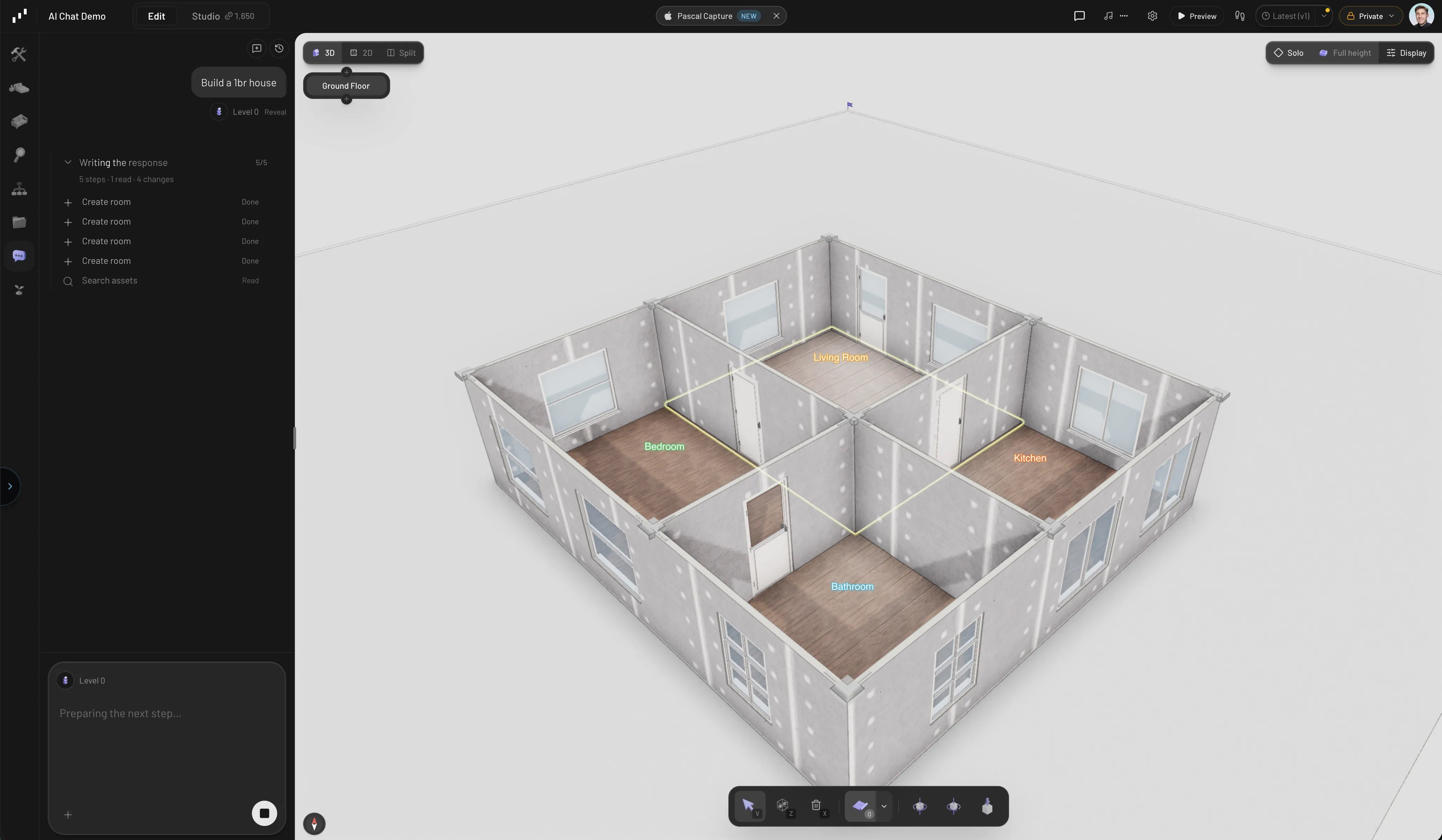
Every project has a built-in AI assistant that can read and edit your scene. Ask it to
build a room, furnish a bedroom, add a second floor, or explain what's already there —
it works with the same walls, items, and levels you edit by hand, and every change it
makes is saved as a version you can restore.
 ## Open the assistant
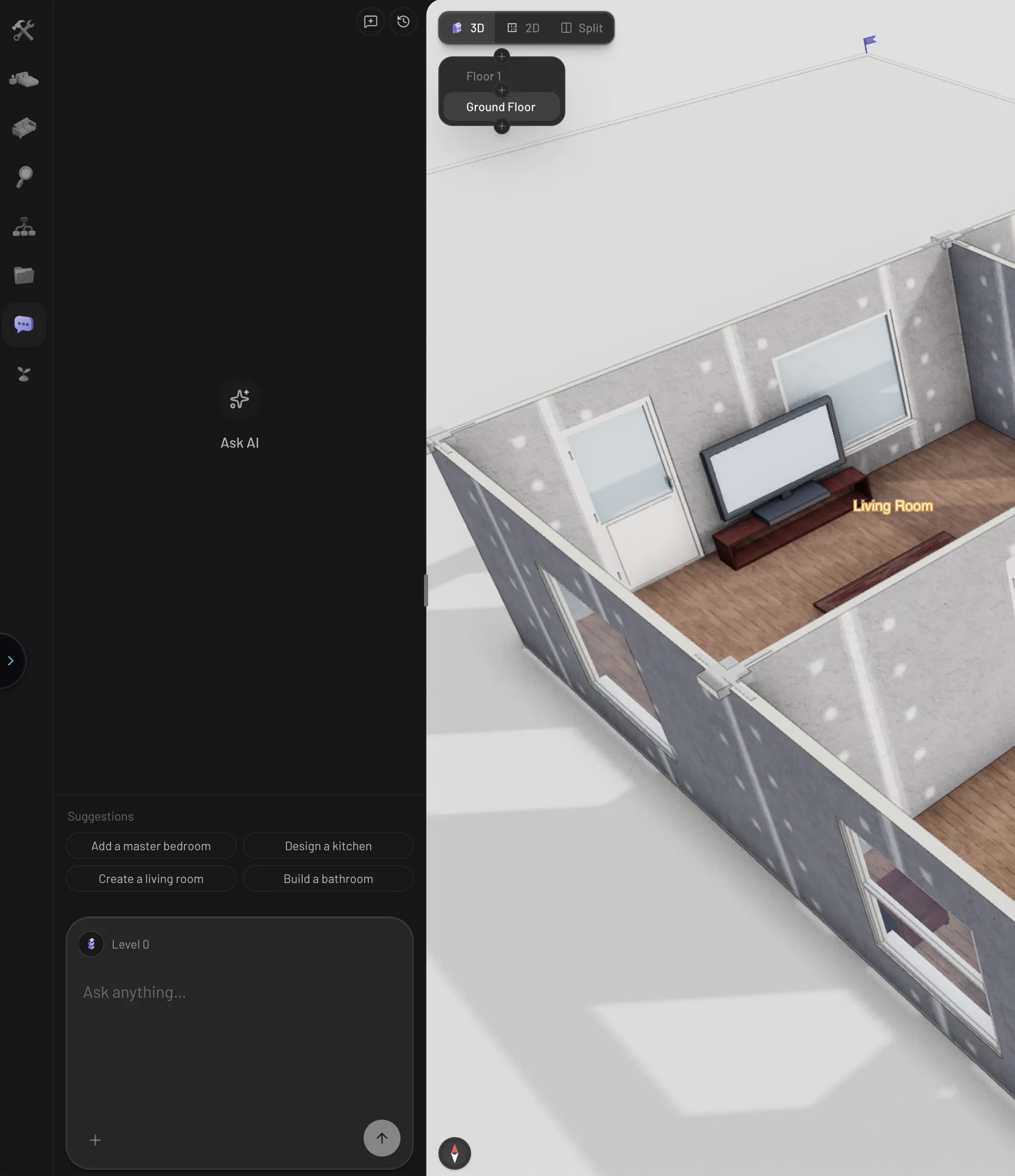
There are two ways to reach it inside an open project:
* **The Chat tab** — select **Chat** in the sidebar rail. This opens the full
conversation panel, where you can see the assistant's steps, past messages, and
attachments.
* **The command palette** — press `Cmd/Ctrl + K`, type what you want, and choose
**Ask AI**. Your request is sent straight to the assistant.
When the chat is empty, suggestion chips under the composer offer common starting
points. The chips change based on what you have selected in the scene — select a wall
and you'll see wall-specific suggestions.
## Open the assistant
There are two ways to reach it inside an open project:
* **The Chat tab** — select **Chat** in the sidebar rail. This opens the full
conversation panel, where you can see the assistant's steps, past messages, and
attachments.
* **The command palette** — press `Cmd/Ctrl + K`, type what you want, and choose
**Ask AI**. Your request is sent straight to the assistant.
When the chat is empty, suggestion chips under the composer offer common starting
points. The chips change based on what you have selected in the scene — select a wall
and you'll see wall-specific suggestions.
 ## What it can do
The assistant edits your scene through the same building blocks you use manually.
### Answer questions
It can inspect your scene without changing anything: list what's on a level, measure
rooms, check where doors and windows sit, or summarize the whole building. Ask things
like "how big is the living room?" or "which walls have no windows?".
### Build structure
* **Rooms** — draw a room from a description, complete with walls, floor, ceiling,
doors, and windows. Adjacent rooms share walls and get connecting doors.
* **Walls, doors, and windows** — add individual walls, or place openings on existing
walls in a range of door and window styles.
* **Levels and stairs** — add, duplicate, and reorder floors, and place staircases
that automatically cut an opening in the floor above.
* **Roofs, columns, fences, and shelves** — finish a build with a gable roof, add
columns or a site fence, or place parametric shelving.
### Furnish and decorate
It searches the same item catalog you browse in the Items tab, places furniture in
rooms, and stacks smaller items onto hosts — a lamp on a nightstand, art on a wall,
a pendant light on the ceiling. After placing items it checks its own work against a
floor-plan view of the room.
### Edit what's there
Ask it to rename, recolor, resize, rotate, move, or delete anything in the scene —
"make the kitchen walls sage green", "delete the second sofa", "rotate the bed to
face the window".
## Give it context
The more the assistant knows about what you mean, the better the result:
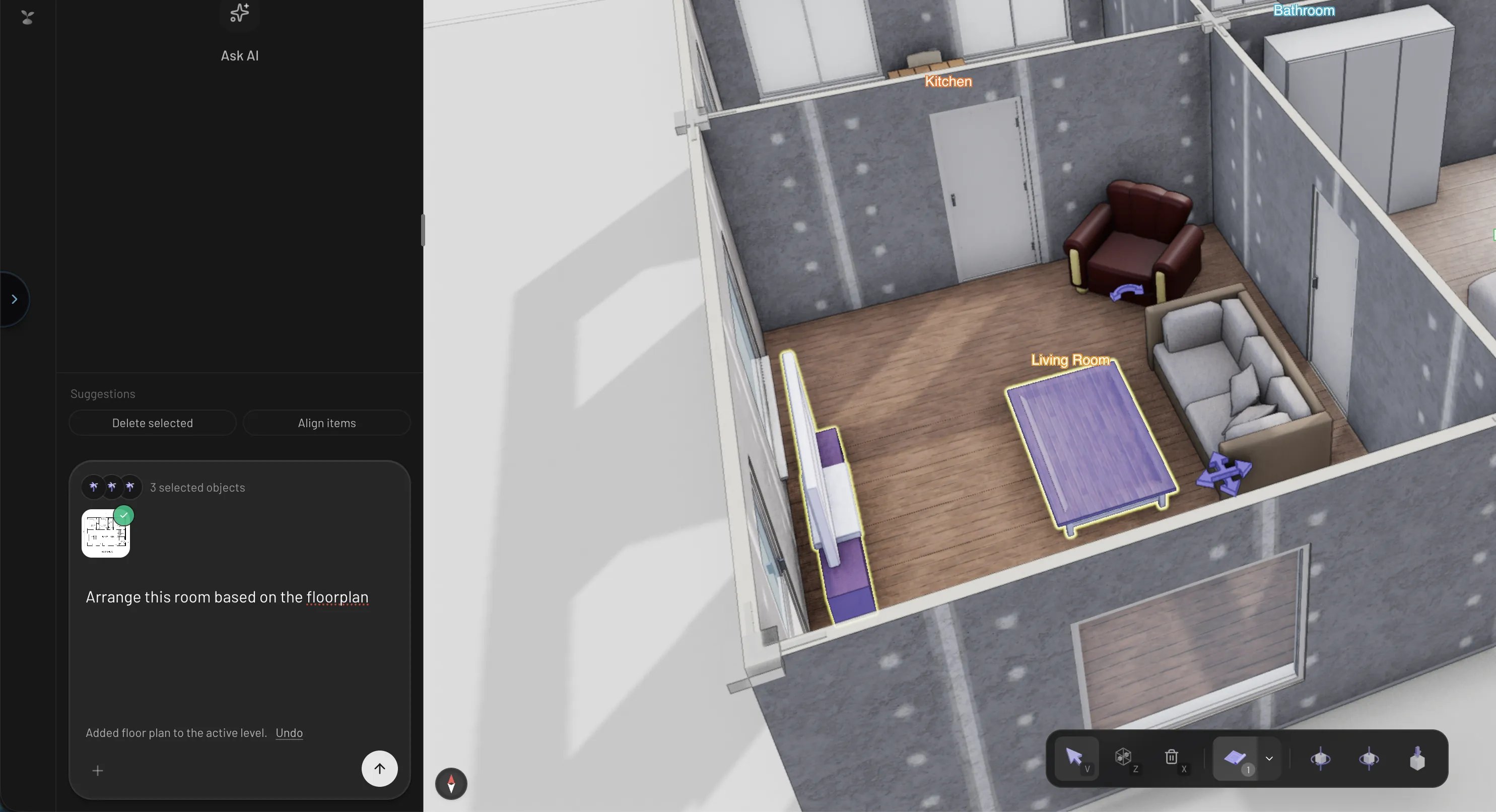
* **Select something first.** Your current selection is attached to your message, so
"make this taller" or "change its color" refers to the thing you selected.
* **Attach images and PDFs.** Drop files into the chat or use the attachment button —
a reference photo, a floor plan, a furniture brochure. Images and PDF documents are
supported.
* **Project files.** Files you've uploaded to the project's Files tab (scans, guides,
reference images) are available to the assistant — it can look them up on its own
when they're relevant.
## What it can do
The assistant edits your scene through the same building blocks you use manually.
### Answer questions
It can inspect your scene without changing anything: list what's on a level, measure
rooms, check where doors and windows sit, or summarize the whole building. Ask things
like "how big is the living room?" or "which walls have no windows?".
### Build structure
* **Rooms** — draw a room from a description, complete with walls, floor, ceiling,
doors, and windows. Adjacent rooms share walls and get connecting doors.
* **Walls, doors, and windows** — add individual walls, or place openings on existing
walls in a range of door and window styles.
* **Levels and stairs** — add, duplicate, and reorder floors, and place staircases
that automatically cut an opening in the floor above.
* **Roofs, columns, fences, and shelves** — finish a build with a gable roof, add
columns or a site fence, or place parametric shelving.
### Furnish and decorate
It searches the same item catalog you browse in the Items tab, places furniture in
rooms, and stacks smaller items onto hosts — a lamp on a nightstand, art on a wall,
a pendant light on the ceiling. After placing items it checks its own work against a
floor-plan view of the room.
### Edit what's there
Ask it to rename, recolor, resize, rotate, move, or delete anything in the scene —
"make the kitchen walls sage green", "delete the second sofa", "rotate the bed to
face the window".
## Give it context
The more the assistant knows about what you mean, the better the result:
* **Select something first.** Your current selection is attached to your message, so
"make this taller" or "change its color" refers to the thing you selected.
* **Attach images and PDFs.** Drop files into the chat or use the attachment button —
a reference photo, a floor plan, a furniture brochure. Images and PDF documents are
supported.
* **Project files.** Files you've uploaded to the project's Files tab (scans, guides,
reference images) are available to the assistant — it can look them up on its own
when they're relevant.
 When a request is ambiguous, the assistant asks before acting — it presents a short
question with a few concrete options to pick from, instead of guessing.
## Versions and control
* **Every AI edit is checkpointed.** After the assistant changes your scene, a saved
version appears in the conversation. Restore or publish it from the versions menu
above the scene tree — you can always roll back to before any AI edit.
* **Stop any time.** While the assistant is working, the send button becomes a stop
button. Stopping keeps whatever was already applied.
* **Threads.** Start a fresh conversation with the new-chat button, and revisit past
conversations from the history button at the top of the panel.
## Limits
* **One request at a time.** The assistant works through your message in steps, and
each turn has a step budget. Very large requests — "build a whole three-story
house, furnished" — can run out of steps; break big jobs into stages ("build the
ground floor layout", then "furnish the bedrooms").
* **It targets the level you're viewing** unless you name another one, so switch to
the right floor (or say which floor you mean) on multi-level builds.
* **Check the result.** The assistant verifies its own placements, but it can still
misjudge — the version checkpoint after each turn means a bad result is one restore
away.
* **It doesn't generate rendered images.** For turning your scene into AI-rendered
images and video, use [Studio renders](/ai/studio-renders).
When a request is ambiguous, the assistant asks before acting — it presents a short
question with a few concrete options to pick from, instead of guessing.
## Versions and control
* **Every AI edit is checkpointed.** After the assistant changes your scene, a saved
version appears in the conversation. Restore or publish it from the versions menu
above the scene tree — you can always roll back to before any AI edit.
* **Stop any time.** While the assistant is working, the send button becomes a stop
button. Stopping keeps whatever was already applied.
* **Threads.** Start a fresh conversation with the new-chat button, and revisit past
conversations from the history button at the top of the panel.
## Limits
* **One request at a time.** The assistant works through your message in steps, and
each turn has a step budget. Very large requests — "build a whole three-story
house, furnished" — can run out of steps; break big jobs into stages ("build the
ground floor layout", then "furnish the bedrooms").
* **It targets the level you're viewing** unless you name another one, so switch to
the right floor (or say which floor you mean) on multi-level builds.
* **Check the result.** The assistant verifies its own placements, but it can still
misjudge — the version checkpoint after each turn means a bad result is one restore
away.
* **It doesn't generate rendered images.** For turning your scene into AI-rendered
images and video, use [Studio renders](/ai/studio-renders).